
Choosing the right migration method is the single most important decision you will make before moving your business email to Microsoft 365. Get it wrong and you are looking at lost emails, confused staff, and a support queue that does not stop. Get it right and the whole thing can be done over a weekend with minimal disruption.
Which Microsoft 365 migration method suits your business?
There are four main ways to migrate email to Microsoft 365, and the right one depends on what you are migrating from, how many mailboxes you have, and how quickly you need to be done.
-
Cutover migration: Best for organisations with fewer than 150 mailboxes running Exchange 2003 or 2007. Everything moves in one go, typically over a weekend. Technically supports up to 2,000 mailboxes, but performance degrades badly beyond 150.
-
Staged migration: For Exchange 2003 or 2007 with more than 150 mailboxes. You move users in batches over several weeks, which keeps disruption low.
-
Hybrid migration: The right choice for Exchange 2010, 2013, or 2016, especially with larger teams. Full, minimal, and express hybrid options exist depending on your size and timeline.
-
IMAP migration: Used when your source system is not Exchange at all, such as Google Workspace or another IMAP-capable mail server. It moves email only, not contacts or calendar data.
Not sure which path fits your setup? The Microsoft Mail Migration Advisor asks you a series of questions about your current environment and recommends the right option automatically. Every migration, regardless of type, follows the same broad sequence: prepare your environment, configure a migration endpoint, create and run migration batches, verify data, then update your MX record.
How to migrate from Exchange Server to Microsoft 365
Migrating from an on-premises Exchange Server is the most common scenario for UK SMBs. Here is how the process works step by step.
-
Verify your domain. Add your on-premises domain as an accepted domain in your Microsoft 365 organisation. Migration will fail if this is not done first.
-
Configure Outlook Anywhere. The migration service connects to your Exchange Server via RPC over HTTP (Outlook Anywhere). Set this up and confirm it is accessible externally.
-
Assign migration permissions. The admin account used for migration needs Receive As permissions on the mailbox database you are migrating from.
-
Create a migration endpoint. This defines the connection settings and concurrency for mailbox synchronisation. A misconfigured endpoint is one of the most common causes of slow or failed migrations, so take your time here.
-
Choose your migration type. For Exchange 2003/2007 with under 150 mailboxes, cutover is fine. For larger organisations or Exchange 2010 and later, use hybrid. Staged migrations require directory synchronisation first and use CSV files to define batches.
-
Create and run migration batches. In the Exchange admin centre, create your batch, assign it to the endpoint, and start it. Monitor progress from the migration dashboard.
-
Verify data. Before touching DNS, confirm that mailbox contents have transferred correctly. Spot-check a handful of accounts across different departments.
-
Update the MX record. This is the final switch. Change your MX record only after verifying all mailboxes are fully migrated. Changing it too early can cause incoming email to disappear permanently. Allow up to 72 hours for propagation.
-
Reconfigure Outlook profiles. Users need to update their Outlook profiles post-migration. New credentials and a new mailbox location mean the old profile will not connect cleanly.
Can you import PST files into Microsoft 365?
Yes, and for businesses with large archives or legacy data, PST import is often the most practical route alongside a live migration.
| Method | Best for | Key consideration |
|---|---|---|
| Network upload | Organisations with good bandwidth | Faster but requires IT oversight |
| Drive shipping | Large data volumes or slow connections | Physical drives sent to Microsoft datacentres |
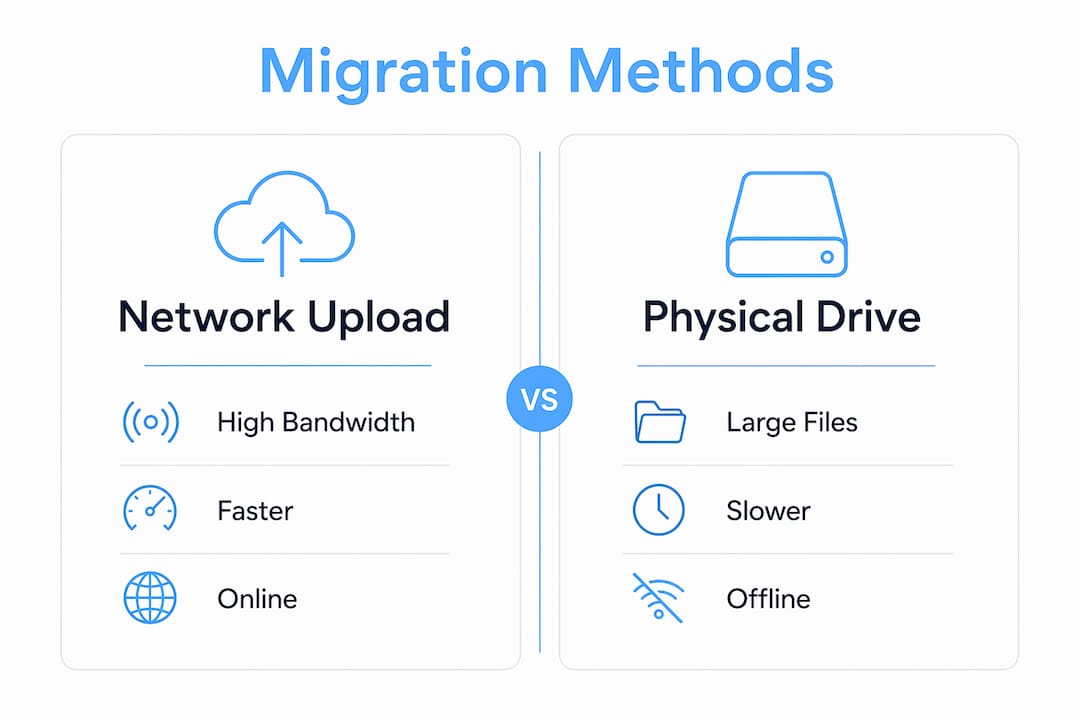
The Microsoft 365 Import Service supports both options. You prepare your PST files, map them to target mailboxes using a CSV mapping file, then either upload them via the Azure AzCopy tool or ship physical drives to a Microsoft facility. The service then ingests the data into Exchange Online.
PST import works well as a supplement when you have deep email archives that would slow down a live migration. It is not a replacement for a full migration, though. Contacts, calendar items, and tasks stored in PST files will import correctly, but you still need to handle live mailbox migration separately.
Pro Tip: Label your PST files clearly before import. A file called “archive_2019_sarah.pst” is far easier to map than “backup_final_v3.pst” when you are working through a CSV at midnight.
Migrating from Google Workspace or other IMAP systems
If your business is moving from Google Workspace, or any other IMAP-capable mail server, the process is slightly different. The key limitation to understand upfront: IMAP migration transfers email only. Contacts, calendar entries, and tasks do not come across. You will need to handle those separately, either manually or with a dedicated migration tool.
-
Create your Microsoft 365 user accounts and assign licences before starting. Mailboxes must exist in Microsoft 365 before IMAP migration can populate them.
-
Prepare a CSV file listing each user’s email address, username, and password for the source IMAP server.
-
Configure a migration endpoint pointing to your IMAP server’s fully qualified domain name (FQDN), port, and encryption settings.
-
For Google Workspace specifically, you will also need to create a mail routing subdomain such as m365.yourdomain.com to correctly route email during the transition period.
-
Create a migration batch in the Exchange admin centre using your CSV file, then start it and monitor synchronisation.
-
Once all email has synced, update your MX record to point to Microsoft 365 and delete the migration batch to stop ongoing synchronisation.
The Exchange admin centre wizard makes this process fairly guided, but the CSV preparation step catches people out regularly. Double-check your column headers: EmailAddress, UserName, and Password must be exact.
Helping your team import their own email after migration
Sometimes staff have old emails sitting in personal folders, exported archives, or a previous personal account that did not form part of the main migration. Here is how to handle that cleanly.
-
Export from the old account. In most email clients, users can export their mailbox as a PST file (Outlook) or use the built-in export function in their previous provider.
-
Import into Outlook. In Outlook for Microsoft 365, go to File > Open & Export > Import/Export, select “Import from another program or file,” choose the PST file, and map it to the correct folder.
-
Contacts and calendar data. These need to be exported separately, usually as a .csv for contacts and an .ics file for calendar events, then imported into the relevant Microsoft 365 apps.
-
Common pitfall. Users sometimes import into the wrong mailbox or create duplicate folders. Walk them through it once, or provide a one-page instruction sheet.
Post-migration Outlook profile reconfiguration is consistently one of the top sources of IT support requests after any migration. Getting ahead of it with clear user guidance saves hours of back-and-forth.
Should you use a migration partner?
For many UK SMBs, the honest answer is yes. If you have more than 150 mailboxes, a complex Exchange environment, or simply no dedicated IT resource, bringing in a specialist pays for itself in avoided downtime and mistakes.
-
Expertise on tap. Migration partners have done this dozens of times. They know which edge cases cause problems and how to avoid them.
-
Reduced downtime. A well-run migration by an experienced partner typically causes far less disruption than a first-time in-house attempt.
-
Post-migration support. Good partners do not disappear after the MX record changes. They stick around to handle Outlook profile issues, missing emails, and user questions.
-
When to hire one. Microsoft itself suggests considering a partner for organisations with 5,000 or more mailboxes, but the threshold for SMBs is often much lower if internal IT capacity is limited.
-
How to evaluate partners. Look for Microsoft Partner Network accreditation, ask for references from similar-sized UK businesses, and clarify exactly what post-migration support is included before signing anything.
If your business is also navigating broader digital marketing challenges alongside a migration, a partner who understands the full technology picture is worth finding.
Best practices for a successful migration

A few things separate a migration that goes smoothly from one that generates a week of support tickets.
Pre-migration checklist:
-
Audit all mailboxes and remove unused accounts before migrating.
-
Confirm your Microsoft 365 licences are assigned and active.
-
Test your migration endpoint before running a full batch.
-
Communicate the migration timeline to all staff at least a week in advance.
-
Back up critical mailboxes independently before starting.
During and after migration:
-
Run a small pilot batch first, covering a handful of non-critical mailboxes, before migrating everyone.
-
Monitor the migration dashboard actively. Errors surface here in real time.
-
Do not change the MX record until you have verified data in Microsoft 365.
-
Create an Autodiscover DNS record after migration so Outlook and mobile clients connect automatically.
-
Decommission your old mail server only after at least two weeks of clean operation on Microsoft 365.
Common issues and fixes:
-
Migration batch stuck at “Syncing”: Usually a misconfigured endpoint or a firewall blocking Microsoft’s IP ranges.
-
Missing emails after cutover: Often caused by premature MX record changes. Check the migration dashboard for items that failed to sync.
-
Users cannot connect in Outlook: Almost always an Outlook profile issue. Delete the old profile and let Autodiscover rebuild it.
Pro Tip: Schedule your MX record change for a Friday evening. That gives you the weekend to catch any routing issues before Monday morning, when the inbox traffic really picks up.
Data security and compliance during migration
Moving email is not just a technical exercise. For UK businesses, it touches on data protection obligations under UK GDPR and the Data Protection Act 2018.
Email data in transit between your on-premises server and Exchange Online is encrypted. Microsoft 365 uses TLS encryption for data in transit and BitLocker for data at rest in its datacentres. That said, your responsibilities do not disappear just because Microsoft handles the infrastructure.
Before migrating, identify any mailboxes that contain sensitive personal data, financial records, or legally privileged communications. These may need special handling or retention policies applied in Exchange Online before the migration completes. Microsoft 365’s compliance centre lets you configure retention labels and data loss prevention policies, which should be set up before users start working in the new environment.
For businesses in regulated sectors, such as legal, financial services, or healthcare, document your migration process. A written record of what data was moved, when, and how it was secured is good practice and may be required if you face a regulatory enquiry later.
Key takeaways
Choosing the correct migration method based on your mailbox count and source system is the single step that determines whether your email migration to Microsoft 365 succeeds or becomes a costly headache.
| Point | Details |
|---|---|
| Match method to mailbox count | Cutover suits under 150 mailboxes; staged or hybrid fits larger organisations. |
| Configure endpoints carefully | A misconfigured migration endpoint causes slow or failed synchronisation. |
| Time your MX record change | Change the MX record only after verifying all mailboxes have migrated successfully. |
| IMAP moves email only | Contacts and calendar data require separate export and import steps. |
| Plan for user reconfiguration | Outlook profiles must be rebuilt post-migration; communicate this to staff in advance. |
FAQ
What is the fastest way to migrate email to Microsoft 365?
Cutover migration is the fastest option, completing in a few days, and suits organisations with fewer than 150 mailboxes running Exchange 2003 or 2007.
Does IMAP migration move contacts and calendar data?
No. IMAP migration transfers email only. Contacts and calendar items must be exported and imported separately using dedicated tools or manual processes.
When should I change my MX record during migration?
Change your MX record only after verifying that all mailboxes have fully migrated. Changing it too early can cause incoming emails to be lost permanently, and propagation can take up to 72 hours.
Do I need a Microsoft partner to migrate email to Microsoft 365?
Not always, but for organisations with complex environments or limited IT resource, a Microsoft-accredited partner reduces risk significantly. Microsoft recommends considering specialist help for larger migrations.
Can I import old PST files into Microsoft 365?
Yes. The Microsoft 365 Import Service supports both network upload and physical drive shipment for PST files, making it practical for large archives or businesses with limited bandwidth.
Related reading: OneDrive vs Dropbox: which is right for your business? · Intune device management for UK small businesses