
Use a Purview retention policy for container-level enforcement across mailboxes, SharePoint sites, OneDrive, and Teams. Use retention labels when you need item-level granularity, such as marking a contract as a regulatory record with a different deletion rule from the rest of the mailbox. Most UK organisations need both. To start right now, navigate to Microsoft Purview portal > Solutions > Data Lifecycle Management > Policies > Retention policies and click New retention policy. If you prefer PowerShell, this guide includes a minimal New-RetentionCompliancePolicy example you can adapt for testing.
Key takeaways
Retention policies in Microsoft 365 are a compliance mechanism, not a backup: use Purview retention policies for container-level enforcement, retention labels for item-level granularity, and always involve legal counsel before setting any retention period.
| Point | Details |
|---|---|
| Policy vs label decision | Use retention policies for broad location coverage; use labels for item-level or regulatory record requirements. |
| Pilot before full rollout | Test on a small scope, validate Preservation Hold library behaviour, and document outcomes before expanding. |
| Preservation Lock is irreversible | Once applied, no admin can shorten the period or remove the policy; get written legal sign-off first. |
| Retention is not a backup | Purview retention preserves compliance evidence; it does not restore deleted data or replace a dedicated backup tool. |
| TTOY Digital can help | TTOY Digital provides Microsoft 365 governance and retention policy design for UK small businesses. |
Table of Contents
- What do you need before creating retention policies in Microsoft 365?
- What is the difference between retention policies and retention labels?
- Which locations and scope types does Purview retention support?
- How do you create a retention policy in Microsoft Purview, step by step?
- How do you create and publish retention labels?
- How long do retention settings take to apply, and what is the storage impact?
- What happens when you update or remove a policy, and what is Preservation Lock?
- Common configuration issues and how to troubleshoot them
- How do you monitor and audit retention policy coverage?
- UK compliance considerations and why retention is not a backup
- Sources
- FAQ
What do you need before creating retention policies in Microsoft 365?
Getting the permissions and planning decisions right before you touch the portal saves a lot of pain later. We have seen organisations spend days unpicking a policy that was created with the wrong scope type or without legal sign-off on the retention period.
Roles and licences
You need one of the following admin roles assigned in Microsoft Purview or Microsoft 365:
- Compliance Administrator: full access to Data Lifecycle Management and retention configuration.
- Records Management: scoped to retention labels and records management features.
- Exchange Administrator: required for Exchange-specific retention and archive mailbox tasks.
- Organisation Management (Exchange admin centre), needed for Messaging Records Management (MRM) tag work.
Check current role definitions in the Purview permissions documentation before assigning, as Microsoft updates role scopes periodically.
For licences, the baseline matters. Retention policies and labels in Microsoft Purview are included in Microsoft 365 E3, E5, Business Premium, and Office 365 E3/E5. Archive mailboxes (Exchange Online Archiving) are included in E3 and above, or as an add-on to Exchange Online Plan 1. Auto-expanding archives and some advanced auto-apply label features require E5 or the Microsoft 365 E5 Compliance add-on. If you are running Business Basic or Business Standard, check your licence entitlements carefully before designing a policy that depends on features you do not yet have.
Planning decisions to make before you click “New policy”
- Adaptive vs static scopes. Adaptive scopes query Azure AD attributes (department, country, job title) to dynamically include users or sites. Static scopes are a fixed list. Adaptive scopes require pre-creation in Purview before you can select them in a policy.
- Container vs item approach. Decide whether a blanket policy across a location is sufficient or whether specific documents and emails need individual labels with different actions.
- Auto-apply labels. If you want labels applied without user involvement, plan the sensitive information types, keywords, or trainable classifiers you will use.
- Legal and records team involvement. Retention periods are a legal decision, not just a technical one. Involve your legal counsel and records manager before you set any period.
Pro Tip: Create a simple retention schedule spreadsheet before opening the Purview portal. List each content type, the business owner, the required retention period, the legal basis, and whether it needs a label or a policy. That document becomes your audit evidence later.
What is the difference between retention policies and retention labels?
This is the question that trips up most admins early on, and the answer has real operational consequences.
A Purview retention policy applies at container level. It covers all current and future content in a location, every email in a mailbox, every file in a SharePoint site, without any action from users. It is the right tool when you want consistent, low-maintenance enforcement across a broad location.
A retention label applies at item level. A user applies it manually to a specific email or document, or an auto-apply rule applies it based on content characteristics. Only one retention label can apply to a single item at a time. Labels are more granular and more administratively demanding, but they are the only way to mark an item as a regulatory record or to apply a different retention action to one document within a site that has a policy already applied.
Precedence rules in plain English
When multiple settings compete, the rule is: the most restrictive wins. A legal hold (eDiscovery hold) overrides both labels and policies. Between a label and a policy, the label wins if it retains for longer. Between two policies on the same location, the longer retention period takes effect. Nothing can delete content that a hold is protecting.
When to use each
| Scenario | Use this |
|---|---|
| Retain all Teams channel messages for 3 years | Retention policy (Teams channel messages location) |
| Mark a specific contract as a 10-year regulatory record | Retention label (regulatory record option) |
| Auto-delete all Exchange mailbox content after 7 years | Retention policy with delete action |
| Apply different periods to HR files vs finance files in one SharePoint site | Retention labels with auto-apply rules |
| Archive emails to Exchange Online archive mailbox | MRM tag via archive policy (not a Purview retention policy) |
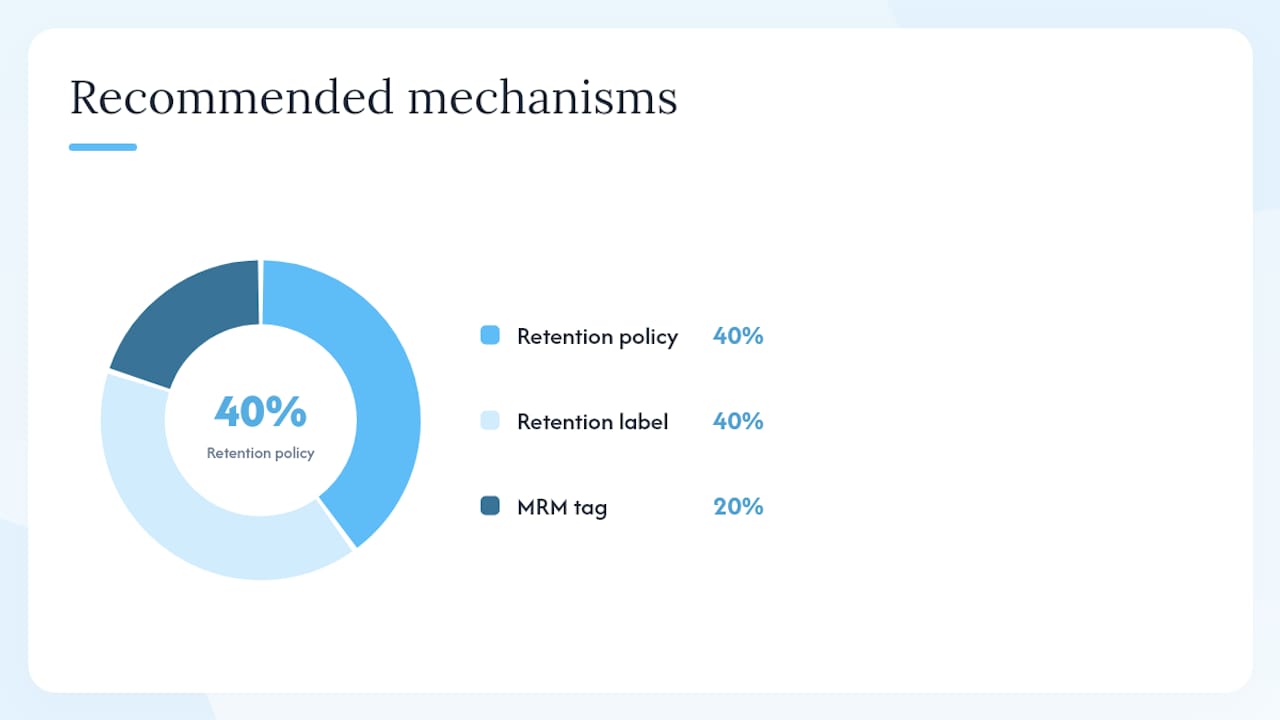
Note that last row. Exchange Online archiving via MRM and Purview retention policies are distinct mechanisms. MRM moves items to the archive mailbox; Purview retention keeps items in place for compliance. Do not expect a Purview policy to replicate archive-movement behaviour.
Which locations and scope types does Purview retention support?
Knowing exactly what you can target prevents the classic mistake of assuming a policy covers a location it does not.
Supported locations
| Location | What is covered | Key constraint |
|---|---|---|
| Exchange mailboxes | User and shared mailboxes, mail-enabled public folders | Inactive mailboxes included when scoped |
| SharePoint sites | Classic and modern sites, communication sites | Preservation Hold library consumes site quota |
| OneDrive accounts | User OneDrive for Business accounts | Accounts must be pre-provisioned to be included in static scopes |
| Microsoft 365 Groups | Group mailbox and connected SharePoint site | Covered together under the Groups location |
| Teams channel messages | Standard and shared channel messages | Mutually exclusive with Viva Engage on static policies |
| Teams chats | 1:1 and group chats, meeting chats | Separate location from channel messages |
| Teams call logs | Newly created call logs (PowerShell only from late April 2026) | Not available via portal for call logs at time of writing |
| Copilot and enterprise AI apps | Microsoft 365 Copilot interactions, Copilot Studio | Separate location; requires E5 or Copilot licence |
| Viva Engage (Yammer) | Community messages, private messages | Mutually exclusive with Teams on static policies |
Microsoft documents state that Teams and Viva Engage locations cannot coexist in the same static policy. If you need both, you must create two separate policies.
Adaptive vs static scopes
Static scopes are a fixed list of locations you specify at creation. They are simpler to set up but require manual updates when users join or leave, or when new sites are created. One practical headache: OneDrive accounts for new users are not always pre-provisioned, so a static policy created before a user’s OneDrive exists will not automatically pick it up.
Adaptive scopes query Azure AD attributes dynamically. A scope defined as “all users in the Finance department” will automatically include new Finance hires and exclude leavers as their attributes change. The trade-off is that you must create the adaptive scope as a separate object in Purview before you can reference it in a policy, and misconfigured scope queries are a common source of coverage gaps.
Pro Tip: For adaptive scopes, run a test query in the scope editor and verify the returned user or site count before saving. An overly broad query can pull in locations you did not intend to cover.
How do you create a retention policy in Microsoft Purview, step by step?
Here is the portal sequence, followed by a PowerShell equivalent for automation or bulk testing.
Portal steps
- Sign in to the Microsoft Purview portal and go to Solutions > Data Lifecycle Management > Policies > Retention policies.
- Click New retention policy and give it a clear, descriptive name (for example, “Exchange-7yr-RetainDelete-Finance”).
- Choose Adaptive or Static scope. If adaptive, select the pre-created scope. If static, proceed to location selection.
- Select the locations you want to cover. Toggle each location on and, for static scopes, specify included or excluded mailboxes, sites, or accounts.
- Set the retention action: Retain items for a specific period, Delete items after a specific period, or Retain items for a specific period, then delete them. For a 7-year retain-then-delete policy, choose the third option, set the period to 7 years, and set the trigger to “when items were created” or “when items were last modified” depending on your legal requirement.
- Review the summary, confirm the settings, and click Submit.
The policy will begin propagating, though content will not be immediately protected. Allow up to 7 days for Exchange and up to 7 days for SharePoint and OneDrive, with Teams sometimes taking longer.
PowerShell approach
Connect to Security & Compliance PowerShell first:
Connect-IPPSSession -UserPrincipalName admin@yourtenant.onmicrosoft.com
Create a minimal retention policy scoped to a single test mailbox:
New-RetentionCompliancePolicy -Name "Test-7yr-RetainDelete" `
 -ExchangeLocation "testuser@yourdomain.co.uk" `
 -Enabled $true

New-RetentionComplianceRule -Name "Test-7yr-Rule" `
 -Policy "Test-7yr-RetainDelete" `
 -RetentionDuration 2555 `
 -RetentionComplianceAction KeepAndDelete `
 -ExpirationDateOption CreationAgeInDays
RetentionDuration 2555 equals approximately 7 years in days. Always test on a single mailbox or a restricted SharePoint site before expanding scope.
How do you create and publish retention labels?
Retention labels give you item-level control that policies cannot. Here is how to author, publish, and auto-apply them.
Creating a retention label
In the Purview portal, go to Solutions > Data Lifecycle Management > Labels > Retention labels and click New label.
Set the retention period and the action at the end of the period (retain only, delete, or retain then delete). You can also mark the label as a record (prevents editing and deletion during the retention period) or a regulatory record (even more restrictive; cannot be unlocked by admins). Regulatory records are appropriate for content subject to strict legal obligations, such as financial services communications under FCA rules.
Publishing labels via a label policy
Once created, a label does nothing until you publish it. Go to Label policies > Publish labels, select the labels to publish, and choose the locations and users or groups who should see them. Published labels appear in Outlook’s retention menu and in SharePoint document libraries for users to apply manually.
Auto-apply options
Auto-apply rules remove the dependency on user action. You can trigger auto-apply based on:
- Sensitive information types (for example, UK National Insurance numbers or credit card data).
- Keywords or KQL queries (for example, documents containing “legally privileged” or “without prejudice”).
- Trainable classifiers (pre-built classifiers for categories like contracts, HR documents, or financial statements).
- Microsoft Syntex models applied to a SharePoint library.
- Power Automate compliance actions for custom workflow-driven labelling.
Where multiple auto-apply conditions match a single item, Microsoft’s precedence rules mean the oldest auto-apply policy can take effect in some conflict scenarios. Test auto-apply rules on a sample library before rolling out broadly, and check the label applied to a few items manually to confirm the right label won.
What users see
In Outlook, published labels appear in the Assign policy menu on an email. In SharePoint, they appear in the Apply label column in a document library. Users cannot apply more than one retention label to a single item, and they cannot remove a label that marks the item as a record.
How long do retention settings take to apply, and what is the storage impact?
Timing and storage are the two operational surprises that catch admins off guard.
Propagation timelines
Policy changes do not take effect instantly. As a general guide:
These are Microsoft’s documented guidance ranges, not guarantees. For large tenants or recently created policies, allow a full week before concluding that a policy has not applied. Do not rely on same-day enforcement for compliance deadlines.
Archive mailbox storage
Enabling an archive mailbox expands the Recoverable Items folder quota by 5 GB, from 100 GB to 105 GB. The default MRM archive policy moves items to the archive mailbox two years after delivery or creation. If you disable an archive mailbox, its contents can be recovered within 30 days before permanent deletion.
Preservation Hold library and storage quotas
When a Purview retention policy or label applies to a SharePoint site or OneDrive account, deleted or modified items are moved to the Preservation Hold library rather than disappearing. This library consumes site storage quota, even though users cannot see the content. An aggressive retain-then-delete policy on a heavily used SharePoint site can quietly eat through your tenant storage allocation. For capacity planning, factor in the volume of content subject to retention and the expected churn rate of that content.
Retention keeps content in place for compliance. It does not provide point-in-time recovery, protect against bulk accidental deletion, or replace a dedicated backup solution. Microsoft is explicit on this: if you need to restore a mailbox or a site to a previous state, you need a separate backup tool.
When a Microsoft 365 Group is deleted after a policy was applied, the connected SharePoint site and mailbox remain subject to the retention policy until you explicitly release that resource from the policy. Worth checking during offboarding workflows.
For OneDrive capacity planning, factor in that retained items in the Preservation Hold library count against the user’s OneDrive quota, not a separate compliance store.
What happens when you update or remove a policy, and what is Preservation Lock?
Editing a policy is straightforward until you lock it. Understanding the difference matters enormously.
Editing and removing policies safely
You can edit most policy settings after creation: the name, included or excluded locations, and the retention period. Use a staged approach. Change the scope on a small test group first, validate the behaviour, then expand. Removing a policy entirely releases content from retention, which means items that would have been retained may now be eligible for deletion. Document the change, get stakeholder sign-off, and confirm with legal before removing any policy covering regulated content.
For labels, you cannot delete a label that has been applied to content. You can unpublish a label (removing it from user menus) without affecting already-labelled items.
Preservation Lock: irreversible by design
Preservation Lock is a feature that makes a retention policy immutable. Once applied, no administrator, including a Global Administrator, can shorten the retention period, reduce the scope, or remove the policy. The only permitted changes are extending the period or expanding the scope.
A practical checklist before applying Preservation Lock:
- Written legal sign-off on the retention period and scope.
- Test evidence that the policy behaves as expected.
- Documentation of the locked policy settings stored outside Microsoft 365 (in case you need to prove the settings to a regulator).
- Rollback plan confirmed as “not possible” and stakeholders aware.
Common configuration issues and how to troubleshoot them
Most retention problems fall into a small number of patterns. Here is what to check first.
- Teams and Viva Engage on the same static policy. These locations are mutually exclusive on static policies. If you need both, create two separate policies. The portal will warn you, but it is easy to miss.
- Private channel messages. Private channel messages are stored differently from standard channel messages. If you are migrating private channels or have recently created them, verify that your policy scope includes the correct location and that the channel has been provisioned correctly before assuming coverage.
- Teams call logs. As of late April 2026, newly created Teams call logs can be included in retention policies, but only via PowerShell, not the portal. If call log retention is a compliance requirement, you must use
New-RetentionCompliancePolicywith the appropriate location parameter. - Adaptive scope misconfiguration. A scope query that returns zero results will silently cover nothing. After creating an adaptive scope, check the estimated member count in the scope editor. If it shows zero, your query attributes are likely wrong or the Azure AD attributes are not populated for your users.
- OneDrive pre-provisioning. OneDrive accounts are not created until a user first signs in. A static policy created before a user’s OneDrive exists will not cover that account. Either use adaptive scopes (which pick up accounts as they are provisioned) or run a pre-provisioning script before applying static policies.
- Label precedence conflicts. If an item has an auto-apply label applied and a second auto-apply policy also matches, the oldest policy’s label generally wins. Check the label applied to sample items after running multiple auto-apply policies in the same location.
Diagnostic checklist:
- Confirm the policy status shows as Active in the Purview portal (not Pending or Error).
- Use Content Search in Purview to verify that a sample item is retained in the Preservation Hold library or the Recoverable Items folder.
- Check the Activity Explorer for label application events on specific items.
- For Exchange, use the
Get-MailboxandGet-RetentionCompliancePolicyPowerShell cmdlets to confirm policy assignment. - If a policy is not applying after 7 days, raise a support ticket with Microsoft and include the policy GUID, the affected location, and the date the policy was created.
How do you monitor and audit retention policy coverage?
Demonstrating that your policies are working is as important as creating them, particularly for ICO audits or internal governance reviews.
The core monitoring tools in Microsoft Purview are:
- Activity Explorer (under Data Classification): shows label application, label changes, and policy matches on specific items. Useful for spot-checking auto-apply behaviour.
- Content Search: lets you search for items with a specific retention label applied, or items in the Preservation Hold library. Use this to validate that content is being retained as expected.
- Audit Log (Microsoft Purview compliance portal): records admin actions including policy creation, modification, and deletion. Export audit logs and store them outside Microsoft 365 for your own records.
- Data Lifecycle Management reports: the Reports section in Data Lifecycle Management shows label activity, top labels applied, and policy coverage summaries.
Audit checklist for internal or external review
- Policy exists in Purview, is active, and matches the documented retention schedule.
- Scope has been validated (adaptive scope query verified, or static scope list reviewed).
- Pilot evidence exists: test items confirmed retained or deleted as expected.
- Legal sign-off documented for each retention period.
- Holds reviewed: any active eDiscovery holds documented and scoped.
- Storage capacity reviewed: Preservation Hold library growth monitored.
- Annual review date set and assigned to a named owner.
To export evidence for regulators, use the Export function in Content Search to produce a report of retained items, and export the audit log for the relevant date range. Store both outside Microsoft 365, ideally in an immutable storage location.
UK compliance considerations and why retention is not a backup
This is where the technical configuration meets the legal reality, and where getting it wrong has consequences.
Retention is a compliance mechanism, not a backup
Microsoft is clear: Purview retention keeps content in place to satisfy compliance obligations. It does not offer point-in-time recovery, does not protect against bulk accidental deletion, and does not replace a purpose-built backup solution. We have seen organisations discover this the hard way after a mass-delete event, expecting retention to restore their data. It will not. Retention preserves evidence; backup restores operations. You need both, and they serve different purposes.
Legal holds override everything
A legal hold overrides automated retention and deletion. When litigation or a regulatory investigation is reasonably anticipated, you must suspend routine deletions and preserve all relevant data. Failing to do so can result in sanctions for spoliation of evidence. In Microsoft 365, this means placing an eDiscovery hold (Litigation Hold or In-Place Hold via Exchange, or a Purview eDiscovery hold) on the relevant mailboxes and sites before any automated deletion policy fires. The hold takes precedence over any retention policy or label that would otherwise delete the content.
UK-specific compliance considerations
UK organisations face a specific set of obligations that should shape retention periods:
- UK GDPR and the Data Protection Act 2018: personal data should not be kept longer than necessary for its original purpose. Retention policies that keep personal data indefinitely are a compliance risk. The ICO’s guidance on storage limitation is the starting point for any retention schedule involving personal data.
- Data subject access requests (DSARs) and right to erasure: a retention label that marks an item as a regulatory record prevents deletion, which can conflict with a right-to-erasure request. Legal counsel should map which content categories are subject to erasure rights and which are exempt under legitimate retention obligations.
- Sector-specific periods: financial services firms under FCA rules typically retain records for 5–7 years; employment records have their own schedules under HMRC and employment law; tax records should generally be kept for 6 years. Align your retention schedule with the relevant sectoral obligations, and review it annually as regulations change.
- Multi-geo and hybrid deployments: if your organisation uses Microsoft 365 Multi-Geo, retention policies can be scoped to specific geo locations. Verify that your policy covers all geo instances where regulated data resides, not just the primary geo. For hybrid Exchange deployments, on-premises mailboxes are not covered by Purview retention policies; they require separate on-premises archiving or MRM configuration.
For email migration projects that move on-premises mailboxes to Exchange Online, plan retention policy application as part of the migration cutover, not as an afterthought.
A practical note from a Microsoft 365 integrator
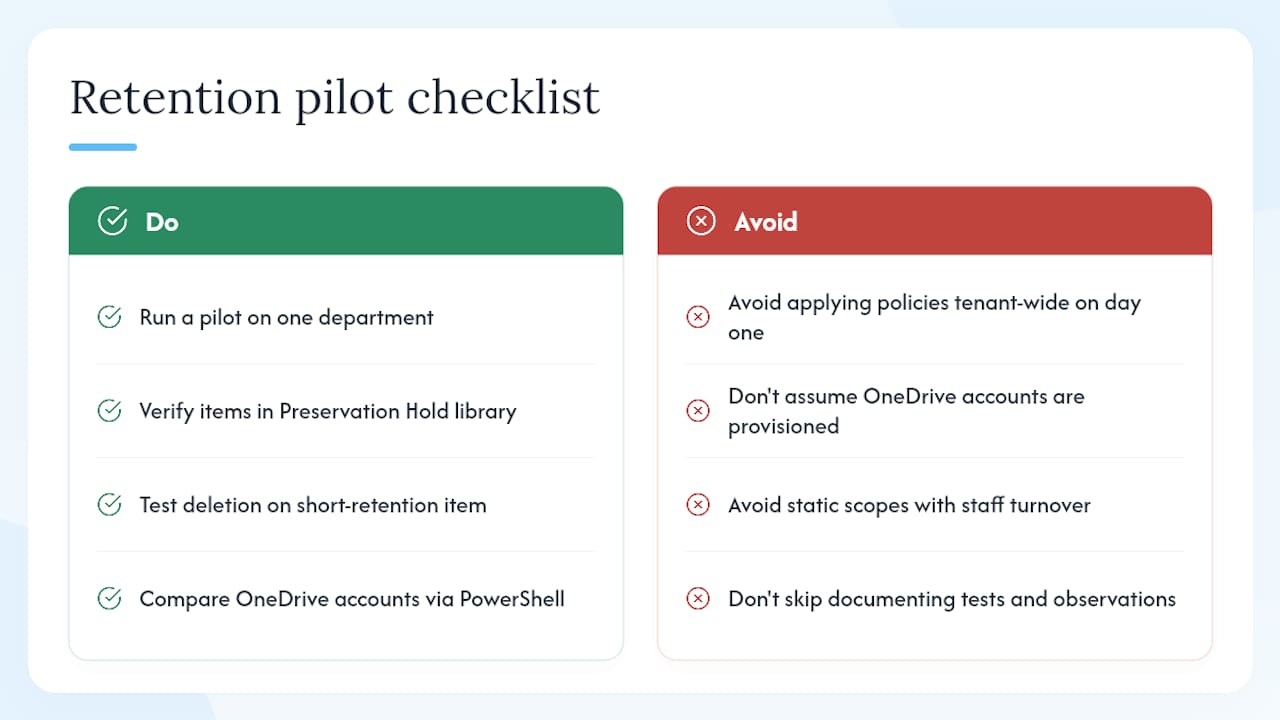
One thing we see consistently on governance projects: organisations apply retention policies to their full tenant on day one, then spend weeks troubleshooting coverage gaps they could have caught in an afternoon. The fix is straightforward. Before you go broad, run a pilot on a single department or a dedicated test SharePoint site. Verify that items appear in the Preservation Hold library after modification. Confirm that the deletion action fires correctly on a test item with a short retention period (a few days is fine for testing). Document what you tested and what you observed.
For OneDrive specifically, check that the accounts you intend to cover are pre-provisioned. Run a quick PowerShell query against your user list and compare it to the OneDrive admin centre to spot any accounts that have not been initialised. Adaptive scopes handle this more gracefully than static scopes, which is one reason we tend to recommend them for organisations with regular staff turnover.
TTOY Digital has delivered Microsoft 365 governance projects for UK small businesses, covering retention policy design, archive provisioning, and compliance workshops. The most common finding is that the technical configuration is the easy part; the retention schedule itself, agreed with legal and records teams, is where the real work happens.
Need help setting up Microsoft 365 retention policies?
Getting retention right the first time saves a significant amount of rework, and the stakes are real: a misconfigured policy can leave regulated data unprotected or trigger an ICO audit finding. TTOY Digital offers Microsoft 365 integration and governance services for UK small businesses, including retention policy design, archive provisioning, compliance gap analysis, and hands-on configuration support. Whether you need a one-off policy review or ongoing managed governance, we can help you build a setup that satisfies your legal obligations without overcomplicating your day-to-day admin.
To get started, visit our services page or get in touch to book a short discovery call where we can review your current Microsoft 365 configuration and identify any gaps.
Sources
- Create and configure retention policies
- Email Retention Policy: Legal Requirements and Compliance - LegalClarity
FAQ
How do retention policies work in Microsoft 365?
Content subject to a policy is preserved in place (in the Preservation Hold library for SharePoint/OneDrive, or the Recoverable Items folder for Exchange) even if a user deletes it.
Where do you find retention policies in the Microsoft 365 admin portal?
Retention policies are in the Microsoft Purview portal under Solutions > Data Lifecycle Management > Policies > Retention policies, not in the standard Microsoft 365 admin centre.
What is a 7-year retention policy in Microsoft 365?
A 7-year retention policy retains content for approximately 7 years from creation or last modification, then either deletes it automatically or flags it for review. It is commonly used for financial records and tax documentation in UK organisations, where HMRC guidance recommends keeping business records for 6 years from the end of the relevant accounting period.
How do you run or trigger a retention policy in Outlook?
End users cannot run a retention policy manually. Policies apply automatically in the background. Users can apply a retention label manually in Outlook via the Assign policy menu on an email, but the underlying policy enforcement is handled by Microsoft 365 without user action.
Does a legal hold override a retention policy?
Yes. A legal hold (eDiscovery hold or Litigation Hold) takes precedence over any retention policy or label that would otherwise delete content. When a hold is in place, content is preserved regardless of what the retention policy says, until the hold is explicitly released.
Recommended
- Microsoft 365 for Business, Standard & Secure Plans | TTOY Digital
- Intune device management for UK small businesses: 2026 guide | TTOY Digital
- Migrate email to Microsoft 365: your complete 2026 guide | TTOY Digital
- OneDrive vs Dropbox: which is right for your business? | TTOY Digital
Related reading: Microsoft 365 backup options · Intune device management for UK small businesses