
Set up DKIM signing and publish your DKIM selector first, then publish a single SPF TXT record at your domain apex, then add a monitoring DMARC record pointing to a reporting inbox. Verify all three with dig or PowerShell before you send a single test message. Roll DMARC from p=none to p=reject over 60–90 days, watching aggregate reports throughout.
Here is the day-zero sequence to follow:
- Inventory all senders: list every service that sends mail from your domain (your mail server, marketing platform, CRM, helpdesk, and so on).
- Author a single SPF TXT record at the domain apex listing all authorised sending IPs and includes.
- Generate or retrieve DKIM keys from your mail provider or control panel, publish the public key at
selector._domainkey.yourdomain.com, and enable signing on your outbound mail stream. - Publish a monitoring DMARC record at
_dmarc.yourdomain.comwithp=noneand a validrua=address. - Verify with DNS tools: run
dig TXT yourdomain.com,dig TXT selector._domainkey.yourdomain.com, anddig TXT _dmarc.yourdomain.comto confirm all three records are visible. - Send a test message and inspect the
Authentication-Resultsheader to confirm SPF pass, DKIM pass, and DMARC pass. - Monitor aggregate reports for 2–4 weeks, fix any failing senders, then begin escalating DMARC policy toward
p=reject.
Quick online checks to run immediately after publishing: MXToolbox for DNS record visibility, DMARCian for DMARC record validation, and Valimail for a sender-inventory overview.
Key takeaways
Correct SPF, DKIM and DMARC setup requires a single SPF record at the apex, active DKIM signing with a published selector, and a DMARC record that starts at p=none and escalates to p=reject over 60–90 days of monitored aggregate reports.
| Point | Details |
|---|---|
| Publish in the right order | Enable DKIM signing first, then publish SPF, then add a monitoring DMARC record. |
| One SPF record only | Multiple SPF TXT records at the apex cause immediate failures; merge them into one. |
| Watch the 10-lookup limit | Exceeding the SPF lookup limit returns a permanent error; audit your count with every new sender. |
| Escalate DMARC deliberately | Move from p=none to p=reject over 60–90 days, using aggregate reports to fix failing senders first. |
| TTOY Digital managed setup | TTOY Digital handles DNS publishing, DKIM key management, and DMARC monitoring for UK SMEs. |
Table of Contents
- What are SPF, DKIM and DMARC, and how do they work together?
- How to author and publish a correct SPF record
- How to generate and publish DKIM records
- How to author a DMARC record and roll out safely
- How to verify your setup is working
- Common failures and how to fix them
- Production checklist and operational best practices
- When should you handle this in-house, and when should you bring in help?
- The part most guides get wrong about DMARC enforcement
- Sources
- FAQ
What are SPF, DKIM and DMARC, and how do they work together?
These three protocols are complementary email authentication standards. Each solves a different part of the spoofing problem, and together they reduce domain impersonation in ways that none can achieve alone.
SPF (Sender Policy Framework, RFC 7208) is the authorised-senders list. Think of it as a bouncer checking whether the IP address knocking on the door is on the guest list. The receiving mail server looks up your domain’s SPF TXT record and checks whether the connecting IP is listed. If it is not, SPF fails.
DKIM (DomainKeys Identified Mail, RFC 6376) is the cryptographic wax seal on the envelope. Your sending server signs outgoing messages with a private key; the receiver fetches your public key from DNS and verifies the signature. Because the signature travels with the message content, DKIM survives email forwarding in a way SPF cannot. When a forwarded message arrives from a different IP, SPF fails but DKIM still passes.
DMARC (Domain-based Message Authentication, Reporting, and Conformance, RFC 7489) is the enforcement layer. It tells receivers what to do when SPF or DKIM fail, and it requires alignment: the domain in the From: header must match the domain that passed SPF or DKIM. Without alignment, a passing SPF result from a different domain is not enough.
DMARC passes when at least one of SPF or DKIM passes and the result is aligned with the From: domain. Alignment can be relaxed (subdomains count) or strict (exact match only), controlled by the aspf= and adkim= tags in your DMARC record.
| Protocol | DNS record location | What the receiver checks | Survives forwarding? |
|---|---|---|---|
| SPF | yourdomain.com (apex TXT) |
Connecting IP against authorised list | No |
| DKIM | selector._domainkey.yourdomain.com |
Cryptographic signature against public key | Yes |
| DMARC | _dmarc.yourdomain.com |
Policy, alignment, and reporting | Yes (via DKIM) |
Google and Yahoo required all three protocols for bulk senders from February 2024, and Microsoft expanded similar requirements in 2025. If you send more than a handful of messages per day, these are no longer optional hygiene steps.
How to author and publish a correct SPF record
Domains must publish exactly one SPF TXT record at the apex, and that record must not exceed the 10-DNS-lookup limit. Both rules catch more teams off guard than almost any other DNS configuration detail.
SPF record syntax and structure
Every SPF record starts with v=spf1 and ends with an all mechanism. The mechanisms in between list your authorised senders:
v=spf1 include:spf.protection.outlook.com ~all
That single line covers a Microsoft 365-only setup. The ~all (softfail) is appropriate during initial rollout; switch to -all (hardfail) once you are confident the record is complete.
A more typical multi-sender record looks like this:
v=spf1 mx include:spf.protection.outlook.com include:sendgrid.net include:_spf.google.com ~all
Each include: that references another domain triggers a DNS lookup. The mx mechanism also triggers a lookup per MX record. Add them up and you will often hit the limit faster than expected.
The 10-lookup limit
SPF enforces a hard limit of 10 DNS lookups per evaluation. Exceed it and receiving servers are permitted to return a permanent error, causing SPF to fail even for legitimate mail. Marketing stacks and CRM platforms are the usual culprits: each include: you add for a SaaS sender can itself nest further includes.
Practical mitigations:
- Prioritise includes: keep only the senders that actually send from your primary domain; move others to a subdomain.
- SPF flattening: replace
include:chains with the resolved IP ranges directly. This removes the lookup overhead but requires manual updates whenever a provider changes its IP ranges. - Dedicated sending subdomains: route your marketing platform through
mail.yourdomain.comwith its own SPF and DKIM alignment, keeping the apex record lean.
Statistic callout: The 10-lookup limit is a hard protocol rule, not a soft recommendation. Receivers that implement RFC 7208 strictly will return
permerrorwhen the limit is exceeded, which DMARC treats as an SPF failure.
Checking your SPF record
# Linux / macOS
dig TXT yourdomain.com

# Windows PowerShell
Resolve-DnsName -Name yourdomain.com -Type TXT

# nslookup (cross-platform)
nslookup -type=TXT yourdomain.com
Look for the line beginning v=spf1. If you see two such lines, you have a misconfiguration, merge them into one.
SPF troubleshooting checklist:
- Multiple SPF records published? Merge into one.
- A SaaS sender not in the record? Add its
include:or move it to a subdomain. - Lookup count over 10? Flatten or use subdomain routing.
- Forwarded mail failing SPF? Expected, DKIM alignment is your safety net here.
How to generate and publish DKIM records
DKIM public keys live in DNS at selector._domainkey.yourdomain.com, where selector is a label you (or your provider) choose. A single domain can have multiple selectors active simultaneously, which is what makes key rotation possible without downtime.
DKIM TXT record structure
A typical DKIM TXT record looks like this:
v=DKIM1; k=rsa; p=MIGfMA0GCSqGSIb3DQEBAQUAA4GNADCBiQ...
v=DKIM1, version tag (required)k=rsa, key typep=, the Base64-encoded public key
Use at least 2048-bit RSA keys. Some older systems only support 1024-bit, but that length is now considered weak.
Setting up DKIM for common environments
Microsoft 365: Navigate to the Microsoft 365 Defender portal, go to Email & Collaboration > Policies & Rules > Threat Policies > DKIM, select your domain, and enable signing. Microsoft generates two selectors (selector1 and selector2) and provides the CNAME records to publish in your DNS. Full vendor-specific steps are in Microsoft Learn.
Self-hosted Postfix with OpenDKIM: Generate a key pair with opendkim-genkey -b 2048 -d yourdomain.com -s myselector, publish the .txt output as a TXT record at myselector._domainkey.yourdomain.com, and configure /etc/opendkim.conf to sign outbound mail with that selector.
Other hosted providers (Google Workspace, cPanel-based hosts, and similar): each has a control panel option to generate a key and display the TXT record to publish. The pattern is always the same: generate the key pair on the sending side, publish the public key in DNS, enable signing.
Selector naming and key rotation
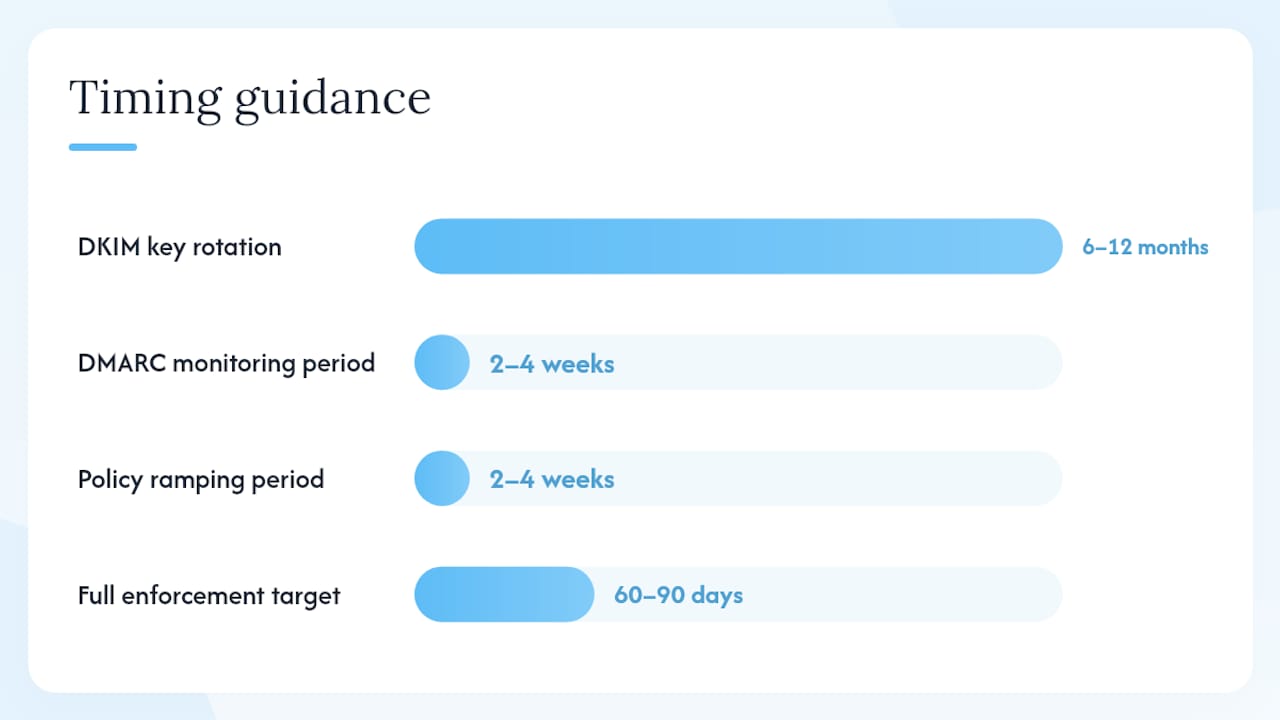
Rotate DKIM keys every 6–12 months. The safe rotation sequence is: publish a new selector in DNS, switch signing to the new selector, wait until you see the new selector appearing in received message headers, then remove the old key. Never delete the old key before confirming the new one is signing live traffic.
Pro Tip: When you rotate, keep the old selector record published for at least 48 hours after switching signing. Some mail servers cache DKIM lookups, and a premature deletion will cause verification failures for messages already in transit.
Verifying DKIM from the command line
# Query a specific selector
dig TXT selector1._domainkey.yourdomain.com

# PowerShell equivalent
Resolve-DnsName -Name "selector1._domainkey.yourdomain.com" -Type TXT
In a received message, open the raw headers and look for DKIM-Signature: v=1; a=rsa-sha256; d=yourdomain.com; s=selector1;. The d= value should match your From: domain and the s= value should match a selector you have published.
How to author a DMARC record and roll out safely
DMARC records live at _dmarc.yourdomain.com and support a range of tags that control policy, alignment, and reporting. Getting the record right from day one saves a lot of pain later.
DMARC record anatomy
v=DMARC1; p=none; rua=mailto:dmarc-reports@yourdomain.com; ruf=mailto:dmarc-forensic@yourdomain.com; fo=1; adkim=r; aspf=r; pct=100
Key tags:
p=, policy:none(monitor only),quarantine(send to spam), orreject(block)rua=, aggregate report destination (XML summaries, sent daily)ruf=, forensic report destination (per-message failure data; optional)fo=, forensic reporting options (1= report on any failure)adkim=, DKIM alignment:r(relaxed) ors(strict)aspf=, SPF alignment:r(relaxed) ors(strict)pct=, percentage of messages the policy applies to (useful for staged rollout)
Starter records for each stage
Monitoring only (day 0):
v=DMARC1; p=none; rua=mailto:dmarc@yourdomain.com; fo=1;
Staged quarantine (after remediating failing senders):
v=DMARC1; p=quarantine; pct=10; rua=mailto:dmarc@yourdomain.com;
Full enforcement:
v=DMARC1; p=reject; rua=mailto:dmarc@yourdomain.com;
Rollout timeline
A 60–90 day staged progression is the standard recommendation for smaller organisations, with larger enterprises typically taking longer:
- Weeks 1–4: Publish
p=nonewithrua=pointing to a monitored inbox. Do not touch policy yet. - Weeks 5–6: Review aggregate reports. Fix any legitimate senders that are failing SPF or DKIM alignment.
- Weeks 7–8: Move to
p=quarantine; pct=10. Watch for legitimate mail landing in spam. - Weeks 9–10: Ramp
pctto 50, then 100. - Weeks 11–12: Move to
p=reject; pct=100.
Aggregate and forensic reports
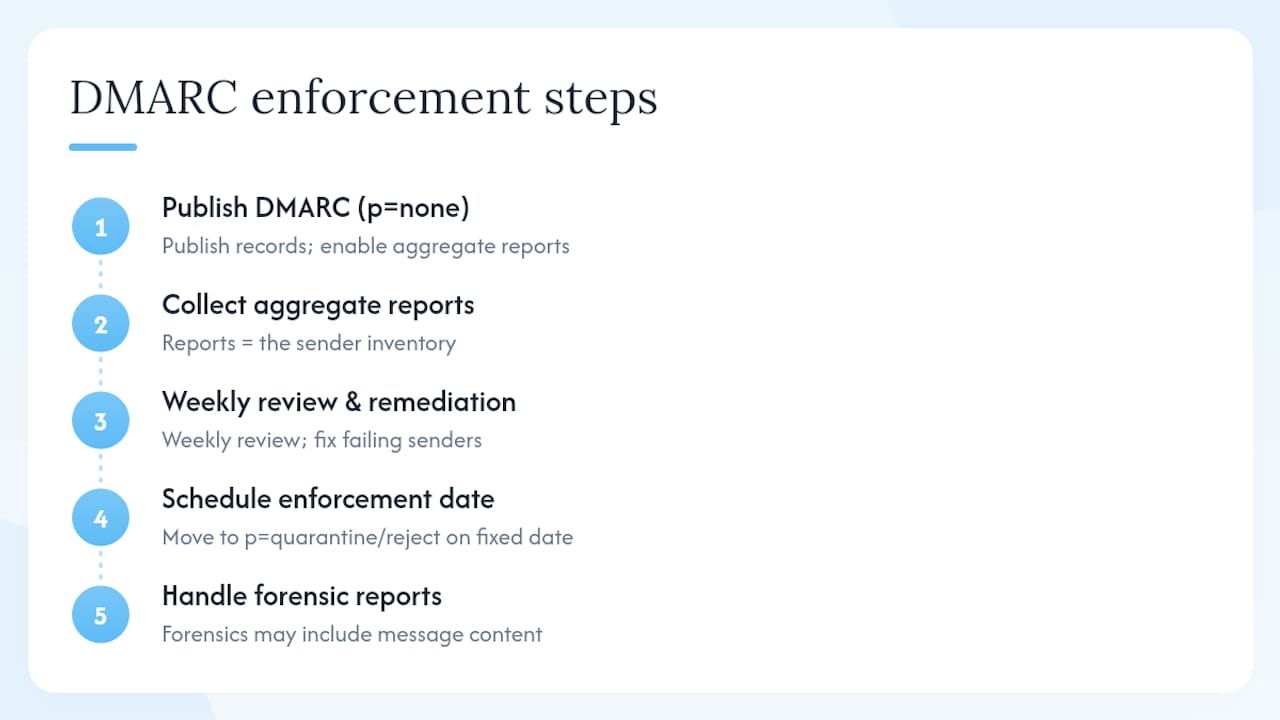
Aggregate rua reports are XML summaries that arrive daily from each receiving provider. They show which IPs sent mail claiming to be your domain, and whether SPF and DKIM passed or failed. These are your primary operational data source during rollout.
Forensic ruf reports contain per-message data and may include message headers or body samples. Under UK data protection law, treat these with care: avoid routing forensic reports to shared inboxes, and consider whether you need them at all. Aggregate reports are sufficient for most rollouts.
Parsing tools: DMARCian provides a hosted report parser that turns raw XML into readable dashboards. Valimail offers sender-inventory automation on top of report parsing. MXToolbox includes a DMARC analyser for quick record validation. All three are available to UK-based operators.
How to verify your setup is working
Verification is not a one-time step. Run it after every DNS change and after onboarding a new sending service.
DNS checks
# SPF record at apex
dig TXT yourdomain.com | grep spf

# DKIM selector
dig TXT selector1._domainkey.yourdomain.com

# DMARC record
dig TXT _dmarc.yourdomain.com

# PowerShell equivalents
Resolve-DnsName -Name yourdomain.com -Type TXT
Resolve-DnsName -Name "selector1._domainkey.yourdomain.com" -Type TXT
Resolve-DnsName -Name "_dmarc.yourdomain.com" -Type TXT

# host command (Linux)
host -t TXT yourdomain.com
host -t TXT _dmarc.yourdomain.com
Header inspection
Send a test message to a Gmail address, open it, and click More > Show original. Look for the Authentication-Results: header:
Authentication-Results: mx.google.com;
 spf=pass (google.com: domain of sender@yourdomain.com designates 1.2.3.4 as permitted sender)
 dkim=pass header.i=@yourdomain.com header.s=selector1
 dmarc=pass (p=NONE sp=NONE dis=NONE) header.from=yourdomain.com
All three should read pass. A dmarc=fail with p=NONE means the policy is monitoring but authentication is broken somewhere.
Online tools
- MXToolbox: checks SPF, DKIM and DMARC record syntax and flags common errors.
- DMARCian: validates your DMARC record and provides a free report inbox for small volumes.
- Valimail: gives a sender-inventory view and flags unauthenticated sources.
- Mail-Tester: sends a test message and scores your authentication, content, and reputation.
Verification checklist:
- SPF TXT record visible at apex, single record, no lookup errors
- DKIM selector TXT record visible, public key present
- DMARC TXT record visible at
_dmarc.yourdomain.com - Test message shows
spf=pass,dkim=pass,dmarc=passin headers - DMARC aggregate report received within 24 hours of first mail flow
Pro Tip: Use Mail-Tester before and after any major DNS change. It gives you a score out of 10 and flags exactly which authentication check failed, which is faster than reading raw headers during an incident.
Common failures and how to fix them
Most authentication problems fall into a small number of patterns. Here is what to look for and what to do.
Multiple SPF records published
- Symptom:
dig TXT yourdomain.comreturns two lines starting withv=spf1. - Fix: Merge them into a single record. Delete one, add its mechanisms to the other.
SPF lookup limit exceeded
- Symptom: SPF returns
permerrorin headers; MXToolbox reports “too many DNS lookups”. - Fix: Count your lookups manually or use MXToolbox’s SPF checker. Flatten the record or move large third-party senders to a subdomain with its own SPF.
DKIM signature mismatch
- Symptom:
dkim=failinAuthentication-Results; thes=selector in the header does not match a published DNS record. - Cause: The sending server is signing with a selector that has not been published in DNS, or the public key was deleted before rotation was complete.
- Fix: Publish the missing selector record, or switch signing back to the active selector while you complete the rotation.
DMARC alignment failure
- Symptom: SPF and DKIM both pass but
dmarc=fail. - Cause: The domain in the
From:header does not match the domain that passed SPF or DKIM. Common with third-party senders that use their own return-path domain. - Fix: Configure the third-party sender to use a custom return-path aligned to your domain, or ensure DKIM signing uses your domain as
d=.
Broken rua= address
- Symptom: No aggregate reports arriving after 48 hours of mail flow.
- Fix: Confirm the mailbox exists and is not filtering DMARC reports to spam. If the reporting address is on a different domain, that domain must publish a DMARC record permitting reports (e.g.
yourdomain.com._report._dmarc.reportingdomain.com).
Emergency recovery steps:
- Revert DMARC to
p=noneimmediately if legitimate mail is being rejected at scale. - Temporarily change SPF
allmechanism from-allto~allto soften failures while you diagnose. - If DKIM signing is broken, disable signing on the affected stream rather than leaving malformed signatures in headers.
Pro Tip: DMARC aggregate XML reports contain an <auth_results> block for each message group. The <spf><result> and <dkim><result> fields tell you exactly which mechanism failed and from which IP. DMARCian parses this automatically, but knowing where to look in the raw XML means you can diagnose without a third-party tool during an incident.
Production checklist and operational best practices
These are the rules that separate a working authentication setup from one that quietly breaks six months after deployment.
Core rules:
- One SPF TXT record at the apex. Always. No exceptions.
- DKIM keys rotated every 6–12 months using the publish-then-switch-then-remove sequence.
- DMARC starts at
p=nonewith a monitoredrua=inbox before any enforcement. - No enforcement policy (
quarantineorreject) without at least two weeks of clean aggregate reports. - Every new third-party sender added to the SPF record and configured for DKIM alignment before going live.
- DNS changes logged with timestamps and the name of the person who made them.
Timing guidance:
- Monitor at
p=nonefor a minimum of 2–4 weeks before moving toquarantine. - Use
pct=10topct=100ramping over 2–4 weeks at each policy level. - Full
p=rejectis typically reachable within 60–90 days for organisations with a well-documented sender inventory.
Operational disciplines:
- Maintain a sender inventory document: every service that sends from your domain, its sending IPs or
include:reference, its DKIM selector, and the date it was last reviewed. - Set up automated monitoring of the
rua=inbox. A spike in DMARC failures is often the first signal of a compromised account or a new SaaS tool someone connected without telling IT. - When marketing automation platforms send on your behalf, treat each one as a separate sender that needs its own DKIM alignment and SPF include.
Security practices:
- Store DKIM private keys securely. They should never appear in version control or shared drives.
- Use 2048-bit RSA keys as a minimum; move to 4096-bit where your mail infrastructure supports it.
- After a staff member with DNS access leaves, rotate any DKIM keys they could have accessed and audit recent DNS changes.
Statistic callout: The SPF 10-lookup hard limit is the single most common cause of SPF failures in organisations with more than three or four SaaS senders. Audit your lookup count every time you onboard a new platform.
When should you handle this in-house, and when should you bring in help?
Most IT teams can handle a straightforward SPF, DKIM and DMARC setup for a single domain with one or two mail streams. The complexity scales quickly, though, and there are clear signals that a managed approach makes more sense.
Handle it in-house when:
- You have a single primary domain with fewer than four sending services.
- Your team has DNS access and someone comfortable reading mail headers and XML reports.
- You have time to monitor aggregate reports weekly for the first 90 days.
- Your compliance requirements are standard (no sector-specific email security mandates).
Consider a managed service when:
- You have multiple domains, subdomains, or a large SaaS stack where the sender inventory alone is a project.
- Your organisation has strict incident recovery SLAs and cannot afford a misconfigured
p=rejecttaking down transactional mail. - DMARC report parsing and alerting needs to be automated and tied to a ticketing system.
- You are running Microsoft 365 integration alongside custom sending applications and need consistent DKIM alignment across both.
What to prepare before any onboarding call:
- Admin access to your DNS provider (or the ability to request DNS changes quickly).
- A list of every service that sends email from your domain, including marketing platforms, CRM tools, helpdesk software, and transactional email providers.
- The email address you want to use as your DMARC
rua=reporting inbox. - A technical contact who can approve DNS changes and receive alerts.
TTOY Digital offers managed Microsoft 365 integration and DMARC monitoring for UK SMEs, handling the sender inventory, DNS publishing, DKIM key management, and report onboarding so your team does not have to carry that operational load alone. If you are weighing up whether to outsource digital services or keep it internal, the decision usually comes down to how many senders you have and how much tolerance you have for a misconfigured enforcement policy.
The part most guides get wrong about DMARC enforcement
Most SPF, DKIM and DMARC guides treat the three protocols as a checklist to tick and move on. Publish the records, verify with MXToolbox, done. That framing misses the point of DMARC entirely.
Authentication alone does not guarantee inbox placement. Mailbox providers still weigh sender reputation and engagement signals. What authentication does is remove the floor from under you if it is absent. A domain without DMARC enforcement is an open invitation to spoofing, and the aggregate reports you collect during the monitoring phase are not just a safety check, they are the most accurate sender inventory you will ever have.
The conventional advice to “start at p=none and escalate” is correct, but it is usually presented without the uncomfortable truth: most organisations never escalate. They publish p=none, forget about the reporting inbox, and consider the job done. The reports pile up unread. Months later, someone notices their domain is being used in phishing campaigns and wonders why DMARC did not stop it.
The discipline that actually matters is not the initial setup. It is the weekly review of aggregate reports during the monitoring phase, the systematic remediation of failing senders, and the deliberate decision to move to p=reject on a fixed date. That last step is where the real protection kicks in. Until you are at p=reject, you have monitoring, not enforcement.
For UK organisations, there is an additional consideration: forensic ruf reports can contain message content. Routing them to an unmonitored inbox or a shared mailbox raises data handling questions worth thinking through before you publish that ruf= address. Aggregate reports are sufficient for the vast majority of rollouts.
TTOY Digital can handle your email authentication setup
Getting SPF, DKIM and DMARC right across multiple senders and domains is genuinely fiddly work. TTOY Digital takes on the full implementation for UK small businesses: sender inventory, DNS record publishing, DKIM key generation and management, DMARC report inbox setup, and ongoing monitoring so you know the moment something breaks.
What to have ready before you get in touch: DNS admin access (or a fast route to your DNS provider), a list of every service sending mail from your domain, and a preferred email address for DMARC aggregate reports.
If you are also running transactional email through a CRM or custom application, our SmartFlowCRM service covers the sending architecture and DKIM alignment for those streams too. For a full picture of what managed implementation looks like, visit the TTOY Digital services page and get in touch for a no-pressure conversation about your setup.
Sources
- RFC 7489, Domain-based Message Authentication, Reporting, and Conformance (DMARC)
- How to Set Up Email Authentication (SPF, DKIM & DMARC) - DNSimple Help
- What are DMARC, DKIM, and SPF?, Cloudflare Learning
- Set up DMARC to validate email in Microsoft 365, Microsoft Learn
- SPF DKIM DMARC setup guide: the 2026 operator walkthrough, The Inbox Ledger
FAQ
What is SPF, DKIM and DMARC in plain terms?
SPF lists the IP addresses allowed to send mail for your domain, DKIM adds a cryptographic signature to each outgoing message, and DMARC tells receiving servers what to do when either check fails and sends you reports about the results.
Does DMARC need both SPF and DKIM to pass?
No. DMARC passes when at least one of SPF or DKIM passes and the result is aligned with the From: domain. Having both active is strongly recommended because SPF fails on forwarded mail while DKIM does not.
What should my DMARC policy be set to?
Start with p=none to collect aggregate reports without affecting mail delivery. After remediating failing senders over 60–90 days, escalate through p=quarantine to p=reject for full enforcement.
How do I set up SPF, DKIM and DMARC?
Publish a single SPF TXT record at your domain apex, generate and publish a DKIM key at selector._domainkey.yourdomain.com with signing enabled, then add a DMARC TXT record at _dmarc.yourdomain.com starting with p=none and a valid rua= reporting address. Verify all three with dig or MXToolbox before sending a test message.
Why is my SPF failing even though the record looks correct?
The most common causes are exceeding the 10-DNS-lookup limit, having two SPF TXT records published at the apex, or a forwarding scenario where the connecting IP is not in your authorised list. Run your record through MXToolbox’s SPF checker to count lookups and identify the specific failure.
Recommended
- Migrate email to Microsoft 365: your complete 2026 guide | TTOY Digital
- Web design 101, Web Design Jargon Busting | TTOY Digital
- Design 101, Website Security Overview | TTOY Digital
- Protect Your Digital Life, Free Ebook | TTOY Digital
Related reading: Microsoft Defender for Business setup · Migrate email to Microsoft 365: the complete guide