
Microsoft 365 is an integrated security platform, not a bolt-on product, and most tenants are using a fraction of what’s already switched on. Start with four things: enforce multi-factor authentication everywhere, turn on Conditional Access, enable unified audit logging, and apply baseline security mode. Behind those sit three families worth knowing by name, Zero Trust as the guiding principle, Defender for the threats, Purview for the data, and which of those you can actually reach depends on your licensing tier.
- Enforcing multi-factor authentication everywhere and turning on Conditional Access are critical first steps for small organisations, but many tenants neglect these areas.
- Upgrading from Business Premium to E3 or E5 unlocks more advanced security features, yet most SMBs only need proper configuration of foundational controls.
- Blocking legacy authentication protocols and enforcing DMARC policies significantly reduce phishing and domain spoofing risks, especially once monitored and then enforced via p=reject.
- Proper email security also involves deploying anti-phishing, Safe Links, Safe Attachments, and external email banners to protect against common attack vectors.
- A prioritised sequence focusing on identity, visibility, and proper logging, completed within weeks, achieves most security improvements without the need for specialised security staff.
Table of Contents
- What is Microsoft 365 security, and how is it structured?
- Identity and access: why Zero Trust starts here
- Locking down email and collaboration tools
- Protecting data with Microsoft Purview
- Securing the devices that connect to your tenant
- Seeing what’s happening: logging, monitoring and response
- The hardening checklist: what to fix first
- What we’ve learned setting this up for small businesses
- Why the standard advice undersells sequencing
- Get your Microsoft 365 security sorted without hiring a security team
- Sources
- FAQ
What is Microsoft 365 security, and how is it structured?
Microsoft 365 security isn’t one setting you flip. It’s five overlapping domains, and each has its own Microsoft product doing the heavy lifting. Get the map right first, and the rest of this guide will make a lot more sense.
- Identity and access: Microsoft Entra ID handles authentication, Conditional Access and privileged identity management.
- Email and collaboration: Exchange Online Protection and Defender for Office 365 catch phishing, malware and impersonation.
- Data: Microsoft Purview classifies, labels and governs sensitive information across your tenant.
- Endpoints: Intune and Defender for Endpoint manage and protect the devices connecting to your data.
- Monitoring: the unified audit log and, for larger tenants, Microsoft Sentinel, give you the visibility to spot and investigate incidents.
Your licence tier decides how much of this you can switch on. Business Premium covers most SMB needs, including Defender for Business and Intune. E3 adds broader compliance tooling, and E5 unlocks the advanced end, Defender for Office 365 Plan 2, Purview’s automated classification, and Sentinel-grade analytics.
Identity and access: why Zero Trust starts here
Microsoft frames Zero Trust as verify explicitly, use least privilege, and assume breach, and identity is where that principle earns its keep first. Get sign-in right, and everything downstream gets easier to defend.
MFA has to cover every account, not just the obvious ones. Admin accounts, service accounts, and shared mailboxes are exactly where we see gaps left open, usually because someone assumed “it’s just for automation, it doesn’t need it.” That assumption is how breaches start.
From there, build Conditional Access policies in this order:
- Block legacy authentication protocols outright, they don’t support MFA and remain the easiest way in.
- Require compliant or hybrid-joined devices for access to email and SharePoint.
- Restrict admin sign-ins to specific locations or require phishing-resistant MFA for elevated roles.
- Apply sign-in risk policies that force re-authentication on anomalous logins.
Privileged Identity Management then makes admin rights time-bound rather than permanent, and a break-glass account, excluded from Conditional Access and stored securely, keeps you from locking yourself out during an outage.
Pro Tip: Move admins onto FIDO2 hardware keys rather than SMS codes, and audit every service account quarterly, dormant ones with standing privileges are a favourite target for lateral movement.
Locking down email and collaboration tools
Email remains the most common way attackers get a foot in the door, and the fix is layered rather than a single switch. Start with authentication at the domain level: SPF and DKIM first, then DMARC in monitoring mode before you move to enforcement.
Once you’ve watched DMARC reports for a few weeks and confirmed legitimate mail isn’t failing, tighten the policy to p=reject. That single change closes off domain spoofing almost entirely.
On top of that:
- Enable anti-phishing policies with impersonation protection for your executives and finance team, the roles attackers spoof most.
- Turn on Safe Links and Safe Attachments wherever your licence allows, and extend the same protection to Teams, SharePoint and OneDrive, not just the inbox. Defender for Office 365 bundles both, with the deeper impersonation and attack simulation tools reserved for Plan 2.
- Block automatic forwarding to external addresses, a classic exfiltration route after account compromise.
- Add external sender banners so staff can spot spoofed internal-looking emails at a glance.
- Turn on mailbox audit logging, it’s the difference between guessing what happened and knowing.
If your organisation handles regulated client data, Digistrat’s guide to email security compliance walks through the DMARC enforcement timeline in more detail than we have room for here.
Protecting data with Microsoft Purview
Once identity and email are locked down, the next question is simpler and harder at once: what happens to the data itself once someone’s inside? Microsoft Purview is where that gets answered, giving you one place to discover, classify and govern sensitive information across Exchange, SharePoint, OneDrive and Teams.

Data Loss Prevention policies are the first thing to configure. Set them to flag or block sharing of card numbers, National Insurance numbers, or other regulated data types, and apply them consistently across all four workloads rather than just email.
Sensitivity labels come next, tagging documents as Confidential or Highly Confidential so protection travels with the file wherever it goes. Auto-labelling, available on higher tiers, removes the reliance on staff remembering to apply labels manually, which in practice they rarely do.
Retention rules then decide how long data lives and when it gets disposed of, balancing compliance obligations against the risk of hoarding sensitive material indefinitely. Our guide to retention policies covers the practical trade offs in more depth. Compliance Manager rounds this out, mapping your current configuration against frameworks like ISO 27001 or Cyber Essentials and giving you a tracked improvement score.
Securing the devices that connect to your tenant
None of this matters if an unmanaged laptop with a saved password can waltz into your SharePoint site. Intune and Defender for Endpoint exist to close exactly that gap.
- Enrol every corporate device in Intune and pair it with Conditional Access, no compliance, no access.
- Enable Defender for Endpoint’s attack surface reduction rules and endpoint detection and response, catching the behaviour antivirus alone misses.
- Enforce disk encryption, minimum OS patch levels, and locked-down browser policies as baseline compliance requirements.
- For personal devices you can’t fully manage, use Mobile Application Management instead, wrapping protection around the Outlook or Teams app itself rather than the whole phone.
We’ve walked several small teams through exactly this rollout, and the Intune device management guide covers the enrolment sequencing we use in practice.
Seeing what’s happening: logging, monitoring and response
You cannot investigate what you haven’t recorded. The unified audit log captures activity across Exchange, SharePoint, Teams and Entra ID, and it’s routinely the control that gets switched off or ignored until an incident forces someone to go looking for it. Set retention aligned to your compliance or insurance requirements before you need it, not after.
- Turn on the unified audit log tenant-wide and confirm retention matches policy.
- Feed alerts into Microsoft Sentinel or your existing SIEM, and build detection rules for common patterns, impossible travel, mass downloads, mailbox rule creation.
- Enable automated investigation and response where your licence supports it, cutting the time between alert and action.
- Write down who does what during an incident, escalation paths, and a post incident review step, before you need any of it under pressure.
Pro Tip: Run a tabletop exercise once a year, walk through a mock compromised admin account and time how long it takes your team to isolate it. Most organisations are surprised by the answer.
The hardening checklist: what to fix first
Security hardening reviews find the same five failures again and again: no MFA on admin accounts, legacy authentication left switched on, no DMARC enforcement, overly permissive external sharing, and audit logging turned off. Fixing these, in roughly this order, closes most of your exposure fast.
- 0 to 72 hours: enforce MFA tenant-wide, block legacy authentication, switch on unified audit logging, and lock down external sharing defaults.
- 1 to 4 weeks: roll out Conditional Access device compliance requirements, move DMARC from monitoring to p=reject, and enable baseline security mode to strip out insecure legacy protocols by default.
- 1 to 3 months: publish DLP policies, deploy Defender anti-phishing and impersonation protection fully, and connect audit logs to Sentinel or your SIEM for automated alerting.
| Timeframe | Priority action | Primary owner |
|---|---|---|
| 0 to 72 hours | Enforce MFA, block legacy auth, enable audit logging | IT admin |
| 1 to 4 weeks | Conditional Access rollout, DMARC enforcement, baseline security mode | IT admin / security lead |
| 1 to 3 months | DLP publishing, Defender policy rollout, SIEM integration | Security lead / MSP |
Assign an owner to each phase before you start. Sequencing without accountability is how “we’ll get to it” becomes the actual security posture.
What we’ve learned setting this up for small businesses
Most of the tenants we’ve hardened started in the same place: Business Premium licences with nothing beyond default settings switched on. The pattern repeats often, with MFA partially enabled, legacy authentication still live because nobody had turned it off, and audit logging sitting dormant. None of that is a criticism of the businesses involved, it’s simply what happens when security configuration isn’t anyone’s full-time job.
Setting up Defender for Business properly, alongside Intune enrolment for company devices, tends to close the largest gaps within a single working week for a typical small team. Our Defender for Business setup guide and the Microsoft 365 for Business overview both walk through the specific sequencing we use with clients, built around what Business Premium already includes rather than pushing for an immediate E5 upgrade.
Why the standard advice undersells sequencing
Most Microsoft 365 security content reads like a feature list: here’s MFA, here’s DLP, here’s Sentinel, go and configure all of it. That’s not wrong, but it buries the one thing that actually determines whether a small IT team succeeds, order of operations.
The conventional advice treats every control as equally urgent, which in practice means teams either freeze under the size of the list or burn a month on Purview labelling before legacy authentication is even blocked. That’s backwards. Identity and visibility come first because they’re prerequisites for everything else working properly, a Conditional Access policy is only as good as the audit trail proving it fired correctly.
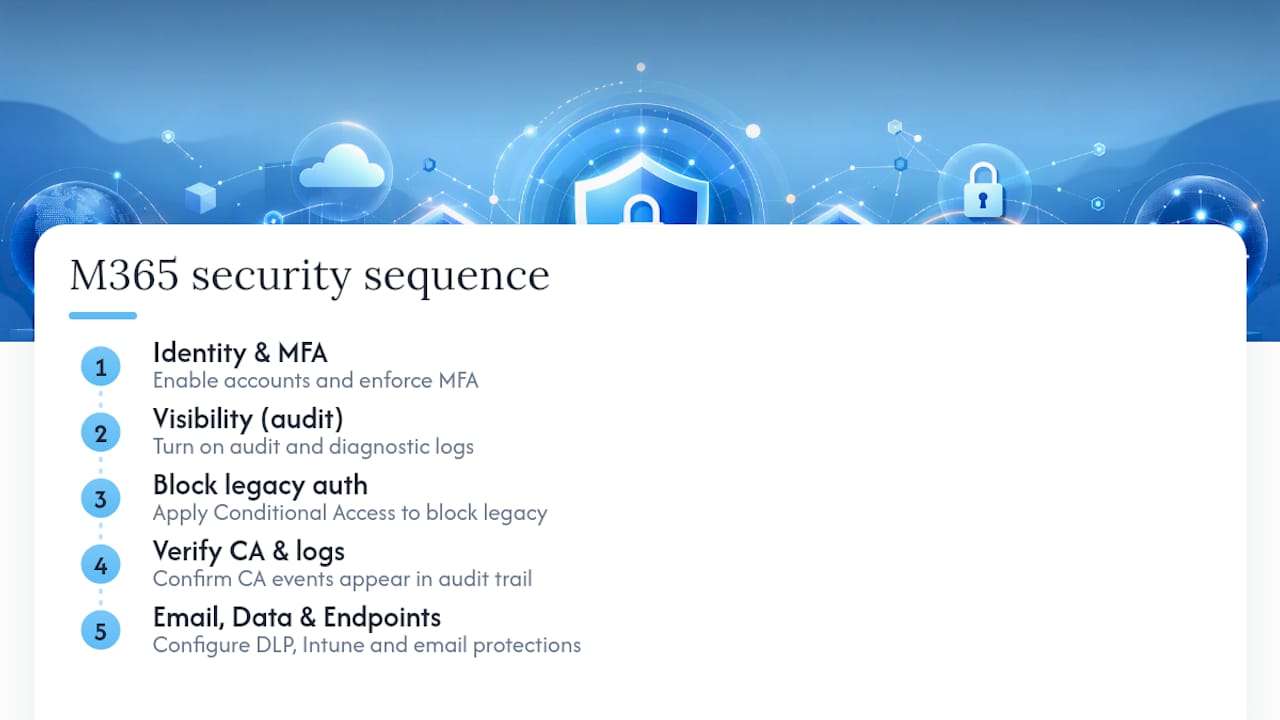
What’s underrated is Business Premium itself. There’s a persistent assumption that real security means E5, and for most small organisations that’s simply not true. Configured properly, Business Premium plus disciplined Conditional Access and Intune policy closes the overwhelming majority of realistic attack paths. E5 solves problems most SMBs don’t yet have.
If you take one thing from this, take the sequencing. Fix the five common failures first. Everything else is refinement.
— Chris
Get your Microsoft 365 security sorted without hiring a security team
TTOY Digital is the alternative to hiring a dedicated security hire or waiting months for a generalist IT contractor to get round to your tenant. We audit your Microsoft 365 setup, close the gaps that matter first, MFA, Conditional Access, legacy authentication, audit logging, and then handle the ongoing configuration work most small businesses simply don’t have the internal hours for.
Our services cover tenant security audits, Defender for Business setup, Intune device enrolment, and for businesses juggling leads across email and WhatsApp, integrating that communication into SmartFlowCRM so nothing gets lost while you’re focused on getting your security posture right. We work with SMBs on both one-off project setups and ongoing retainer support, so you’re never locked into more than your business actually needs.
Book a tenant security audit through our Microsoft 365 services page and we’ll tell you exactly where your gaps are within days, not months.
FAQ
Does Microsoft 365 have security built in?
Yes. Microsoft 365 includes identity protection through Entra ID, email filtering through Exchange Online Protection, and baseline safeguards across every workload, though advanced features like Defender for Office 365 Plan 2 depend on your licence tier.
Is there such a thing as a fake Microsoft security alert?
Yes, phishing emails and pop-ups impersonating Microsoft security warnings are extremely common and designed to steal credentials or push malicious software. Genuine Microsoft alerts appear inside the admin centre or via verified sender domains, never through unsolicited phone numbers or urgent countdown timers.
Does Microsoft 365 have built-in antivirus?
Microsoft 365 includes basic anti-malware protection through Exchange Online Protection for email, and Windows devices get Microsoft Defender Antivirus by default. Full endpoint detection and response requires Defender for Endpoint or Defender for Business, which sit on top of that baseline.
Do I really need a subscription to Microsoft 365?
If your organisation relies on Exchange Online, SharePoint or Teams, an active subscription is what keeps security patches, Defender protections and compliance features current, letting a subscription lapse also disables the security controls tied to it, not just the productivity apps.
What’s the fastest way to improve my Microsoft 365 security score?
Enforcing MFA tenant-wide, blocking legacy authentication and enabling unified audit logging typically produce the largest jump in Secure Score for the least configuration effort, and TTOY Digital’s tenant audits usually start with exactly these three items.