
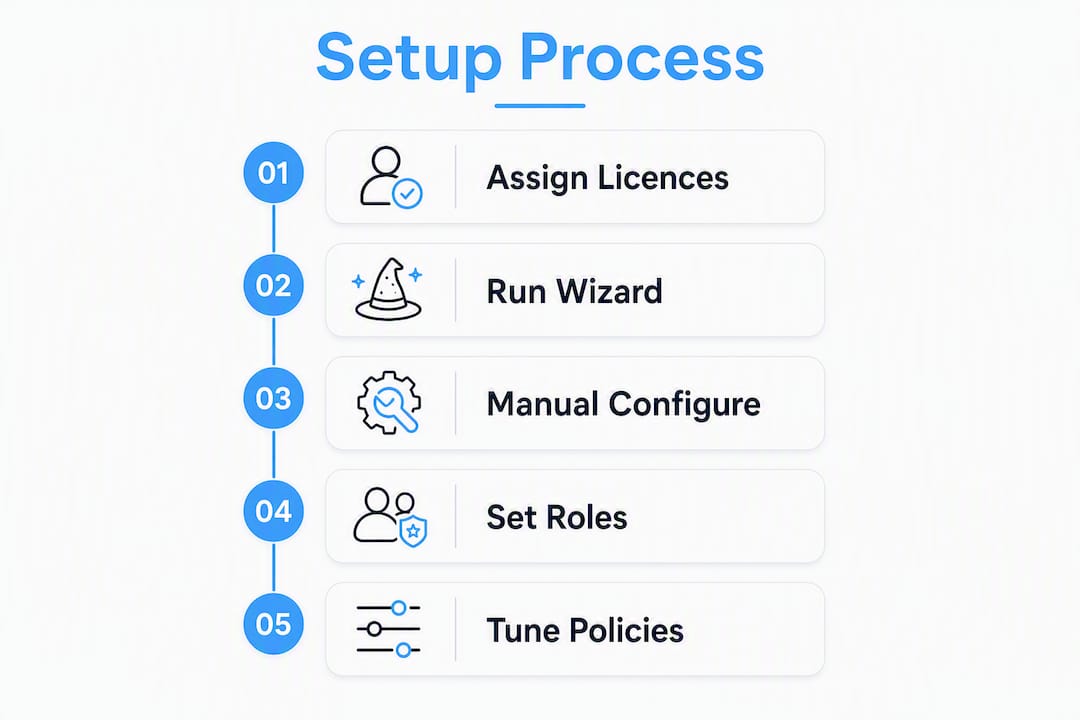
Getting Microsoft Defender for Business protecting your devices is a six-step process: assign licences, grant minimal RBAC roles, run the setup wizard (or follow the manual sequence), onboard a pilot group, verify sensor health in the Microsoft 365 Defender portal, and then tune policies. Defender for Business supports up to 300 users and is available as a standalone subscription or bundled inside Microsoft 365 Business Premium. The whole pilot phase can realistically be completed in a day; a phased rollout to the full organisation typically takes several weeks.
Before your setup session, run through this checklist:
- Confirm every user has a Defender for Business or Microsoft 365 Business Premium licence assigned in the Microsoft 365 admin centre.
- Enable multi-factor authentication (MFA) for all admin accounts before touching the portal.
- Grant the Security Administrator role to whoever will configure policies; everyone else gets Security Reader.
- Choose your onboarding method: automatic Intune onboarding where devices are already enrolled, or a local script for smaller fleets.
- Pilot with a small group of devices before rolling out to the full estate.
- Block out a tuning window after the pilot so your team can triage the initial alert surge without it becoming a fire drill.
Table of Contents
- Should you use the setup wizard or configure manually?
- How to complete the Defender for Business setup step by step
- Which onboarding method should you use for your devices?
- How do you set up roles, alerts and notifications correctly?
- What are the right baseline policies and how does ‘limit, onboard, tune’ work?
- How do you monitor, respond and integrate with other tools?
- What does Defender for Business cost and how do trials work?
- What does a realistic rollout timeline look like for a UK SME?
- What are the most common setup and onboarding problems?
- The ‘limit, onboard, tune’ method: a practical checklist for UK SMEs
- What should you do next after finishing this guide?
- Key takeaways
- Why most Defender for Business deployments struggle (and it is not the technology)
- TTOY Digital can handle your Defender for Business deployment
- Useful sources and official documentation
- FAQ
Should you use the setup wizard or configure manually?
The setup wizard is the fastest route for most small teams. It handles RBAC assignment, email notification setup, Windows device onboarding and default policy application in a single guided flow. The catch is that the wizard is a one-time tool: once you complete it, you cannot re-run it. That makes it ideal for a clean, greenfield deployment but less suitable when you need to revisit each step independently.
When the wizard is the right call
The wizard suits you if your devices are Windows 10 or 11, your users are already in Microsoft 365, and you do not have complex line-of-business (LOB) applications that might conflict with default Attack Surface Reduction (ASR) rules. It is also the recommended path during a 30-day trial, where the trial playbook walks you through permissions, notifications and onboarding in a logical sequence.
When manual configuration makes more sense
Manual setup is the better choice for multi-tenant MSP environments, staged rollouts across departments, or any situation where you need to test policy changes against specific LOB apps before applying them globally. It gives you granular control at every step and lets you pause between phases.
Prerequisites for either path:
- A Defender for Business standalone licence or Microsoft 365 Business Premium subscription
| Factor | Setup wizard | Manual configuration |
|---|---|---|
| Speed | Fast (single session) | Slower (staged) |
| Control | Limited | Full |
| Suitable for | Greenfield, small teams | Complex, multi-tenant, LOB-heavy |
| Risk of misconfiguration | Low | Medium (more steps to manage) |
| Re-runnable | No (one-time only) | Yes |
| Recommended for trials | Yes | No |
Pro Tip: Run the wizard to get your pilot group of 10–30 devices protected quickly, then switch to manual tuning for the broader rollout. You get the speed of the wizard without locking your full configuration into its defaults.

How to complete the Defender for Business setup step by step
The official six-step sequence is the backbone of every deployment. Here is how to work through it in a single session.
- Obtain your subscription, Purchase Defender for Business standalone via the Microsoft 365 admin centre or through a Cloud Solution Provider (CSP). If your organisation already has Microsoft 365 Business Premium, Defender for Business is included.
- Add users and assign licences. In the Microsoft 365 admin centre, go to Users > Active users, select each user and assign the Defender for Business licence. Do this before touching the Defender portal.
- Configure security roles (RBAC). In the Microsoft 365 Defender portal at security.microsoft.com, navigate to Settings > Endpoints > Roles. Assign Security Administrator to the person running the deployment; assign Security Reader to anyone who needs visibility without the ability to change policies. Avoid using Global Administrator for day-to-day Defender tasks.
If devices are already enrolled in Intune: select All devices enrolled in the Intune automatic onboarding settings. Any newly enrolled Windows device will be onboarded to Defender for Business automatically from that point forward.
Which onboarding method should you use for your devices?
Defender for Business supports Windows 10/11, macOS, iOS and Android. Server onboarding requires a separate Defender for Business Servers add-on licence, so factor that in if you have on-premises or Azure-hosted servers.
Onboarding methods and their trade-offs:
- Automatic Intune onboarding (recommended for most UK SMEs): if your Windows devices are already enrolled in Intune, select automatic onboarding in the Defender portal. New enrolments are covered automatically. This is the lowest-effort, most scalable option. For a practical walkthrough of Intune enrolment for UK small businesses, the Intune device management guide covers the enrolment steps in detail.
- Microsoft Defender onboarding/deployment tool (local script): download the onboarding package from the Defender portal under Settings > Endpoints > Onboarding. Run the script on each device. Best for fleets of fewer than ten devices or for devices not enrolled in Intune.
- Group Policy Object (GPO): suitable for organisations with Active Directory and a mix of domain-joined machines. Download the GPO package from the portal and deploy via your Group Policy Management Console. More setup overhead, but good for large, domain-managed estates.
- Microsoft Endpoint Configuration Manager (MECM/SCCM): for larger or more complex environments already using MECM. Not the typical path for a sub-300-user SME, but worth knowing if you are inheriting an existing MECM deployment.
Verification checklist after onboarding:
- Check Assets > Devices in the Defender portal; the device should appear within 30 minutes.
- On the device, open PowerShell as administrator and run
Get-MpComputerStatus. ConfirmAMRunningModereturnsNormalandRealTimeProtectionEnabledreturnsTrue. - Check the Windows Services panel for the Windows Defender Advanced Threat Protection Service (Sense). It should be running.
- For macOS, verify the Defender app is running and the device appears in the portal.
For non-Windows devices: complete the Windows pilot first. Once Windows devices are stable and policies are tuned, onboard macOS devices using the Defender for Business macOS onboarding package, then move to iOS and Android via Intune app deployment. Trying to onboard all platforms simultaneously during a pilot makes troubleshooting much harder. For context on why endpoint protection matters beyond antivirus, the malware guide for small businesses is a useful primer for stakeholders who need convincing.
How do you set up roles, alerts and notifications correctly?
RBAC is where a lot of small-team deployments quietly go wrong. The temptation is to give everyone Global Administrator access because it is simpler. It is also how you end up with accidental policy changes and no audit trail.
Recommended role assignments for small teams:
- Security Administrator:, the person (or persons) responsible for configuring policies, reviewing incidents and managing onboarding. This role can change settings.
Email and Teams notification routing:
In the Defender portal under Settings > Endpoints > Email notifications, create separate rules for different severity levels. Route critical and high-severity alerts to your security lead’s direct email and to your incident-response channel in Microsoft Teams. Route medium-severity alerts to a shared security inbox or your ticketing system (ServiceNow, Freshdesk, or similar). Low-severity alerts can go to a digest or be suppressed during the pilot phase to avoid noise.

For MSPs managing multiple clients, Microsoft 365 Lighthouse provides a single pane of glass across tenants, so you are not logging into each customer’s portal separately to check for incidents.
Pro Tip: Build a simple alerts-to-actions matrix before go-live: a one-page table that maps each alert severity to a named responder, a response time target and an escalation path. During the first two weeks of a rollout, automated remediations can trigger at unexpected times. Having that matrix means nobody is guessing who should pick up the phone at 11 PM.
What are the right baseline policies and how does ‘limit, onboard, tune’ work?
The practitioner-recommended approach is to limit admin scope first, onboard devices methodically, and only tune policies after you have verified the pilot. Skipping straight to tuning before onboarding is complete is one of the most common ways deployments go sideways.
Baseline policy areas to review from day one:
- Next-generation protection: leave the default cloud-delivered protection and real-time scanning enabled. Do not disable these to resolve application conflicts; investigate the conflict instead.
- Attack Surface Reduction (ASR) rules: the defaults are sensible, but certain rules (particularly those blocking Office macro execution or credential theft from LSASS) can break specific LOB apps. Run ASR in audit mode during the pilot to identify conflicts before switching to block mode.
- Firewall settings: the default inbound block policy is appropriate for most SMEs. Review outbound rules if your LOB apps require specific outbound connections.
- Tamper protection: keep this enabled. It prevents local users and malicious software from disabling Defender components.
- Ransomware controls: enable controlled folder access for high-value data directories. Test it during the pilot; it can block legitimate applications from writing to protected folders.
The ‘limit, onboard, tune’ pattern in practice:
- Limit: assign only the Security Administrator role to the deployment lead. No Global Admin for Defender tasks.
- Onboard: bring in the pilot group (10–30 devices), verify each one appears in the portal and sensor health is green.
- Tune: only after the pilot is stable, adjust policies that are generating false positives or blocking business workflows.
Pro Tip: Start automated investigation and remediation in semi-automated mode. This means Defender will flag what it wants to remediate, but a human confirms the action before it executes. Once you have two to four weeks of data and you trust the baseline, you can move to full automation. Jumping straight to full automation on day one is a recipe for a very stressful morning.
How do you monitor, respond and integrate with other tools?
The Microsoft 365 Defender portal is your primary monitoring console. The Incidents & alerts queue surfaces correlated events so you are dealing with incidents rather than individual raw alerts. The Device inventory shows every onboarded endpoint, its health status, exposure score and outstanding recommendations.
Core response workflow for a small team:
- An alert fires and appears in the Incidents queue.
- The on-call Security Administrator reviews the incident, checks the automated investigation findings in the Action Centre, and confirms or rejects the proposed remediation.
- If the automated investigation is inconclusive, the admin runs a manual investigation: isolate the device if needed, collect a diagnostic package, and review the timeline.
- After remediation, close the incident and log the action taken. This creates the audit trail you will need if a client or regulator asks questions later.
On integrations: Defender for Business can forward events to a SIEM via the Microsoft 365 Defender API or through Microsoft Sentinel. For RMM/PSA tools commonly used by UK MSPs (ConnectWise, Autotask, Halo PSA), check whether your vendor has a native Defender connector or whether you need a webhook-based integration. For endpoint protection as part of a broader security posture, the team at Akika Labs covers how EDR fits into a layered defence strategy worth reading alongside this guide.
Microsoft 365 Lighthouse for MSPs: if you manage multiple small-business tenants, Lighthouse aggregates incidents and device health across all your customers into a single dashboard. You can see which tenants have unresolved high-severity incidents without switching between portals. For agencies and MSPs, this is the difference between proactive management and reactive firefighting.
What does Defender for Business cost and how do trials work?
Defender for Business is available as a standalone subscription or included in Microsoft 365 Business Premium. Both options support up to 300 users per tenant. The standalone licence covers endpoint security only; Business Premium adds the full Microsoft 365 productivity suite alongside it.
Licence options at a glance:
- Standalone Defender for Business:, endpoint protection for organisations that already have a productivity suite and do not need the full Microsoft 365 stack.
- Microsoft 365 Business Premium: includes Defender for Business plus Exchange Online, Teams, SharePoint, Intune and the full compliance toolset. For most UK SMEs starting from scratch, this is the more cost-effective bundle. Check the Microsoft 365 plans page for how the bundles compare and how TTOY Digital can help with procurement.
For current UK pricing, check the Microsoft Security pricing page directly or speak to a Microsoft CSP. Prices are not reproduced here because they change and a CSP may offer volume discounts not reflected on the public page.
Trial flow:
Microsoft offers a 30-day trial of Defender for Business. During the trial, the setup wizard is available and the trial playbook recommends using it to assign permissions, configure email notifications and onboard Windows devices. Use the trial period to run your pilot, verify sensor health and identify any policy conflicts before committing to a paid subscription.
Procurement tip: align your licence assignment date with a planned tuning window. Assigning licences across the organisation in one go can generate a surge of alerts as Defender scans devices for the first time. If your security team is not available to triage that surge, it becomes a backlog that is demoralising to clear.
What does a realistic rollout timeline look like for a UK SME?
Most UK small businesses can complete a pilot in a single day and a full rollout within a few weeks. Here is a practical schedule.
- Day 0 (prep): confirm licence coverage in the admin centre, verify MFA is active for all admins, identify your pilot device group and document your RBAC assignments.
- Day 1 (wizard or manual config + pilot onboarding): run the setup wizard or complete the manual configuration sequence. Onboard your 10–30 pilot devices. Verify each device appears in the portal before the end of the day.
- Days 2–7 (pilot verification and tuning): monitor the Incidents queue daily. Note any false positives or LOB app conflicts. Run ASR rules in audit mode and review the audit log. Adjust policies only where there is a confirmed conflict.
- Week 2 (phased rollout, first half of organisation): assign licences to the next cohort during a scheduled maintenance window. Communicate to users that their devices will be scanned and that they may see a brief performance impact during the initial scan.
- Weeks 3–4 (full rollout and handover): complete onboarding for all remaining devices. Confirm all devices show healthy sensor status. Document the final policy configuration and hand over the alerts-to-actions matrix to whoever owns ongoing management.
Pilot plan essentials:
- Pilot size: a small group of devices, ideally including at least one of each device type in your estate (laptop, desktop, macOS if applicable).
- Success criteria: all pilot devices appear in the portal within 30 minutes of onboarding; no critical LOB app is blocked; no unresolved high-severity incidents after 48 hours.
- Rollback plan: if a policy is causing widespread disruption, switch ASR rules back to audit mode and disable controlled folder access temporarily. Do not uninstall Defender; adjust the policy instead.
Time-savers: Intune automatic onboarding eliminates the need to run scripts on individual machines. Schedule policy tuning sessions during off-peak hours (early morning or weekend maintenance windows) to minimise user impact.
What are the most common setup and onboarding problems?
Even a well-planned deployment hits snags. Here are the issues that come up most often and how to resolve them.
Device not appearing in the Defender portal:
- Confirm the licence is assigned to the user in the Microsoft 365 admin centre.
- Check that the device is enrolled in Intune if you are using automatic onboarding.
- Verify the Windows Defender Advanced Threat Protection Service (Sense) is running in Windows Services.
- Run
Get-MpComputerStatusin PowerShell and checkOnboardingStatereturns1. - Wait up to 60 minutes after onboarding before escalating; some devices take longer than the typical 30-minute window.
Sensor not reporting or showing as inactive:
- Check network connectivity to Microsoft’s required endpoints. A proxy or firewall blocking
*.endpoint.security.microsoft.comis a common culprit. - Review the MSSense.exe log in
C:\ProgramData\Microsoft\Windows Defender Advanced Threat Protection\Logs. - Restart the Sense service and check again after 15 minutes.
Licensing not applied correctly:
- In the admin centre, go to Billing > Licences and confirm the Defender for Business licence shows as assigned, not just purchased.
- If you have both Defender for Business standalone and Microsoft 365 Business Premium licences in the tenant, confirm there is no conflict; a user should have only one Defender licence assigned.
Policy conflicts with LOB apps:
- Switch the conflicting ASR rule to audit mode in the Defender portal under Endpoints > Configuration management.
- Review the audit log to identify which application is being blocked.
- Add an exclusion for the specific file path or process, not a blanket exclusion for the whole application directory.
False-positive blocks disrupting workflows:
- Do not disable real-time protection to resolve a false positive. Use the Allow action in the portal to approve the specific file or process.
- If automated remediation is quarantining files that should not be quarantined, switch to semi-automated mode temporarily while you investigate.
When to escalate: if a device remains inactive after 24 hours and you have confirmed all the above, open a support ticket via the Microsoft 365 admin centre. Collect the MSSense diagnostic log and the output of Get-MpComputerStatus before you call; it will save time.
The ‘limit, onboard, tune’ method: a practical checklist for UK SMEs
The operational success of Defender for Business depends less on which settings you choose and more on the order in which you apply them. Limit first, onboard second, tune third. Doing it in any other order tends to create problems that are hard to unpick.
Limit: set least privilege before anything else
- Assign Security Administrator only to the person running the deployment.
- Document every role assignment in a simple spreadsheet: name, role, date assigned, reason.
- Remove any temporary Global Administrator grants as soon as the initial configuration is complete.
- Review role assignments every 90 days and remove access for anyone who has changed role.
Onboard: verify every device before moving on
- Onboard in batches, not all at once. Ten to thirty devices per wave is manageable.
- After each batch, check the portal and run
Get-MpComputerStatuson at least a sample of devices. - Do not proceed to the next batch until the current one shows healthy sensor status.
- Keep a log of onboarding dates per device; you will need it if you ever need to correlate an incident with when protection started.
Tune: adjust only after the pilot is stable
- Run ASR rules in audit mode for at least five working days before switching to block mode.
- Review the audit log daily during the pilot and build a list of confirmed conflicts.
- Address conflicts with targeted exclusions, not by disabling rules wholesale.
- Schedule tuning sessions with a named owner; ad hoc policy changes made by multiple people without coordination are how you end up with a configuration nobody fully understands.
Pro Tip: Treat the default out-of-the-box settings as a starting point, not a finished product. A soft rollout to a small device group will surface application conflicts that a full deployment would turn into a business-wide incident. The hour you spend on a careful pilot saves a very long day later.
What should you do next after finishing this guide?
Once you have completed the pilot and confirmed sensor health across your initial device group, the work shifts from setup to operations.
Immediate next steps:
Microsoft resources to bookmark:
- Defender for Business documentation hub
- Setup and configuration guide
- Trial playbook
- Microsoft 365 Defender portal
- Microsoft 365 admin centre
Align every policy change and licence assignment with your organisation’s maintenance windows and communicate changes to users in advance. A security tool that surprises people tends to generate support tickets, not confidence.
Key takeaways
A successful Defender for Business deployment requires licences assigned first, RBAC kept minimal, a verified pilot before full rollout, and policies tuned only after the pilot is stable.
| Point | Details |
|---|---|
| Licences before everything | Assign Defender for Business or Microsoft 365 Business Premium licences in the admin centre before opening the Defender portal. |
| Minimal RBAC from day one | Use Security Administrator for the deployment lead and Security Reader for everyone else; avoid Global Administrator for Defender tasks. |
| Pilot of 10–30 devices | Onboard a small group first, verify sensor health in the portal, and resolve LOB conflicts before expanding. |
| Tune only after verification | Run ASR rules in audit mode during the pilot; switch to block mode only after confirming no business-critical apps are affected. |
| TTOY Digital managed setup | TTOY Digital handles licence advisory, Intune integration, pilot onboarding and ongoing policy tuning for UK SMEs who want the deployment done without the internal overhead. |
Why most Defender for Business deployments struggle (and it is not the technology)
Here is an honest observation from working through these deployments: the technology is not the hard part. Microsoft has made the wizard genuinely straightforward, the defaults are sensible, and the portal surfaces what you need without burying it. The problems almost always come from process gaps, not product gaps.
The most common pitfall is assigning licences to the whole organisation on a Friday afternoon and then logging off for the weekend. Defender starts scanning, finds things, generates alerts, and by Monday morning there is a queue of incidents that nobody has triaged. Some of those incidents are real. Some are false positives. Without someone available to make that call, automated remediation starts making decisions on its own, and that is when a legitimate business application ends up quarantined.
The second most common issue is over-privileged admin accounts. Giving everyone Global Administrator access because it is easier to manage is understandable in a small team, but it means that when something goes wrong in the Defender portal, there is no audit trail that tells you who changed what. The Security Administrator role exists precisely to avoid this.
The ‘limit, onboard, tune’ pattern is not complicated. It is just disciplined. And discipline is harder to maintain than any technical configuration, especially in a small team where the person doing the Defender setup is also managing the helpdesk, the backups and the Wi-Fi.
If you are an MSP managing multiple small-business clients, Microsoft 365 Lighthouse genuinely changes the operational picture. Seeing all your tenants’ incident queues in one place means you catch things earlier and respond faster. For complex multi-tenant environments or deployments that include Windows Server, bringing in a specialist is often the faster and cheaper path compared to working through it alone.
TTOY Digital can handle your Defender for Business deployment
Setting up Microsoft Defender for Business correctly takes time your team may not have. TTOY Digital works with UK small businesses to take the deployment off your plate entirely, from licence advisory and Intune integration through to pilot onboarding, policy tuning and on-call incident support.
The service covers the full sequence: confirming licence fit (standalone versus Business Premium), configuring RBAC and alert routing, running a structured pilot, resolving LOB app conflicts and handing over a documented, tuned configuration your team can manage confidently. For businesses already using Microsoft 365, we handle the integration so Defender slots into your existing environment without disruption.
If you are also thinking about how your broader Microsoft 365 stack fits together, our SmartFlowCRM integrates communication channels alongside your Microsoft tools, so your security posture and your client management work from the same foundation. To find out what a managed Defender setup would look like for your business, get in touch with the TTOY Digital team for a no-obligation assessment.
Useful sources and official documentation
- Microsoft Defender for Business documentation hub
- Setup and configuration (official Microsoft guide)
- Defender for Business overview
- Trial playbook for Defender for Business
- How to get Defender for Business
- Microsoft Security pricing for small and medium businesses
- Microsoft Defender for Business product page
- Microsoft 365 Defender portal
- Microsoft 365 admin centre
For UK-specific pricing and volume licensing, speak to a Microsoft CSP rather than relying on the public pricing page, as CSP rates and bundling options often differ from the listed price.
FAQ
Is Microsoft Defender for Business good enough for a small UK business?
Yes, for most UK SMEs with up to 300 users. It includes EDR, vulnerability management and automatic attack disruption, which goes well beyond traditional antivirus and covers the most common threats facing small businesses today, including ransomware.
What does Defender for Business include?
It includes next-generation antivirus protection, endpoint detection and response (EDR), vulnerability management, firewall management, ASR rules and AI-powered automatic attack disruption. Cross-platform support covers Windows, macOS, iOS and Android.
How much does Defender for Business cost in the UK?
Pricing is not fixed here because it changes and CSP rates vary. Check the Microsoft Security pricing page for current figures or speak to a Microsoft CSP for UK-specific volume pricing. It is available standalone or as part of Microsoft 365 Business Premium.
Which Microsoft 365 plan includes Defender for Business?
Microsoft 365 Business Premium includes Defender for Business alongside Exchange Online, Teams, SharePoint and Intune. The standalone Defender for Business licence covers endpoint security only, without the productivity suite.
How long does the Defender for Business setup take?
The initial wizard configuration and pilot onboarding can be completed in a single day. A full phased rollout to the whole organisation typically takes two to four weeks, depending on fleet size and how many LOB app conflicts need resolving during the tuning phase.
Recommended
- Intune device management for UK small businesses: 2026 guide | TTOY Digital
- Demystifying Malware: A Simple Guide for Small Business Owners | TTOY Digital
- OneDrive vs Dropbox: which is right for your business? | TTOY Digital
- Migrate email to Microsoft 365: your complete 2026 guide | TTOY Digital
Related reading: SPF, DKIM and DMARC setup: a practical guide