A hacked WordPress site is stressful, but it is fixable, and the order you do things in matters more than how fast you move. Save a copy of the site as it is, lock it down, remove the malware, then close the hole the attacker came through. If you only do the middle part, the site often gets reinfected within days. This guide takes you through each stage in plain English, including what to do about WP-Cron, the scheduled-task system that malware likes to hide in.
If you would rather hand the whole job to people who look after WordPress sites every day, we cover that near the end. If you want to do it yourself, everything you need is below.
TL;DR
- Document what you see, take a snapshot of the infected site, and speak to your host before you change anything.
- Remove malware from files, the database and user accounts, replacing plugin and theme folders with fresh copies rather than patching them.
- A restore only works if the backup predates the hack, and it does not close the hole the attacker used.
- Disabling WP-Cron is a containment step, not a cure. Remove the malicious code first.
- Change every password after the site is clean, then watch it for a few weeks.
Table of Contents
- How to tell whether your site has been hacked
- The first hour: contain it and keep the evidence
- Removing the malware
- Restoring from a backup
- WP-Cron: where disabling it fits
- Change every credential, in the right order
- Check that it is really clean
- Stopping it happening again
- Getting the routine taken off your plate
- FAQ
- Sources
How to tell whether your site has been hacked
“Hacked” is a vague word, and the more precisely you describe the symptoms, the easier the diagnosis. WordPress.org’s own guidance on a hacked site lists the usual signs: blacklisting by a search engine, a host shutting your site down, malware warnings, new users you did not create, or visible defacement.
In practice, small business owners tend to notice one of these first:
- Visitors are redirected to a site that has nothing to do with yours.
- Google or your browser shows a red warning page when someone searches for you.
- Strange pages, often in another language or selling pills, appear in search results under your domain.
- An administrator account appears that nobody on your team set up.
- Your host emails you about unusual activity or suspends the account.
- Customers say your emails land in spam, or that your site sent them something odd.
Write down what you saw, when you first saw it and anything you changed recently, such as a new plugin or a theme update. That timeline is useful evidence, and it will help you decide how far back to restore.
If you want a plain-language background on what malware actually is, our simple guide to malware for small business owners covers it.
The first hour: contain it and keep the evidence
The instinct is to start deleting things. Resist it for ten minutes.
- Note your setup. Which host, which WordPress version, which plugins, and who has logins.
- Take a snapshot before cleaning. WordPress.org advises taking a backup even of the infected site. Label it clearly as infected. It is evidence, not a restore point, and it must never overwrite your older, clean backups.
- Contact your host. They can often tell you which files changed, whether other sites on the same account are affected, and whether they hold backups from before the problem. Ask them to preserve the logs.
- Reset access for everyone. WordPress.org suggests resetting access for all users and changing passwords for WordPress, FTP or SFTP, the hosting panel and the MySQL database. There is one catch, covered under credentials below: if a backdoor is still on the server, new passwords can be read straight from the site’s configuration. So do the quick lockdown now and the full rotation after cleaning.
- Put up a maintenance page if the site is redirecting customers or serving malware. A temporary “back soon” is far better than a warning from Google.
If you take payments, collect enquiries or store customer details, think about whether personal data could have been exposed. Under UK data protection law that can mean a duty to report to the Information Commissioner’s Office, so tell whoever handles data protection in your business at this stage, not at the end.
Removing the malware
Malware on WordPress usually sits in three places: files, the database and user accounts. Check all three.
Files: replace, do not patch
The cleanest approach to core, plugin and theme files is to replace them with fresh, verified copies. Download WordPress core again from wordpress.org, and fresh copies of each plugin and theme from their official source.
Delete the affected plugin or theme folder completely before putting the new one in. If you upload over the top, any extra malicious files the attacker added to that folder stay behind, quietly doing their job.
Things worth looking for by hand, using your host’s file manager or SFTP (a secure way of moving files to and from your hosting):
- PHP files inside
wp-content/uploads, where only images and documents should live. - Files with odd, random-looking names or recent modification dates you cannot explain.
- Code in
wp-config.phpor.htaccessthat you did not put there. - Plugins and themes you do not recognise, or no longer use.
Your own content, meaning the uploads folder and the database, is the part you cannot simply re-download, so that is where the careful work is.
The database
Injected spam links, hidden scripts in posts and widgets, and rogue settings can all live in the database. A scanning plugin can flag a lot of this, but it is worth searching your posts and options tables for script tags and unfamiliar links, and for scheduled tasks you do not recognise (more on those below). If you are not comfortable inside a database, this is the step where a mistake is expensive.
Users
Go to Users in the dashboard and look at every administrator. Delete any you do not recognise, and downgrade anyone who does not need admin rights. Attackers often leave an extra admin account as a way back in.
Restoring from a backup
A backup can save you hours, with two conditions.
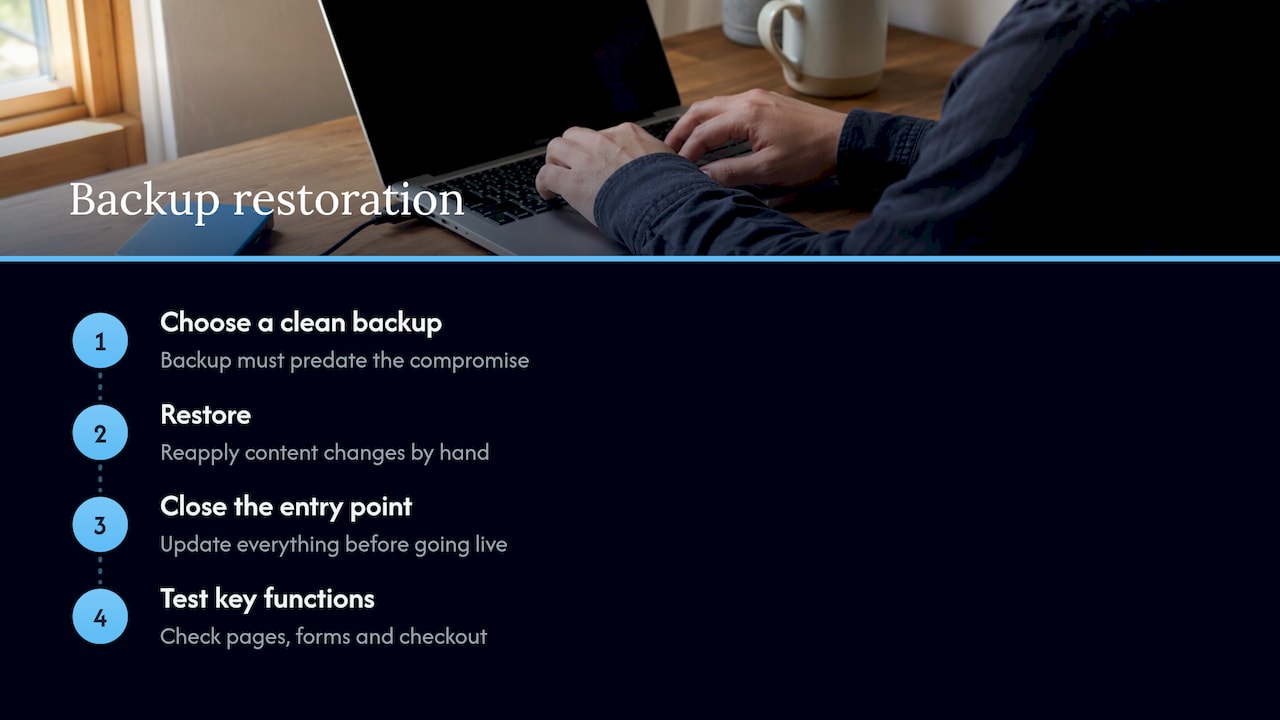
First, it has to predate the compromise. That is why your timeline matters. If the attacker got in three weeks ago and your newest clean-looking backup is from last week, you are restoring the infection. Go back further, then re-apply any content changes by hand.
Second, a restore does not fix how they got in. Whatever vulnerability or stolen password was used is still there afterwards, so the site can be hacked again in the same way. Restore, then update everything and close the entry point before the site goes back live.
After restoring, test the things that make you money: key pages, contact and booking forms, and checkout if you have one. Many cleanups look fine on the homepage and quietly break a form.
WP-Cron: where disabling it fits
Searchers often ask about disabling WP-Cron during a cleanup, so here is the plain version.
WP-Cron is WordPress’s built-in scheduler. It runs things like scheduled posts, backups and update checks. It does not run on a clock. Instead, each page view checks whether anything is due and triggers it, which is why a busy site and a quiet site behave differently.
That is also why malware loves it. A rogue scheduled task can re-download or rebuild the infection every few minutes, so you clean the site, it looks fine, and then the malware reappears.
Two important points:
- Disabling WP-Cron is not malware removal. It may pause normal triggering, but it does not remove the malicious code, server-level scheduled jobs or backdoors, and it can stop legitimate tasks such as scheduled posts and backups.
- A scheduled event only names a hook. The harm is done by code registered behind it. Find and remove that code, then delete the event, then check whether it returns.
Before deleting a suspicious entry, save a copy of it so you can see what it did. Then, if you want to pause WordPress’s own scheduling while you work, the WordPress.org Hosting Handbook gives the safe method: add define('DISABLE_WP_CRON', true); to wp-config.php above the line that says to stop editing, then set up a system cron job that runs on a regular schedule as the site’s own user, not root. Without that system job, nothing scheduled will run at all, so do not leave it half done.
Once the site is clean, keeping that setup is a sensible choice anyway. Tasks then run at known times on a schedule you control, instead of depending on visitors, and odd behaviour is easier to spot.
Change every credential, in the right order
Password changes come after the cleanup, not before. If a backdoor is still on the server, whoever planted it can read the new passwords from your configuration file and carry on as before.
Once you are confident the site is clean:
- Change the database password and update
wp-config.phpto match. - Refresh the security keys and salts in
wp-config.php. This logs out every active session, including the attacker’s. - Reset passwords for all WordPress users, using long, unique ones from a password manager.
- Rotate hosting panel, FTP or SFTP and SSH logins, plus any API keys connected to the site.
- Switch on two-factor authentication for every administrator.
Check that it is really clean
Cleanup is finished when the problem stays gone, not when the scanner goes quiet. Over the next few weeks:
- Watch for the original symptom at the same time of day it first appeared. A periodic reinfection shows up on a schedule.
- Check Google Search Console and your search results for spam pages, and confirm any browser warning has cleared.
- Test scheduled posts, email sending, forms, checkout and backups, particularly if you paused WP-Cron.
- Keep an eye on email deliverability, as hacked sites often get blocklisted for spam.
If the problem returns, something is still registered or still has access. At that point stop patching and do a full review of scheduled tasks, files and accounts.
Stopping it happening again
Most WordPress compromises come through something ordinary: an out-of-date plugin, a weak or reused password, or a plugin you installed years ago and forgot. WordPress.org’s hardening guide frames prevention as reducing risk in layers. The parts that matter most for a small business site are:
- Keep WordPress, plugins and themes updated, and delete anything you do not use. Inactive plugins still sit on the server, and they can still be exploited.
- Install plugins and themes only from the WordPress.org repository or well-known developers.
- Use strong, unique passwords and two-step authentication, and keep the number of administrators low.
- Use SFTP rather than plain FTP, and keep file permissions locked down.
- Turn off the built-in file editor with
DISALLOW_FILE_EDITinwp-config.php. - Run regular backups stored away from the site, kept long enough to predate a slow-moving compromise.
- Use a web application firewall, and keep logs where someone actually looks at them.
It is also worth making sure your site runs over HTTPS. Our article on why your WordPress site needs SSL explains the basics, and common WordPress security issues and how to reduce them goes through the weak spots we see most often described.
Getting the routine taken off your plate
Everything above is doable, but it is also a lot of unglamorous work: updates, backups, checks and monitoring, all while you are meant to be running a business. That routine is what our WordPress maintenance and security plans are for. WordPress Maintenance is £30 per month per site, and we also offer UK web hosting from £15 per month. We are a Derbyshire-based team, so you can talk to a real person rather than a ticket queue.
Our view
We build and look after small business websites, and the pattern we see in the way owners describe hacked sites is almost always the same: it is not one dramatic failure, it is a site nobody had time to look after. An update skipped here, an old plugin left there, and a shared password that has been in use for years.
That is why we think a hacked site should be treated as a prompt to change the routine, not just to clean up the mess. Removing malware is the easy half. The harder half is having someone whose job is to keep the updates, backups and access under control every month, so you are not doing it at midnight after the damage is done.
Our approach is built around ongoing care rather than one-off projects, with transparent pricing and a local team you can actually phone. If your site has just been through this, that steady, boring maintenance is the thing we would put in place first.
Chris
FAQ
How long does it take to clean a hacked WordPress site?
It depends on how deep the infection goes. A single injected file can be sorted in an hour or two, while a site with backdoors and scheduled tasks that keep rebuilding the malware takes longer, because you need to find the entry point as well as the payload. Allow time afterwards for monitoring, as the real test is that the problem stays gone.
Can I just restore a backup and be done?
Only if the backup was taken before the site was compromised, and even then you still need to close the route the attacker used. Otherwise the same weakness is open again. Update everything and change credentials straight after restoring.
Should I disable WP-Cron if my site is hacked?
It can help as a temporary containment step while you investigate, but it does not remove malware. Remove the malicious code behind any suspicious scheduled event first. If you disable it, set up a system cron job, or your legitimate scheduled tasks will stop running.
Do I need to tell anyone if my site was hacked?
If customer personal data may have been exposed, raise it with whoever handles data protection in your business straight away, as you may have a duty to report it to the Information Commissioner’s Office. Your host should also be told, since they may need to check other sites on the same account.
Sources
- FAQ: My site was hacked (WordPress.org documentation)
- WP-Cron and System Cron (WordPress.org Hosting Handbook)
- Hardening WordPress (WordPress developer documentation)
Recommended
- Common Security Issues with WordPress & How to Mitigate Them
- WordPress Maintenance & Security Plans
- Tips on How to Choose the Best WordPress Backup Plugin
Related reading: WordPress maintenance plans for small businesses · Local SEO checklist for small businesses · SPF, DKIM and DMARC setup: a practical guide