
To make and receive external calls through Microsoft Teams, you need three things in place: a Teams Phone licence for every calling user, a PSTN connection (Calling Plan, Operator Connect, or Direct Routing), and a network that can carry voice traffic cleanly. Get the licence and connectivity order right, sort your admin roles, and the rest of the build falls into place fairly quickly.
- A successful Teams Phone setup requires confirming user licenses, choosing a suitable PSTN route, and verifying the office network can support voice traffic during peak periods.
- The main PSTN options are Microsoft Calling Plan, Operator Connect, and Direct Routing, each with different levels of control, complexity, and suitability for business size.
- Network quality, including bandwidth, Wi-Fi signal strength, and device configuration, is a common failure point that must be tested thoroughly before deployment.
- Proper number management involves porting existing numbers, associating emergency addresses immediately, and distinguishing user numbers from resource accounts to avoid provisioning errors.
- Running a small pilot, training staff, and adopting a staged rollout improve call quality, user adoption, and troubleshooting, rather than attempting a switch-over in one day.
Table of Contents
- A quick checklist before you start your Teams phone setup
- Buying licences and choosing your UK PSTN connection
- Getting your network and devices ready for calls
- Sorting numbers, resource accounts and emergency addresses
- Configuring auto attendants, call queues and voicemail
- Managing phones through the Teams admin centre
- Piloting the rollout so your team actually uses it
- Why we recommend a staged rollout, not a weekend project
- How TTOY Digital handles your Teams phone setup
- Where this guidance comes from
- Sources
- FAQ
A quick checklist before you start your Teams phone setup
Before you ring anyone about pricing or booking in an engineer, run through this in one sitting. It saves you three follow-up phone calls later.
- Confirm your Microsoft 365 tenant and check which users already hold Teams licences.
- Decide on a PSTN option and check the provider covers your postcode in the UK.
- List everyone who needs voice-enabling and gather any existing numbers you want to port.
- Check your office network can cope, and pick two or three devices for a small pilot.
Most owners we speak to skip step four and pay for it in choppy calls three weeks in.
Buying licences and choosing your UK PSTN connection
Every calling user needs a Teams Phone licence, either bundled into Microsoft 365 Business Voice-eligible plans or added as a standalone add-on through the Microsoft 365 admin centre or PowerShell for bulk assignment. That part is genuinely simple. The harder decision is how those calls actually reach the outside world, because Teams needs a PSTN connection to place or receive external calls, and the UK has three routes into that:
- Microsoft Calling Plan bundles the phone number and minutes straight from Microsoft. It’s usually the simplest route for a small business with a handful of lines and no existing telephony contract, and it’s often the easiest starting point where availability allows.
- Operator Connect lets a telecoms carrier manage your numbers and connectivity while everything still shows up inside Teams. It suits firms who want carrier-grade support without touching Session Border Controllers themselves.
- Direct Routing is for businesses that already run SIP trunks or need bespoke call routing that Calling Plan and Operator Connect can’t offer. It demands more technical setup and is rarely worth the effort for a five-person office.
Weigh it against your budget, how much control you want over number porting, and how quickly you need to go live.
Getting your network and devices ready for calls

Teams Phone setup fails more often on the network than the licence. Microsoft’s own guidance recommends roughly 100 kbps of bandwidth per active call, which sounds modest until you multiply it by every desk phone and laptop running Teams calls at once during a busy Monday morning.
Wi-Fi matters just as much as the pipe coming into the building. Microsoft recommends devices sit on the 5 GHz band with a signal strength around -60 dBm rather than the more crowded 2.4 GHz band most cheap routers default to.
- Enable Quality of Service (QoS) on your router or managed switch so voice packets jump the queue ahead of file downloads and video streaming.
- Check for proxy servers or strict certificate inspection on your firewall, both of which can silently block Teams phones from registering properly.
- Decide between Teams-certified desk phones, which behave like traditional handsets, or simply running calls through the Teams desktop and mobile app if your team is mostly at laptops anyway.
Pro Tip: Before you buy a single handset, run a test call over your existing Wi‑Fi during peak office hours. If it drops or crackles then, no amount of new hardware will fix it. The network needs sorting first.
Sorting numbers, resource accounts and emergency addresses
Once your PSTN route is chosen, getting numbers is the next practical step, and in the UK there’s a compliance detail you cannot skip.
- Get numbers through the Teams admin centre, port an existing number from your current provider, or raise a support request if the self-service option isn’t available for your plan.
- Distinguish user numbers (assigned to a person) from service numbers (used by auto attendants and call queues). Auto attendants need their own resource accounts, and those accounts require their own licensing rather than a standard user’s Teams Phone licence, or you’ll hit provisioning errors.
- Associate an emergency address with every number as you provision it. In the UK, this must happen at the point you get the number from Microsoft or port it in, not sometime later, so build it into your rollout timeline rather than treating it as paperwork you’ll circle back to.
- Assign the correct emergency location to each user and resource account before anyone starts making live calls.
Get this sequence wrong and you’ll either have unlicensed resource accounts silently failing, or numbers live without a valid emergency address attached.
Configuring auto attendants, call queues and voicemail
With numbers assigned, the features that make your reception feel professional are quick to build. An auto attendant handles the “press 1 for sales” style menu and suits businesses that want callers routed automatically outside office hours or during busy periods. A call queue is better when you want several people able to pick up the same line, such as a small sales team sharing one main number.
- Draft a short, simple auto attendant menu. Three options is usually enough. Nobody wants to sit through seven.
- Set a call queue greeting and decide the overflow behaviour if no one answers within, say, 30 seconds.
- Configure cloud voicemail policies so messages route to the right inbox without exposing personal mobile numbers.
- Set up delegates and call groups so reception duties can be shared without everyone needing the same physical handset.
Managing phones through the Teams admin centre
Once handsets and software clients are live, day-to-day management sits inside the Teams admin centre rather than the wider Microsoft 365 portal. Assign the Teams Service Admin or Teams Device Admin roles to whoever looks after this, rather than reaching for Global Administrator out of habit. It’s overkill for the job and a real security risk if that account is ever compromised.
- Create configuration profiles per phone model so firmware updates and settings push out consistently rather than device by device.
- Check device health and run diagnostics remotely instead of walking round the office when a handset misbehaves.
- Use device tags to group phones by location or role, such as reception or the sales floor, and schedule firmware updates outside business hours.
- If you’re managing devices through Intune too, keep the tagging consistent between both consoles so you’re not hunting for the same handset under two different names.
Piloting the rollout so your team actually uses it
Don’t switch every desk over on the same afternoon. Run a small pilot with two or three people, test call quality with real diagnostics rather than a single “can you hear me” call, then expand once you’re confident.
- Train staff on the dial pad, speed dial, voicemail, call history and delegate settings inside the Calls app.
- Run a go/no-go check: are calls clear, are numbers routing correctly, does voicemail reach the right person?
- Collect feedback from the pilot group before wider roll-out.
- Set a simple review cadence, perhaps quarterly, to revisit call policies and naming conventions as the team grows.
Pro Tip: Ask your pilot users to make calls from a car park or the far corner of the office, not just their desk. That’s where weak Wi‑Fi problems actually show up.
Why we recommend a staged rollout, not a weekend project
We’ve seen plenty of small firms try to switch on Teams Phone in an afternoon, and it usually ends with someone pulling their hair out over a auto attendant that routes calls nowhere. The licensing is the easy bit. Network readiness, emergency address timing, and getting resource accounts licensed correctly are where things quietly go wrong. Pairing Teams calling with SmartFlowCRM so inbound calls actually land in a lead workflow, rather than a note scribbled on a Post-it, is where the real value shows up. A proper engagement runs audit, pilot, roll-out, then support, in that order.
— Chris
How TTOY Digital handles your Teams phone setup
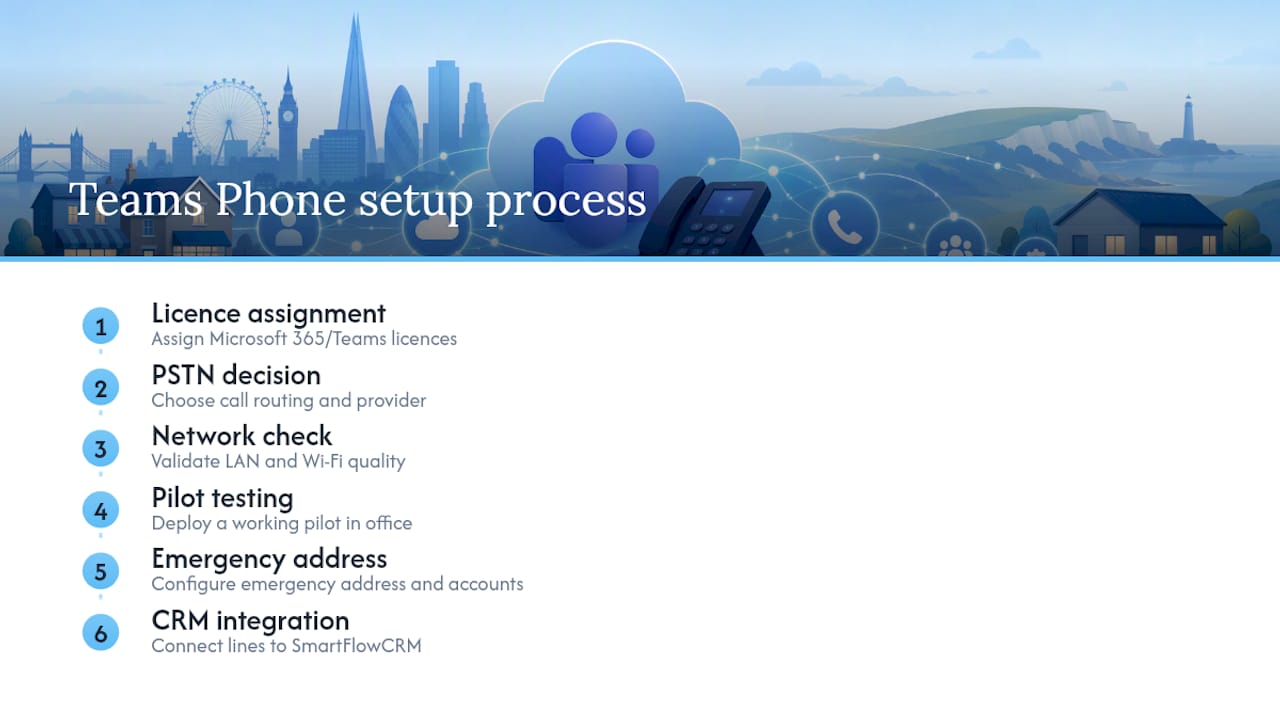
TTOY Digital is the alternative to hiring a full-time IT contractor for your Teams Phone rollout: we handle the licence assignment, PSTN decision, network check and pilot as one fixed piece of work, rather than billing you hourly while someone learns the Teams admin centre on your time. Most small business projects we run go from audit to a working pilot within a couple of weeks, with the emergency address and resource account details sorted properly from day one rather than fixed after a call fails. Because we also build SmartFlowCRM integrations, we can connect your new phone lines straight into your lead management so nothing gets lost between reception and your sales team. If you’d rather have this done properly the first time, get in touch about your Microsoft 365 setup and we’ll talk through what a pilot for your office would actually involve.
Where this guidance comes from
This guide draws on Microsoft’s own documentation for setting up a Teams phone system, preparing your network for Teams phones, and managing Teams phones and configuration profiles. If you want to train an in-house admin further, Microsoft’s Configure and deploy Teams Phone training module walks through the same steps in more depth.
FAQ
Do I need a PSTN connection for every user?
Only users who need to make or receive external calls need a PSTN-connected number; internal Teams calling between colleagues works without one.
What’s the cost of a full Teams phone setup?
Costs are made up of the Teams Phone licence per calling user plus your chosen PSTN service charge (Calling Plan minutes, Operator Connect fees, or Direct Routing trunk costs), so the total varies by provider and call volume rather than sitting at one fixed figure.
Can I keep my existing business phone numbers?
Yes, existing UK numbers can usually be ported into Teams through the admin centre or a support request, though you’ll need to associate an emergency address to each one at the point of transfer.
How long does a small business rollout typically take?
A pilot can be running within a reasonable timeframe once licensing and PSTN choice are settled, with a phased roll-out to the wider team following once network and call quality are confirmed.
Do I need Global Administrator access to manage Teams phones?
No, and you shouldn’t use it; the Teams Service Admin and Teams Device Admin roles cover day-to-day phone management without the security exposure of full Global Administrator rights.
Recommended
- Teams phone for business: a UK small business guide | TTOY Digital
- Intune device management for UK small businesses: 2026 guide | TTOY Digital
- Best small business CRM for UK firms: 2026 guide | TTOY Digital
- Microsoft Defender for Business setup: a practical UK guide | TTOY Digital
Related reading: Intune device management for UK small businesses · Best small business CRM for UK firms · Microsoft Defender for Business setup