
Fix hosting and TTFB, then switch on full-page caching. Those two moves usually deliver the biggest speed gains for most WordPress sites, more than any plugin tweak or image compression trick. Once that foundation is solid, preload your LCP image, strip out heavy plugins you don’t actually need, and confirm you’re running PHP 8.2 or newer. Everything else on this page builds on those fundamentals.
- Improving hosting and server configuration to reduce TTFB can cut response times by up to 600 milliseconds, significantly boosting Core Web Vitals scores.
- Full-page caching, preload of the LCP image, and PHP 8.2 or newer are foundational steps that can deliver noticeable load time reductions within hours.
- A layered caching stack, including page, object, browser, and CDN cache, must be properly configured, checked, and maintained to ensure effectiveness and avoid leaks or misses.
- Optimising images by converting to WebP or AVIF formats and preloading the hero image can cut total page weight by over half, with minimal layout shift impact.
- Regular database cleanups, plugin audits, and staging tests are essential to maintain long-term speed improvements and prevent regression over time.
Table of Contents
- Quick wins you can make in the next two to three hours
- Why hosting and server configuration are the real foundation
- Building a caching stack that actually holds up
- Cutting image weight without breaking layout
- Removing render-blocking scripts to improve INP
- Fixing database bloat and internal WordPress slowdowns
- How to audit plugins and themes without breaking your site
- Verifying results with the right tools and metrics
- Deploying changes safely and keeping speed over time
- What actually moves the needle, based on what we see in client work
- Get your site’s speed sorted without the DIY guesswork
- Sources
- FAQ
Quick wins you can make in the next two to three hours
You don’t need a weekend to see a measurable difference. Most of the changes below take fifteen minutes each, and together they can shave a full second or more off your load time. Here’s the order we’d tackle them in, based on impact versus effort.
- Back up the site and set up a staging copy. Non-negotiable before touching anything on a live site.
- Enable full-page caching. Whether that’s a caching plugin, a server-level cache, or your host’s built-in layer, get pages serving from cache before you do anything else.
- Preload your LCP image. Add a
<link rel="preload">tag for the hero image or banner that loads above the fold, and setfetchpriority="high"on that image tag. - Deactivate and delete plugins you don’t use. Not just disable, delete. Dormant plugins still get scanned during some operations and add to your attack surface.
- Turn on Brotli compression. Most managed hosts and Cloudflare support it natively; it typically compresses text assets tighter than GZIP.
- Confirm you’re on PHP 8.2 or later. Check this in your hosting dashboard or via
phpinfo(). Older PHP versions are a quiet tax on every single request.
Verifying each step matters as much as doing it. After enabling caching, check response headers in your browser’s network tab for a cache-status: HIT or similar flag; if you’re only seeing MISS, your cache isn’t actually catching requests. Run Lighthouse before and after each change and screenshot the scores so you’re comparing like for like. And once you’ve preloaded the LCP image, watch the waterfall chart in WebPageTest to confirm it’s loading earlier in the request chain, not later.
Pro Tip: Never test performance changes directly on a live site during business hours. Clone it to staging first, make the change, measure it, then push to production during a quiet window. One bad plugin update at the wrong time can cost you a day of firefighting instead of an evening of testing.
Why hosting and server configuration are the real foundation
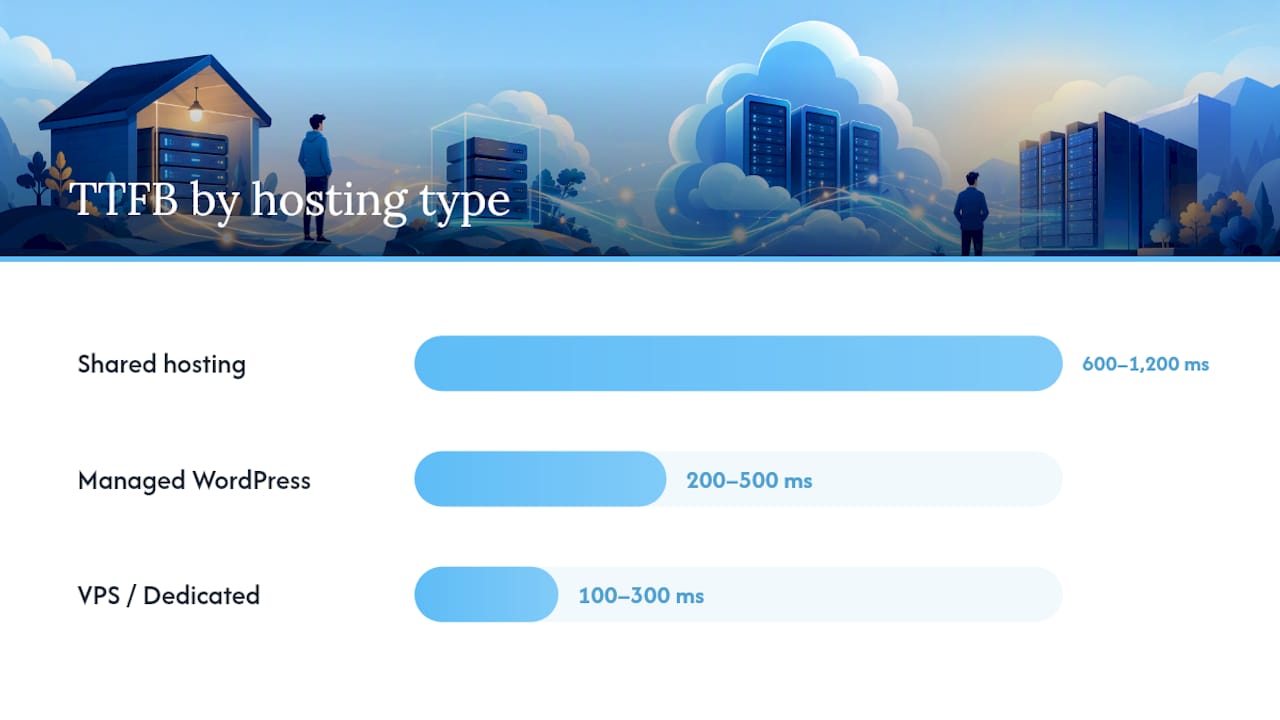
Time to First Byte, or TTFB, measures how long your server takes to start responding once a browser asks for a page. It happens before a single pixel renders, before any CSS or JavaScript loads. If your TTFB is slow, everything downstream inherits that delay, no matter how well you’ve optimised images or minified scripts.
Shared hosting typically returns TTFB in the 600ms to 1,200ms range under normal load, sometimes worse during traffic spikes because you’re sharing server resources with dozens of other sites. Managed WordPress hosting usually gets that down to 200ms to 500ms. VPS and dedicated servers, properly configured, can hit 100ms to 300ms. Moving from budget shared hosting to a genuinely managed host can improve TTFB by 150 to 600 milliseconds, which on its own is often enough to shift a site from a failing Core Web Vitals score to a passing one.
Server-level tuning, not plugins, tends to produce the single biggest jump in speed. A well-configured PHP 8.2 environment with OPcache and Nginx routinely outperforms a poorly hosted site running every optimisation plugin going.
A handful of server-side factors do the heavy lifting:
- OPcache stores compiled PHP scripts in memory so the server doesn’t recompile them on every request. It’s the single biggest PHP-level performance lever most site owners never check.
- PHP 8.2 or newer runs meaningfully faster than PHP 7.x thanks to internal engine improvements; if your host still defaults to an older version, ask them to change it.
- Nginx with PHP-FPM generally handles concurrent requests more efficiently than Apache with mod_php, particularly under load.
- Brotli compression shrinks text-based assets (HTML, CSS, JS) further than GZIP in most real-world tests.
- HTTP/2 or HTTP/3 allow multiple assets to load over a single connection, cutting the latency penalty of loading dozens of small files.
So when do you upgrade hosting versus just tune what you’ve got? If your current host doesn’t support PHP 8.2, doesn’t offer OPcache, or caps you on CPU during traffic spikes, that’s a hosting problem, not a configuration problem. No amount of tuning fixes a hard resource ceiling. But if you’re on a decent host and TTFB is still sluggish, check whether OPcache is actually enabled (some hosts leave it off by default) and whether you’re running an outdated PHP version out of habit rather than necessity.
For a staged PHP upgrade, clone your site to staging, switch staging to PHP 8.2, and run through your key pages and plugin functions checking for deprecation warnings or broken behaviour. Once that’s clean, schedule a short maintenance window, switch production over, and keep a rollback plan ready in case an old plugin throws errors you didn’t catch in testing. Full guidance on this process, including diagnostic queries for other performance bottlenecks, sits in the WordPress Developer Resources.
Building a caching stack that actually holds up
Caching isn’t one setting you flip. It’s several layers stacked on top of each other, and if one layer is missing or misconfigured, the whole stack underperforms even though each individual piece looks fine on paper.
Here’s what each layer actually does:
- Page cache stores a fully rendered HTML version of a page so WordPress doesn’t have to rebuild it from the database on every visit. This is the layer with the biggest single impact for most brochure-style or blog sites.
- Object cache (typically Redis or Memcached) stores the results of expensive database queries in memory, so repeated lookups don’t hit MySQL every time. Redis is generally the preferred choice in 2026 because of its richer data structures and wide plugin support, and it matters most on dynamic, logged-in-heavy, or WooCommerce sites where page caching alone doesn’t help much.
- OPcache caches compiled PHP bytecode, covered above under server tuning, but it belongs in this stack too.
- Browser cache tells visitors’ browsers to store static assets locally so repeat visits don’t re-download the same CSS file or logo image.
- Edge or CDN caching stores a copy of your page at data centres closer to the visitor, cutting the physical distance data has to travel.
Setting this up safely means knowing where each layer lives. Plugin-based caching (WP Rocket, W3 Total Cache, and similar tools) is easiest for most site owners to configure without touching server files. Server-level caching (Nginx FastCGI cache, Varnish) is faster but usually needs a developer or host-level access to configure properly. Whichever route you take, check response headers for cache-status or x-cache values reading HIT. If you’re consistently seeing MISS or BYPASS, something’s excluding pages from the cache that shouldn’t be, and it’s worth checking your cache plugin’s exclusion rules for stray wildcard patterns.
Dynamic pages need explicit exclusions. Checkout pages, cart pages, and any page showing personalised or logged-in content should never serve a cached version to a different visitor. Get this wrong on a WooCommerce store and you risk one customer seeing another customer’s cart, which is a trust problem far worse than a slow page.
Cloudflare’s Automatic Platform Optimisation (APO) sits on top of your origin caching and caches full HTML pages at Cloudflare’s edge, which is particularly useful for reducing TTFB for visitors far from your origin server. Image CDNs work on a similar principle but for images specifically, handling format negotiation and resising without your origin server doing any of that work.
Pro Tip: If you run WooCommerce, test your caching setup by opening the same product page in two different browsers, one logged in as a customer, one in a private window. If cart contents or account details leak between the two, your exclusion rules need fixing before anything else.
Cutting image weight without breaking layout
Images typically account for 50% to 70% of total page weight on a standard WordPress site, which makes this the single highest-leverage area for cutting load time on most content-heavy or ecommerce sites. If your homepage is 4MB and three of those megabytes are images, no amount of JavaScript minification will save you.
The core pipeline looks like this:
- Convert to WebP, and AVIF where your audience’s browsers support it. Both formats compress meaningfully smaller than JPEG or PNG at equivalent visual quality.
- Pick a sensible quality setting. Somewhere around 75 to 85% quality for WebP is usually indistinguishable from the original to the naked eye while cutting file size substantially.
- Use responsive
srcsetattributes so a phone downloads a phone-sized image, not the same 2,400px-wide file a desktop monitor gets. - Preload the LCP image specifically. This is usually your hero banner or the first large image in the viewport, and it needs
fetchpriority="high", not lazy loading. - Declare width and height attributes on every image. Without them, the browser doesn’t know how much space to reserve, and the layout jumps around as images load, which tanks your Cumulative Layout Shift score.
The LCP image point deserves emphasis because it’s the mistake we see most often. Site owners lazy-load every image on the page indiscriminately, including the one at the very top that Google measures for Largest Contentful Paint. Lazy-loading that image delays it, which directly worsens your LCP score rather than improving it. Lazy loading belongs on images further down the page, ones a visitor might never scroll to see.
There’s also a genuine decision to make between handling images yourself with an on-upload optimisation plugin versus offloading the work to an image CDN. On-upload plugins compress and convert images the moment you add them to your media library, which works fine if you’re not uploading huge volumes and don’t mind the processing happening on your own server. Image CDNs handle format negotiation and resising on the fly, serving AVIF to browsers that support it and WebP to those that don’t, all without you manually managing multiple file versions. For a site with a large or frequently changing image library, an image CDN removes a genuine administrative burden. Our own guide to image optimisation walks through the practical differences in more depth, and our mobile speed strategies piece covers how this plays out specifically on phones and tablets, where bandwidth and screen size make the stakes higher.
Removing render-blocking scripts to improve INP
Interaction to Next Paint, INP, measures how quickly your page responds when someone actually clicks, taps, or types. A page can look fast on paper and still feel sluggish the moment a visitor tries to use it, and that gap usually comes down to JavaScript sitting on the main thread longer than it should.
Third-party scripts are frequently the worst offenders here. Chat widgets, analytics trackers, and social media embeds often load and execute immediately, competing with your own code for processing time before a visitor has done anything at all. Delaying these scripts until the first interaction, meaning a click or a scroll, frequently improves INP more than basic minification does, because it removes the competition for main-thread time during that critical first few seconds.
Practical steps to work through:
- Defer or async non-critical JavaScript so it doesn’t block the browser from rendering the page while it downloads and parses.
- Delay third-party scripts (chat widgets, tracking pixels, embeds) until a visitor interacts with the page, using a facade or a delayed-loading plugin.
- Generate critical CSS, the small subset of styles needed to render what’s visible above the fold, and inline it so the browser doesn’t wait on an external stylesheet for the first paint.
- Remove unused CSS where you reasonably can, though tread carefully here. Aggressive CSS-stripping tools sometimes remove styles that only apply on certain pages or under certain conditions, so test thoroughly across your whole site, not just the homepage.
- Preload your primary web font and set
font-display: swapso text renders in a fallback font immediately rather than staying invisible while the custom font downloads. - Subset fonts to include only the character sets you actually need. A font file loaded with full Cyrillic and Greek character support you’re never going to use is dead weight.
Pro Tip: Before you touch critical CSS generation, screenshot how your site looks on mobile and desktop. Critical CSS tools occasionally misjudge what counts as “above the fold” on unusual layouts, and a broken header is a worse first impression than a slightly slower load.
The trade-off across all of this is testing time against gain. Deferring scripts and generating critical CSS both carry real risk of visually breaking something if done carelessly, so budget time to click through your key pages after each change rather than assuming a green Lighthouse score means everything still looks right.
Fixing database bloat and internal WordPress slowdowns
A lot of WordPress speed problems don’t live in your theme or your images. They live quietly inside the database, in tables nobody’s looked at since the site launched.
Autoloaded options are the classic hidden culprit. WordPress loads every option marked autoload='yes' from the wp_options table on every single page load, whether that page needs the data or not. Plugins accumulate settings here over years, and a poorly coded plugin can leave megabytes of autoloaded data that never gets used but still gets pulled into memory on every request. Run this query to check the damage:
SELECT SUM(LENGTH(option_value)) FROM wp_options WHERE autoload='yes';
A practical target, per the WordPress Developer Resources, is keeping that figure under roughly 800KB. We’ve seen sites well past 10MB, and the difference in TTFB before and after cleanup is dramatic.
Beyond autoload bloat, a few recurring issues are worth scheduling regular cleanups for:
- Post revisions accumulate silently, one extra database row every time you save a draft, and a heavily edited page can rack up hundreds of them.
- Expired transients are meant to be temporary cached data but often outlive their expiry date in the database without being cleared.
- Orphaned post meta and comment meta pile up when plugins are uninstalled without properly cleaning their own data.
WP-CLI commands can automate most of this cleanup on a schedule rather than relying on you remembering to do it manually. Running OPTIMIZE TABLE afterwards reclaims the disk space those deleted rows leave behind, though it’s worth doing this during low-traffic periods since it briefly locks the table.
If your site runs heavy custom meta queries, filtering products by multiple attributes, for instance, check whether those meta keys have proper database indexes. An unindexed meta query on a large table can turn a 50ms database call into a 2 second one. And if you’ve already got Redis running as an object cache, it absorbs a lot of this pain automatically by keeping frequent query results in memory rather than hitting MySQL every time.
How to audit plugins and themes without breaking your site
Plugins are usually the first thing people blame for a slow site, and often they’re right, but guessing which plugin is the problem wastes hours. A proper audit replaces guesswork with measurement.
- Install Query Monitor and load your key pages with it active. It shows exactly which plugins are firing database queries, how many, and how long each one takes.
- Build a simple spreadsheet listing every active plugin alongside its query count, page-load impact, and asset weight (how much CSS and JS it enqueues).
- Flag anything loading assets on every page when it’s only needed on one page type. A contact-form plugin loading its CSS site-wide instead of only on the contact page is a common offender.
- Test conditional loading where the plugin supports it, or use a plugin-loading manager to restrict heavy plugins to the specific pages that actually need them.
- Deactivate one suspect plugin at a time, never several at once, and re-measure TTFB and your Core Web Vitals scores after each deactivation.
- Document what you find, including exact before-and-after numbers, so if a plugin turns out to be essential despite its weight, you know precisely what you’re trading off by keeping it.
Page builders deserve particular scrutiny. Many generate bloated, deeply nested HTML and load their own CSS and JS frameworks on top of whatever your theme already includes. If a page builder is genuinely essential to your workflow, that’s a legitimate business decision. But if it’s only being used for a handful of pages, rebuilding those in the block editor or a lighter tool often recovers real performance without sacrificing functionality anyone actually uses.
Verifying results with the right tools and metrics
Fixing all of the above means nothing if you can’t prove it worked, and this is where a lot of otherwise solid optimisation work quietly fails.
The three Core Web Vitals metrics that matter are LCP (Largest Contentful Paint, ideally under 2.5 seconds), INP (Interaction to Next Paint, ideally under 200 milliseconds), and CLS (Cumulative Layout Shift, ideally under 0.1). TTFB isn’t officially one of the three, but it underpins LCP directly, since nothing above the fold can render until the server responds.
Optimising purely for a Lighthouse score can produce what’s sometimes called performance theatre: a page that scores 95 in a lab test but still feels sluggish to real visitors on real devices and real connections.
That’s the core distinction to hold onto: lab data (Lighthouse, WebPageTest, PageSpeed Insights) tests a single simulated load under controlled conditions, while field data (Chrome UX Report, or real-user monitoring you set up yourself) reflects what actual visitors experienced across thousands of real sessions on real devices. A page can pass every lab test while still failing its CrUX assessment because real visitors are on older phones, slower connections, or in regions further from your server than your test location.
A sensible verification checklist:
- Run Lighthouse before and after each significant change, keeping screenshots for comparison.
- Check WebPageTest’s waterfall view to confirm your LCP image and critical CSS are loading in the order you intended.
- Review your Core Web Vitals report in Google Search Console weekly for field-data trends, not just a one-off snapshot.
- Set up basic real-user monitoring if your budget allows, since it catches issues lab tests simply can’t see, like a slow experience concentrated among visitors on one specific mobile carrier.
Deploying changes safely and keeping speed over time
Speed work isn’t a one-off project. Sites slow back down as content, plugins, and traffic patterns change, so the deployment process and the ongoing monitoring habit matter as much as the individual fixes.
- Test every change on staging first, never on the live site, and take a full backup immediately before deploying anything to production.
- Schedule deployments during low-traffic windows where realistic, giving you room to catch and fix problems before most visitors ever notice.
- Keep a rollback plan ready, whether that’s a backup restore point or simply knowing which plugin or setting to revert if something breaks.
- Set up synthetic monitoring (scheduled Lighthouse or WebPageTest runs) alongside real-user monitoring, and define alert thresholds so you get notified if TTFB or LCP drifts past an acceptable range rather than discovering it weeks later from a client complaint.
- Invalidate your cache after major content updates. A stale cached version of a page you just redesigned defeats the purpose of the redesign.
- Run routine maintenance on a schedule, not reactively: image pipeline checks, database cleanup, and a periodic plugin audit, ideally monthly rather than only when something visibly breaks.
Sites that hold onto their speed gains long-term tend to treat this as a recurring calendar item, not a project with an end date.
What actually moves the needle, based on what we see in client work
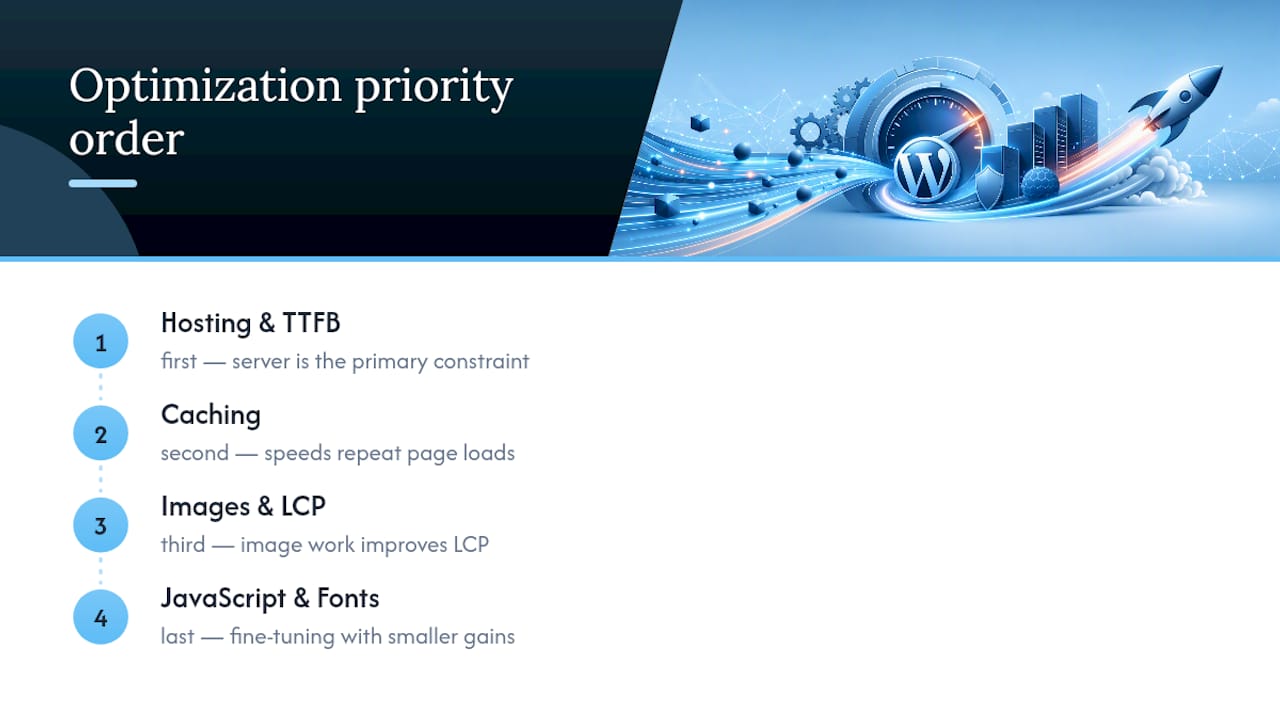
Every WordPress speed project we’ve worked through follows roughly the same priority order: hosting and TTFB first, caching second, images and LCP third, then JavaScript and font work last. That order isn’t arbitrary. It reflects where the ceiling actually sits. You can spend a week perfecting critical CSS on a site hosted on an overcrowded shared server and see almost nothing move, because the server itself is the constraint.
What surprises most site owners is how much of this is invisible until you measure it properly. A site can look fine, load “fast enough” by feel, and still be quietly failing Core Web Vitals for a meaningful share of real visitors on slower connections. That’s the gap between how a site feels to the person who built it, on a fast connection with a warm cache, and how it performs for someone loading it for the first time on a train with patchy 4G.
Our advice on DIY versus managed help is straightforward. If you’re comfortable with staging environments, WP-CLI, and reading a waterfall chart without flinching, most of this is genuinely doable yourself. If your time is better spent running your business than debugging a caching plugin’s exclusion rules, that’s exactly the gap a managed service like TTOY Digital is built to close, and it’s why marketing-adjacent teams increasingly tie site speed directly to conversion and SEO outcomes rather than treating it as a purely technical concern.
— Chris
Get your site’s speed sorted without the DIY guesswork
A managed digital agency is an alternative to hiring a specialist developer or wrestling with plugin settings yourself. Our WordPress Maintenance plan runs at £30 per month per site and covers exactly the groundwork this article walks through: caching configuration, plugin audits, database cleanup, and PHP version checks, done as an ongoing routine rather than a one-off panic fix. If your hosting itself is the bottleneck, our UK Web Hosting starts from £15 per month and gets you onto infrastructure built for the server-side tuning covered above, with a proper handoff so you’re not left guessing whether OPcache is even switched on.
A typical engagement starts with an audit of your current TTFB, Core Web Vitals, and plugin load, followed by a prioritised action list, the same hosting-first, caching-second order we’ve set out here. If you’re a Derbyshire, South Yorkshire, or Nottinghamshire small business ready to stop losing visitors to a slow load, get in touch about WordPress maintenance and we’ll tell you honestly what needs fixing first.
Sources
- Performance optimization, WordPress Developer Resources
- How to speed up WordPress to 90+ PageSpeed score (2026 developer guide)
- Why lab vs field data matters for Core Web Vitals, WP Rocket
- How to speed up your WordPress site (ultimate WordPress speed guide)
FAQ
Is WordPress outdated in 2026?
No. WordPress still powers a substantial share of the web, and its speed reputation has more to do with poor hosting and plugin bloat than the core software itself. A properly configured WordPress site on modern PHP with a solid caching stack performs comparably to most alternatives.
Is there a free WordPress speed optimisation plugin?
Yes, several free caching plugins and image optimisation tools exist, and many hosting providers include page caching at the server level for no extra cost. Free tools cover the basics well; the bigger gains still come from hosting quality and correct configuration rather than which plugin you install.
Why are people moving away from WordPress?
Some site owners move away after a frustrating experience with slow loading, plugin conflicts, or maintenance overhead, but that’s usually a symptom of neglected upkeep rather than a flaw in WordPress itself. A managed maintenance routine, like the audits and cleanups covered throughout this article, resolves most of these complaints without switching platforms.
Why is WordPress so laggy?
Lagginess almost always traces back to slow hosting, missing caching, autoloaded database bloat, or too many active plugins loading assets on every page. Fixing hosting and TTFB first, then building a proper caching stack, resolves the vast majority of cases we see.