
Yes, Cloudflare is worth it for most UK small-business websites. The free plan gives you automated SSL, a global CDN, authoritative DNS, and baseline DDoS protection at no cost, and that alone covers the needs of the majority of brochure sites, portfolio pages, and low-traffic marketing properties.
Here is why it makes sense:
- Free SSL removes the cost and hassle of managing certificates manually
- CDN delivery serves your pages from Cloudflare’s global edge, reducing load times for UK visitors
- DNS management is faster and more reliable than most hosting-provider defaults
- Basic DDoS protection shields your site from common volumetric attacks without any configuration
- Zero cost to start means there is genuinely no financial risk in trying it
Start with the Free plan. Upgrade to Pro when you need a Web Application Firewall (WAF), image optimisation, or faster support. Consider Business only when you require a published uptime SLA or much higher rate-limiting thresholds.
Pro Tip: Before you do anything else, point your domain’s nameservers to Cloudflare and enable the orange-cloud proxy on your main A and CNAME records. That single step activates SSL, CDN, and DDoS protection simultaneously.
Key takeaways
Cloudflare is a practical, low-cost security and performance layer for UK small businesses, and the Free plan covers most sites without any financial commitment.
| Point | Details |
|---|---|
| Start with Free | The Free plan gives you SSL, CDN, DNS, and basic DDoS protection at no cost. |
| Upgrade trigger | Move to Pro when you need a managed WAF or want APO included without the $5 add-on. |
| WordPress + APO | APO caches full HTML at the edge, delivering the biggest speed gains for WordPress sites. |
| Business plan threshold | At $200/month annually, Business is only justified when downtime has a direct, measurable revenue cost. |
| TTOY Digital | TTOY Digital handles full Cloudflare setup, APO activation, and ongoing monitoring for UK small businesses. |
Table of Contents
- What does Cloudflare actually give a small business?
- Which Cloudflare plan fits your small business?
- Is the free plan enough for your site?
- How Cloudflare helps your WordPress site specifically
- Five steps to set up Cloudflare for your UK site
- What will Cloudflare actually cost you?
- Support, data protection and UK compliance considerations
- Recommended setup by UK small-business site type
- Our honest take on Cloudflare implementation
- TTOY Digital can handle your Cloudflare setup
- Sources
- FAQ
What does Cloudflare actually give a small business?
Cloudflare positions itself as a way to secure, accelerate, and build an online presence for smaller organisations, and that framing is accurate. The platform sits between your visitors and your hosting server, intercepting requests and serving cached content from whichever of its data centres is closest to the user.
For a UK small business, the practical benefits break down like this:
- Authoritative DNS with fast propagation and a clean dashboard, replacing whatever your registrar provides
- Free automated TLS/SSL that renews itself, so you never get the dreaded “not secure” warning in Chrome
- CDN caching of static assets (images, CSS, JavaScript) served from edge locations near your visitors
- Basic DDoS mitigation that absorbs common attack traffic before it reaches your server
- WAF access on paid plans, with managed rulesets that block known exploit patterns
Cloudflare’s network is within 50 ms of 95% of the world’s internet-connected population, which matters even for a local UK business if your customers browse from mobile on variable connections. Faster pages reduce bounce rates, and Google’s Core Web Vitals scoring rewards that speed. If you want to understand how site speed connects to SEO and conversions, the relationship is direct and measurable.
Pro Tip: Enable “Auto Minify” for HTML, CSS, and JavaScript under Speed > Optimisation in the Cloudflare dashboard. It takes thirty seconds and reduces page weight without touching your source files.
Which Cloudflare plan fits your small business?
The honest answer is that most small-business sites belong on Free, a meaningful minority on Pro, and very few on Business. Here is how the plans compare across the dimensions that actually matter.
| Dimension | Free | Pro | Business |
|---|---|---|---|
| Best for | Brochure, portfolio, low-traffic sites | WordPress sites, small e-commerce, growing marketing properties | Revenue-critical storefronts, membership sites needing SLA |
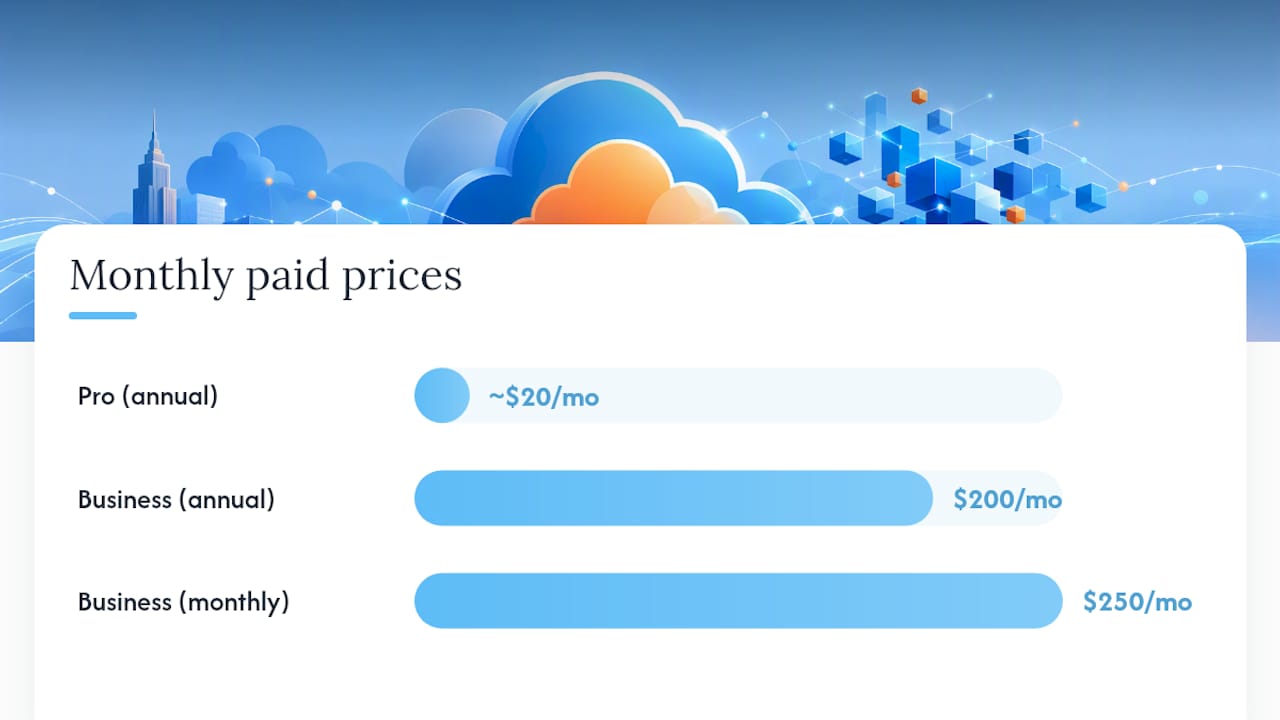
| Monthly price | £0 | ~$20/mo billed annually | $200/mo billed annually or $250/mo monthly |
| WAF | Basic rules only | Managed OWASP rulesets | Advanced managed rulesets + custom rules |
| DDoS protection | Baseline | Enhanced | Advanced with higher thresholds |
| SSL | Free Universal SSL | Free Universal SSL | Free Universal SSL + custom certificates |
| CDN | Yes | Yes | Yes |
| APO (WordPress) | $5 add-on | Included | Included |
| Argo Smart Routing | Paid add-on | Paid add-on | Paid add-on |
| Support | Community forum | Priority email | 24/7 email + chat |
| Uptime SLA | None published | None published | Published SLA |
| Ease of setup | Very easy | Very easy | Easy, more options to configure |
Use-case callouts:
- Single brochure site or portfolio: Free plan, full stop. You get SSL, CDN, and DNS with no ongoing cost.
- Small e-commerce or WooCommerce store: Start Free, then move to Pro for the managed WAF rulesets that protect checkout pages from injection attacks.
- Revenue-critical storefront or membership site: Business is justified when downtime has a direct, measurable cost and you need a contractual SLA to show stakeholders.
The independent review guidance is clear: start with Free and upgrade only when a specific paid feature produces concrete value versus the per-domain cost. Pro at roughly $20/month annually is a reasonable spend for a site generating meaningful revenue. Business at $200/month annually is a different conversation entirely.
Is the free plan enough for your site?
For many small businesses, yes. But the decision is not about traffic volume alone. Run through this checklist honestly.
Stay on Free if:
- Your site is a brochure, portfolio, or low-traffic blog without transactions
- You do not process sensitive user data through forms or checkout flows
- Occasional downtime would be inconvenient but not cause significant financial harm
- You do not require a support SLA or guaranteed response times
- You are not using Workers or edge compute features that involve usage limits
Upgrade to Pro when:
- You run a WordPress site and want APO included without the $5 add-on
- You need managed WAF rulesets to protect a WooCommerce or booking checkout
- You want priority email support rather than community forum responses
- Your site handles personal data and you want stronger rate-limiting controls
Consider Business only when:
- You need a published uptime SLA for contractual or compliance reasons
- Your site generates enough revenue that $200/month is a small percentage of what downtime costs
- You require advanced custom WAF rules beyond what Pro provides
Pro Tip: *Run your site on the Free plan for 30 days and check the Cloudflare Analytics dashboard.
How Cloudflare helps your WordPress site specifically
WordPress is where Cloudflare’s value becomes most tangible for small businesses, largely because of two things: the official plugin and Automatic Platform Optimisation (APO).

The Cloudflare WordPress plugin applies one-click WordPress-optimised settings, handles automatic cache purging when you publish or update content, and activates WAF rulesets targeting WordPress-specific vulnerabilities like XML-RPC abuse and login brute-force attempts. You do not need to touch the Cloudflare dashboard for most of this. If you want to go deeper on common WordPress security issues, the plugin’s WAF rulesets address most of the common attack vectors.
APO is the bigger performance story. Standard CDN caching only stores static files (images, scripts, stylesheets) at the edge. APO goes further by caching full HTML pages at Cloudflare’s edge nodes, which dramatically reduces Time to First Byte (TTFB) because the server never needs to generate the page dynamically for most visitors. The APO activation docs walk through the process clearly.
APO’s ability to cache HTML at the edge often produces the largest practical speed gains for WordPress sites compared with enabling edge CDN for static assets alone. For a small-business WordPress site on shared hosting, this can be the difference between a page that loads in under a second and one that keeps visitors waiting.
To enable APO, follow these steps:
- Install the Cloudflare WordPress plugin from the WordPress plugin directory
- Create an API token in your Cloudflare dashboard (under My Profile > API Tokens)
- Enter your Cloudflare email and API token in the plugin settings within WordPress
- Toggle APO on from the plugin’s “Home” tab
- Verify the change by checking response headers for
cf-cache-status: HIT
A few warnings before you enable APO:
- WordPress Multisite installations have limited APO support; check Cloudflare’s docs before enabling
- Pages with dynamic content (logged-in user views, WooCommerce cart pages) are automatically excluded from APO caching, but verify this with your specific theme and plugin stack
- Run a cache-purge after any theme or plugin update to avoid serving stale pages
Pro Tip: In the Cloudflare plugin, enable “Automatic Cache Management” so the cache clears automatically when you publish a post or update a page. Without it, editors will see their changes live but visitors may see the old cached version for hours.
Five steps to set up Cloudflare for your UK site
This is the sequence we follow when setting up Cloudflare for a client site. It takes under an hour for a straightforward setup.
- Create a Cloudflare account and add your domain. Go to dash.cloudflare.com, sign up, and enter your domain name. Cloudflare scans your existing DNS records automatically.
- Review and confirm your DNS records. Check that every record Cloudflare imported is correct. Pay particular attention to MX records (email routing) and any SPF/DKIM records, which must not be proxied (set them to DNS-only, grey cloud).
- Change your nameservers at your domain registrar. Cloudflare provides two nameserver addresses. Log into your registrar (GoDaddy, Namecheap, 123 Reg, or wherever your domain lives) and replace the existing nameservers with Cloudflare’s. Propagation typically completes within a few hours.
- Choose your plan and proxy your critical records. Select Free to start. Enable the orange-cloud proxy on your main A record and any CNAME records pointing to your site. This activates SSL, CDN, and DDoS protection.
- Install the WordPress plugin and enable APO if relevant. Follow the APO steps in the section above. If you are not on WordPress, skip this step and move straight to post-change testing.
Post-switch checklist:
- Confirm SSL is active by visiting your site over HTTPS and checking the padlock
- Test all redirects (HTTP to HTTPS, www to non-www or vice versa)
- Submit a contact form and complete a test checkout if you have one
- Check that email is still routing correctly by sending a test message
- Subscribe to Cloudflare’s status page for incident notifications
Pro Tip: Schedule your nameserver change for a Tuesday or Wednesday morning, not a Friday afternoon. If something goes wrong during propagation, you want a working week ahead of you to resolve it, not a weekend.
What will Cloudflare actually cost you?
The Free plan costs nothing. Beyond that, costs multiply per domain, which catches some small businesses off-guard when they manage several sites.
Base plan costs:
- Free: £0, per domain
- Pro: ~$20/month billed annually (check Cloudflare’s plans page for current pricing, as figures are in USD)
- Business: $200/month billed annually, or $250/month billed monthly
Common add-ons to budget for:
- APO: $5/month on the Free plan (included on Pro and Business)
- Argo Smart Routing: usage-based pricing starting from a low monthly minimum; check Cloudflare’s dashboard for current rates
- Workers: billed separately from your domain plan, with a free tier and then usage-based charges above it
The Workers billing point is worth flagging separately. If you or your developer starts using Workers for edge logic, that cost sits outside your plan and can grow with traffic. Practitioner guidance recommends measuring usage and projected cost before committing to Workers in production, precisely because the billing model differs from a flat monthly fee.
One practical cost-saving note: if you run subdomains (shop.yourdomain.co.uk, book.yourdomain.co.uk) under a single root domain, they are covered by the root domain’s plan. You only pay per root domain, not per subdomain.
Statistic to note: Cloudflare’s Business plan is listed at $200/month billed annually. For a small UK business, that is a meaningful monthly commitment. Run the numbers on what an hour of downtime costs your business before deciding whether the published SLA justifies it.
Support, data protection and UK compliance considerations
Support quality is one of the starkest differences between plans. Free users have access to Cloudflare’s community forum and documentation, which are genuinely good resources. Pro users get priority email support. Business users get 24/7 email and chat. Phone support and a named account manager sit at Enterprise level only.
For UK small businesses, the data protection angle matters more than many owners realise.
- GDPR and UK GDPR: Cloudflare acts as a data processor when it handles traffic from your visitors. You should sign Cloudflare’s Data Processing Addendum (DPA), available from your account dashboard, and reference it in your privacy documentation.
- Data locality: Cloudflare routes traffic through its global network, which means visitor data may transit servers outside the UK. For most small businesses processing standard contact or analytics data, this is manageable with the DPA in place. If you process sensitive personal data (health information, financial records), conduct a Data Protection Impact Assessment (DPIA) before relying on Cloudflare for those flows.
- Reliability trade-offs: Cloudflare is a shared platform. A significant Cloudflare outage affects many sites simultaneously. Mitigate this by setting up an external uptime monitor (UptimeRobot or Better Uptime work well), keeping your origin server accessible as a fallback, and subscribing to Cloudflare’s status page.
Pro Tip: Download and countersign Cloudflare’s DPA from your account settings before you go live. It takes five minutes and gives you the documented basis for data processing that UK GDPR requires.
If you want a broader grounding in website security for small businesses, the compliance considerations extend well beyond Cloudflare alone.
Recommended setup by UK small-business site type
Here is how we translate the plan comparison into concrete starting configurations for the most common site archetypes.
Brochure or portfolio site: Start on Free. Enable the orange-cloud proxy, turn on Auto Minify, and set SSL mode to “Full (Strict)”. No add-ons needed. Monitor for 30 days and reassess only if you see significant bot traffic.
Booking or appointment site: Start on Free, add APO if WordPress ($5/month). Apply a rate-limiting rule to your booking form endpoint to block credential-stuffing attempts. Upgrade to Pro if you start seeing WAF bypass attempts in your analytics.
Small WooCommerce or e-commerce store:
Start on Pro for the managed WAF rulesets. Enable APO. Exclude /cart, /checkout, and /my-account from caching to prevent session data leaking between users. Check your payment gateway’s Cloudflare compatibility before going live.
Membership or subscription site: Pro at minimum, Business if you have a contractual uptime obligation to members. Set up page rules to bypass cache for all logged-in users. Enable two-factor authentication on your Cloudflare account itself.
30-day post-activation monitoring checklist:
- Check Cloudflare Analytics weekly for blocked threats and cache hit rates
- Verify SSL certificate renewal is automatic (it should be, but confirm)
- Test contact forms and checkout flows after any plugin update
- Review firewall event logs for any legitimate traffic being incorrectly blocked
Our honest take on Cloudflare implementation
At TTOY Digital, the typical client comes to us having already heard of Cloudflare but unsure whether to trust it with their live site. The most common starting point is a WordPress site on shared hosting that is loading slowly and has no WAF in place. We almost always recommend starting on the Free plan with APO enabled, because the performance gain from HTML edge caching alone is usually visible within the first week.
The pitfalls we see most often are not technical failures. They are configuration oversights: DNS records left unproxied, SSL mode left on “Flexible” instead of “Full (Strict)” (which creates a security gap between Cloudflare and the origin), and caching rules that serve logged-in admin users a cached version of the front end. The plugin’s automatic cache management setting resolves the last one, but the SSL mode issue requires a deliberate choice in the dashboard.
Plugin conflicts are the other common headache. Caching plugins like WP Rocket or W3 Total Cache can conflict with APO if both are trying to serve cached HTML. The fix is usually to disable the caching layer in the third-party plugin and let APO handle HTML caching, while keeping the plugin active for its other optimisation features.
TTOY Digital can handle your Cloudflare setup
Getting Cloudflare configured correctly takes less than an hour when you know what you are doing. When you do not, it is easy to spend a frustrating afternoon chasing a redirect loop or wondering why your contact form stopped working after the nameserver change.
TTOY Digital’s web design and digital services include Cloudflare setup and ongoing management as part of our WordPress maintenance offering. We handle the nameserver change, DNS audit, SSL mode configuration, APO activation, WAF ruleset selection, and post-launch testing. We also set up uptime monitoring and subscribe your site to Cloudflare’s status alerts so you are never the last to know about an issue.
If you want a quick audit of your current setup, or you are starting from scratch and want it done properly the first time, get in touch with us for a no-obligation discovery call.
Sources
- Cloudflare, WordPress plugin
- Free plan overview | Cloudflare
- Cloudflare plans
- Cloudflare Review (Verified August 2026) | Omid Saffari
FAQ
Is Cloudflare free for small businesses in the UK?
Yes. Cloudflare’s Free plan includes SSL, CDN, DNS, and basic DDoS protection at no cost, with no time limit. Most small-business brochure and portfolio sites never need to pay anything.
Is the Cloudflare Business plan worth it for a small business?
Rarely. At $200/month billed annually, Business is only worth it when your site generates enough revenue that a published uptime SLA has real financial value. Most small businesses are better served by the Pro plan at roughly $20/month annually.
How much does the Cloudflare Business plan cost?
Cloudflare lists the Business plan at $200/month billed annually, or $250/month billed monthly. Prices are in USD; check the Cloudflare plans page for the current figures.
Do many companies use Cloudflare?
Yes. Cloudflare is one of the most widely deployed CDN and security platforms globally, used by businesses ranging from single-person startups to large enterprises. Its free tier is particularly popular with small businesses and developers.
Should I use Cloudflare with WordPress?
Yes, especially if you enable APO. The Cloudflare WordPress plugin applies optimised settings automatically, and APO caches full HTML pages at the edge, which typically produces the largest speed improvement for WordPress sites on shared hosting.