
Run PHP 8.3 or higher on any WordPress site you actively maintain. That’s the floor, not the finish line: 8.4 and 8.5 are worth moving to once you’ve tested them on a staging copy of your site. Your host controls which version you’re on, and WordPress’s own Site Health tool tells you exactly what’s running right now, so there’s no guessing involved.
- Running PHP 8.3 or higher is essential, with PHP 8.4 and 8.5 now actively supported and tested with recent WordPress releases.
- Support for PHP 7.4 and earlier has ended, requiring immediate migration to avoid security vulnerabilities, while PHP 8.0 to 8.2 are only suitable as short-term stopgap measures.
- Check your site’s current PHP version quickly via WordPress Site Health tools and ensure it matches your host’s control panel, trusting Site Health over mismatched reports.
- Updating PHP should always involve backing up entirely, testing on a staging site, and performing thorough real-world testing before applying changes on the live site.
- Most issues after PHP updates stem from outdated plugins or themes, making systematic testing and plugin compatibility checks crucial for smooth migrations.
Table of Contents
- Which PHP versions does WordPress actually support?
- Why the PHP version behind your site actually matters
- How to check the PHP version your WordPress site is running
- How to update PHP on your WordPress site without breaking it
- Testing PHP compatibility on staging before you go live
- Why treating PHP updates as routine maintenance beats treating them as emergencies
- Let TTOY Digital handle your PHP updates so you don’t have to
- Where to check PHP and WordPress compatibility yourself
- Sources
- FAQ
Which PHP versions does WordPress actually support?
WordPress itself will limp along on PHP 7.4 or even older, but that doesn’t mean you should let it. Versions that old have reached end of life, which means no more security patches from the PHP project, full stop. Anyone still running them is one unpatched vulnerability away from a bad week.
Here’s roughly where the major versions sit heading into 2026:
- PHP 7.4 and earlier: end of life, unsupported, should be migrated off immediately
- PHP 8.0 to 8.2: security support has largely lapsed or is winding down, acceptable only as a short, deliberate stopgap while you plan an upgrade
- PHP 8.3: the sensible baseline for a well-maintained WordPress site right now
- PHP 8.4 and 8.5: actively supported and increasingly well tested with recent WordPress releases, worth adopting once your stack checks out
The WordPress core compatibility handbook keeps a running table of exactly which WordPress release plays nicely with which PHP version, and it’s worth bookmarking rather than relying on guesswork or a plugin’s word for it.
Pro Tip: A PHP version sitting in “security only” status isn’t a red flag on its own, but treat it as a countdown timer, not a resting place. Plan the next move before that window closes.
Why the PHP version behind your site actually matters
Every version jump since PHP 7 has brought genuine speed gains, and that benefit lands on every single visitor without you touching a line of code. Faster page generation on the server side means quicker load times, which feeds directly into how Google treats site speed for ranking and conversions.
Security is the sharper edge, though. An end-of-life PHP version gets no further patches from anyone, ever, so any flaw discovered after that date stays open on your server indefinitely.
Here’s the part that catches people out: most breakage after a PHP update has nothing to do with WordPress core.
- It’s almost always an old plugin calling a function PHP has since removed
- Or a theme built years ago that never got touched again
- WordPress core itself is remarkably disciplined about backwards compatibility by comparison
How to check the PHP version your WordPress site is running
You don’t need to ask your host or open a support ticket just to find this out. WordPress tells you directly, and the process takes about thirty seconds.
- Log into your WordPress dashboard and go to Tools → Site Health
- Click the Info tab, then scroll to the Server section
- Read the PHP version listed there, along with any warnings WordPress has flagged about it
- Cross-check this against your host’s control panel, which usually shows PHP settings under a “software” or “PHP configuration” menu
- If you need the full picture, an extension list or memory limits, upload a temporary
phpinfo.phpfile and delete it the moment you’re done reading it, since leaving it live hands anyone with the URL a map of your server
If Site Health and your host’s panel show different versions, trust Site Health for what’s actually running your site. The mismatch usually means the wrong domain or environment is mapped in the host’s system, and that’s worth flagging to support rather than trying to fix yourself.
How to update PHP on your WordPress site without breaking it
Changing your PHP version happens at the hosting level, not inside WordPress itself. Your dashboard can tell you what’s running, but only your host’s control panel or support team can actually switch it. Here’s the sequence that keeps this boring, which is exactly what you want:
- Back up everything first. Files and database, no exceptions, stored somewhere off the live server.
- Update WordPress core, every plugin and your theme to their latest versions before touching PHP at all. Outdated extensions are the single biggest cause of post-update breakage.
- Clone the site to a staging copy. Most managed hosts offer one-click staging; if yours doesn’t, a plugin can build one.
- Change the PHP version on the staging copy first, either through a tool like cPanel’s MultiPHP Manager or a managed host’s dashboard, which typically walks you through selecting the site and choosing a version from a dropdown.
- Test thoroughly, then repeat the same version change on the live site once staging checks out.
- Clear every cache (page cache, object cache, CDN) immediately after the switch.
- Watch server error logs and the WordPress debug log closely for 24 to 48 hours after going live.
If something goes wrong, roll back the PHP version in your host’s panel first, that alone fixes most issues. Only restore from your full backup if the site is still broken after reverting PHP itself.
Pro Tip: Ask your host in advance whether rollback is instant or whether it needs a support ticket. Knowing the answer before you need it saves genuine panic at 11pm on a Tuesday.
Testing PHP compatibility on staging before you go live
Staging exists to catch the failures that only show up under real use, not just when the homepage loads fine. Run through your actual customer journeys, not just an admin login check:
- Log in as both an administrator and a normal customer account
- Submit every contact form and test checkout right through to a confirmed order
- Upload media, run a search, and trigger any scheduled tasks or cron jobs
- Check integrations: payment gateways, email providers, CRM connections, any third-party API
While you’re testing, keep an eye on your error logs and php.ini settings, because a missing PHP extension or a tightened memory limit will throw errors that look like a WordPress bug but aren’t one. Most update failures trace back to an incompatible plugin or theme rather than the new PHP version itself, and a systematic deactivate-and-reactivate approach usually isolates the culprit within minutes. Once you find it, check the plugin’s changelog for a PHP compatibility note, or contact the developer directly. If a plugin hasn’t been updated in two years, that’s your answer already, and it’s time to find a replacement rather than wait for a fix.
Why treating PHP updates as routine maintenance beats treating them as emergencies
Every WordPress site owner we talk to has a version of the same story: PHP got flagged as outdated, they meant to deal with it, and six months later it’s still sitting there because updating felt risky and nobody had time to test it properly. That’s understandable. It’s also exactly how sites end up stuck on unsupported PHP for years.
The fix isn’t more urgency, it’s less drama. Staged testing catches nearly every problem before it reaches a live site, and once PHP updates happen on a schedule rather than as a scramble, the risk drops to nearly nothing. If your site hasn’t had a proper maintenance check in a while, that’s the moment worth fixing first, not the PHP version itself.
— Chris
Let TTOY Digital handle your PHP updates so you don’t have to
Most small business owners don’t want to become PHP experts. They want their site fast, secure, and running without a 2am phone call about a broken checkout. That’s the gap WordPress Maintenance from TTOY Digital fills: staging environments, full backups, tested updates, and a rollback plan already in place before anything changes on your live site, for £30 per month per site.
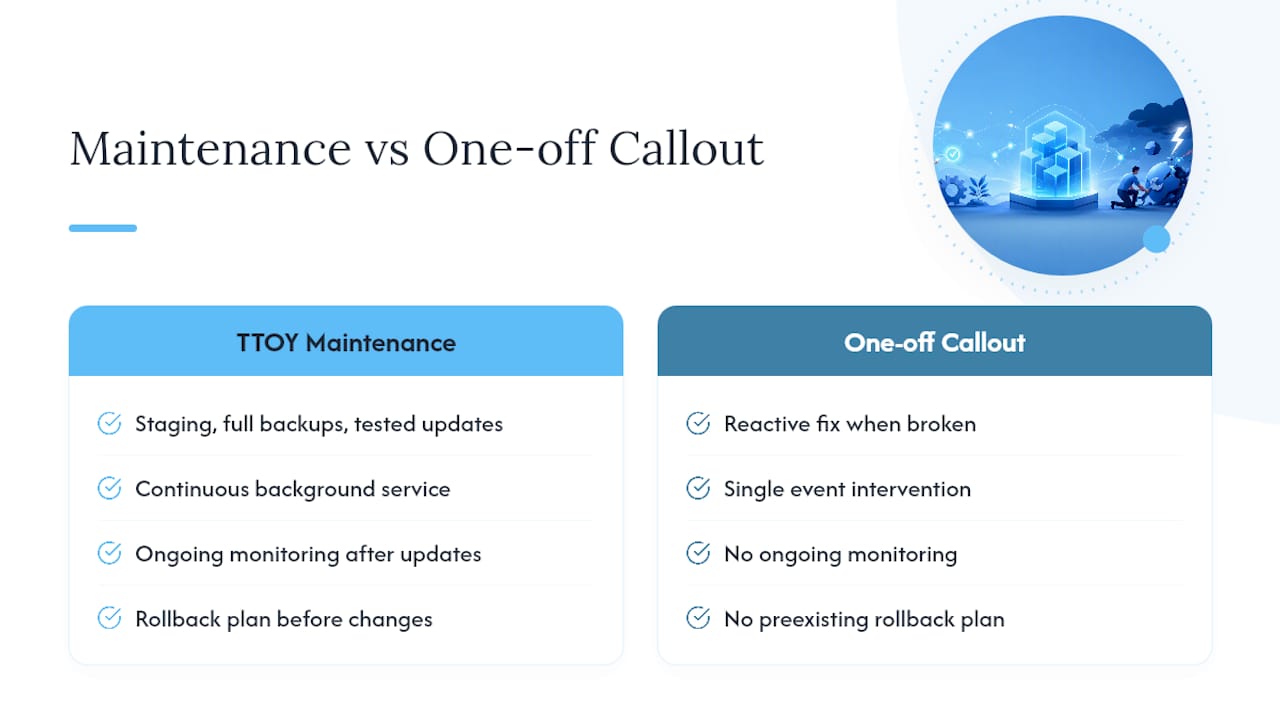
Unlike a one-off developer callout that only shows up once something’s already broken, this runs continuously in the background, with ongoing monitoring after every update. If your site is still on an old PHP version and the thought of touching it makes you nervous, that’s precisely the situation this service was built for. Get in touch through the WordPress Maintenance page and we’ll run a PHP health check on your site before anything else moves.
Where to check PHP and WordPress compatibility yourself
- WordPress.org requirements for the official minimum and recommended PHP versions
- Make WordPress Core’s compatibility handbook for the full version-by-version table
- Your host’s own control panel documentation for the exact steps to change PHP on your account
Sources
- Requirements, WordPress.org (English UK)
- PHP Compatibility and WordPress Versions, Make WordPress Core
- How to check and update PHP for WordPress, WP Rocket
- How To Update PHP In WordPress (Beginner’s Guide), MalCare
FAQ
Is PHP 8.3 stable for WordPress?
Yes, PHP 8.3 is stable and is the recommended baseline for WordPress sites right now. It’s well tested against current WordPress releases and supported by the vast majority of maintained plugins and themes.
What version of PHP does WordPress use?
WordPress doesn’t fix you to one version. It runs on whatever PHP your hosting server has installed, and you can see exactly which one via Tools → Site Health → Info → Server inside your dashboard.
Is PHP 8.4 stable for WordPress?
PHP 8.4 is stable and increasingly well supported, according to the core compatibility table. Test it on a staging copy of your site first, since older or abandoned plugins are more likely to hit snags on the newer release.
What is the best PHP version for WordPress in 2026?
PHP 8.3 is the safest baseline for most sites, with 8.4 a strong choice once you’ve confirmed your plugins and theme handle it cleanly on staging. If you’d rather not manage that testing yourself, TTOY Digital’s WordPress Maintenance plan handles the staging, testing and rollback for £30 per month per site.
How do I update PHP on my WordPress site?
You change PHP through your hosting control panel, such as cPanel’s MultiPHP Manager, or by asking host support to switch it for you. Always back up your site and test the change on staging first, since WordPress itself can’t alter the server’s PHP version.
Recommended
- Zero downtime for small business sites: Move your site to a new host
- Common Security Issues with WordPress & How to Mitigate Them
- WordPress maintenance plans for small businesses in Derbyshire and South Yorkshire
- Tips on How to Choose the Best WordPress Backup Plugin
Related reading: Cloudflare for small business: practical setup guide · Lead capture forms that generate quality leads