
Use a cadence-driven checklist, daily through yearly, that treats verified backups and staging-first updates as non-negotiable. Uptime and security alerts get checked daily; updates go through staging weekly; the database gets tidied monthly; a full restore drill happens quarterly. Skip the restore drill and the rest of the checklist is just theatre.
- Regularly verify backups on offsite storage with documented restore tests at least quarterly to ensure recovery readiness, especially for transactional or high-traffic sites.
- Sequence updates carefully by core, theme, then plugins, and test thoroughly on staging before applying to live sites to avoid compatibility issues and downtime.
- Conduct monthly performance checks, clear cache, and optimise the database to maintain fast load times and prevent slowdowns caused by accumulated bloat or outdated files.
- Perform quarterly restore drills to confirm backup integrity and restore times, preventing silent failures and ensuring readiness during emergencies.
- Continuously review accessibility standards, including alt text, contrast, keyboard navigation, and heading structure during monthly site audits to maintain compliance and user inclusivity.
Table of Contents
- What is a WordPress maintenance checklist, and how often should you run it?
- How do you handle backups, updates, security, performance, database and monitoring properly?
- What’s the safest way to test and apply WordPress updates?
- What should you log and report after each maintenance cycle?
- How does TTOY Digital run maintenance for small-business clients?
- Are WordPress sites accessible, and what should you check?
- Where can you find the official maintenance and security guidance?
- The honest take on WordPress maintenance checklists
- Get your maintenance handled properly, without the retainer guesswork
- Sources
- FAQ
What is a WordPress maintenance checklist, and how often should you run it?
A WordPress maintenance checklist is a scheduled set of tasks, grouped by frequency, that keeps a site backed up, updated, secure and fast without you having to remember everything at once. WordPress.org itself recommends checking for updates and backups every three to six months at minimum, with far more frequent checks for any site that takes payments, collects leads, or sees regular traffic. If you’re running a small business site, six months is too long to go without looking under the bonnet.
We’ve broken the checklist down by cadence because that’s how maintenance actually survives contact with a busy week. Nobody opens a 40-item list on a Tuesday afternoon and works through it top to bottom. They open the “today” list, do three things, and get on with running their business.
Daily tasks
- Check uptime monitoring for overnight outages or slow response times.
- Glance at the homepage and one or two key pages, just to catch anything visually broken.
- Review security plugin alerts for blocked login attempts or flagged files.
- Clear any WordPress dashboard notices that flag urgent core or plugin issues.
Weekly tasks
- Run a full backup before touching anything, and confirm it completed successfully.
- Apply plugin, theme and core updates on staging first, never straight to the live site.
- Clear page and object cache after any update so visitors see the current version.
- Test your main forms, checkout flow, or booking system to catch silent breakages.
Monthly tasks
- Optimise the database: remove old post revisions, spam comments and expired transients.
- Audit images and media for oversised files that are dragging down load times.
- Run a PageSpeed or Core Web Vitals check and note any drop against last month.
- Crawl the site for broken internal and external links.
Quarterly tasks
- Audit user accounts and roles; remove anyone who no longer needs access.
- Run a full security scan, including file integrity checks against the original plugin code.
- Perform a restore drill: recover the latest backup to a staging environment and time it.
- Check premium plugin and theme licences haven’t lapsed, which quietly disables update access.
Yearly tasks
- Audit content and SEO performance; update or retire pages that no longer serve visitors.
- Review hosting capacity against current traffic and decide if it’s still the right fit.
- Confirm SSL certificate auto-renewal is working and check domain expiry dates.
- Reassess long-term needs: is the current plugin stack still lean, or has it bloated?
That’s the skeleton. Pantheon’s guidance on WordPress maintenance sequences things almost identically: backups first, then staging, then testing, then promotion to live. It’s not a coincidence that agencies and platform teams converge on the same order. It’s the order that actually prevents disasters.
How do you handle backups, updates, security, performance, database and monitoring properly?
Each of these six categories has its own failure modes, and most WordPress maintenance checklist templates gloss over the detail that actually matters. Here’s what each one demands in practice.
Backups: the 3-2-1 rule isn’t optional
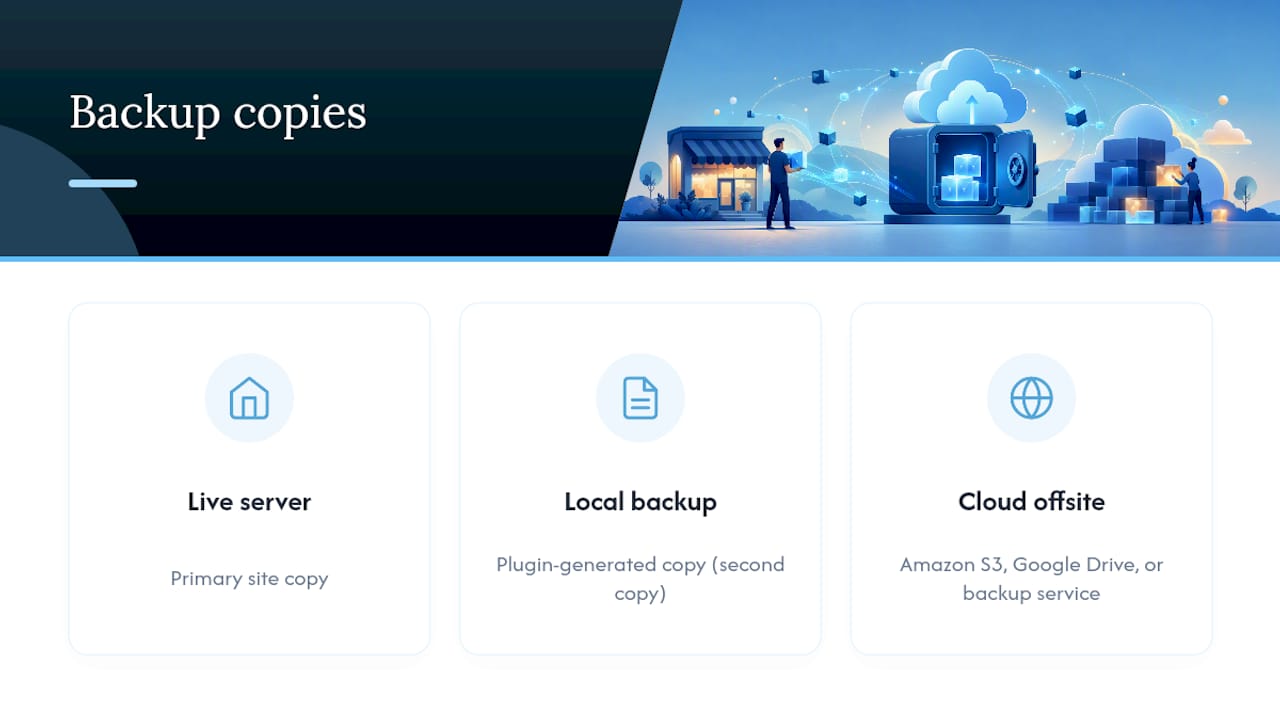
Keep three copies of your data, on two different types of storage, with one copy stored offsite. For a small-business WordPress site, that typically means your live server, a local or plugin-generated backup, and a cloud copy stored somewhere like Amazon S3, Google Drive, or a dedicated backup service. Retention windows should match your risk: an ecommerce site processing daily orders needs at least 30 days of rolling backups, while a low-traffic brochure site can often get away with 14.
Verification matters more than frequency. A backup that has never been restored is a guess, not a safeguard. Pantheon’s own maintenance framework treats backup confirmation as part of the update workflow itself, not a separate checkbox, recommending that you confirm a successful backup and log its ID before touching anything else. If you’re unsure which plugin fits your setup, our guide on choosing a WordPress backup plugin walks through the trade-offs, and our piece on why backups matter and how to create them covers storage options in more depth.
Updates: order matters more than speed
Don’t update everything in one click and hope. Update your active theme and any major framework plugins first, since Pantheon recommends sequencing updates this way to reduce compatibility risk, then work through the remaining plugins one at a time. Read the changelog for anything flagged as a major version bump. If a plugin jumps from version 3.x to 4.x, that’s a signal to test carefully rather than update blindly.
Delay an update only when you have a specific reason, such as a known compatibility conflict reported by other users, and set a date to revisit it. “I’ll get to it later” without a date is how sites end up three major versions behind and exposed. The National Vulnerability Database entry for CVE-2025-5071 is a useful reminder that specific, documented vulnerabilities exist in the WordPress ecosystem right now, and patches exist precisely because someone found a real hole.
Security: assume someone is already trying
Enable two-factor authentication for every admin account. NIST’s SP 800-63B guidance has moved away from forcing complex password rules that push people toward predictable patterns, and instead favours passphrases combined with MFA. Give each user the lowest role that lets them do their job; your part-time content writer doesn’t need administrator access.

Disable the built-in file editor in WordPress’s dashboard, lock down file permissions (directories at 755, files at 644 as a general rule), and run a malware scan monthly at minimum. Review your server error logs for repeated failed login attempts from the same IP range. Our overview of common WordPress security issues and general security best practice both go into specific mitigation steps.
Pro Tip: Set your security plugin to email you immediately on any admin login from an unrecognised device or country. It takes five minutes to configure and it’s often the first sign something’s wrong, days before anything else shows.
Performance: cache first, compress second
Layer your caching: page caching for full HTML output, object caching for database queries, and a CDN for static assets like images and CSS. Check your CDN is actually serving current files rather than stale cached versions after a design change.
Convert images to WebP or AVIF format where your theme supports it; these formats routinely cut file size by half compared to JPEG at similar visual quality. Minify CSS and JavaScript, and consider inlining critical CSS so the page above the fold renders before the rest of the stylesheet loads.
Database: quiet bloat kills speed
Post revisions accumulate fast on an actively edited site. Trim them back to a sensible number (five per post is common) and delete expired transients that plugins leave behind. Look for unusually large autoloaded options in your wp_options table; a single misbehaving plugin can add megabytes to every page load without any visible symptom.
Monitoring: catch it before a customer does
Run automated uptime checks at intervals no longer than five minutes. Review your PHP error logs weekly, not just when something visibly breaks; many issues surface quietly in the logs long before they cause a customer-facing problem. Check WP-Cron is firing correctly, since a stalled cron job silently breaks scheduled tasks like backups and email sends without any obvious warning sign. Route error alerts to a channel someone actually checks, not an inbox that gets ignored.
What’s the safest way to test and apply WordPress updates?
The safest update workflow never touches the live site first. It runs the exact same sequence enterprise platform teams and agencies use: refresh, update, test, promote.
- Refresh staging from production, including the database and media library where your hosting setup allows it, so staging genuinely reflects what’s live.
- Apply updates on staging in the sequence covered above: core first, then the active theme, then plugins one at a time.
- Run functional tests: submit a form, log in as a test user, walk through checkout or booking if applicable, and open the browser console to check for JavaScript errors.
- Check PHP logs on staging for warnings or fatal errors that a visual check alone would miss.
- Spot-check visually on both mobile and desktop, comparing key pages against how they looked before the update.
- Confirm your rollback path before promoting anything: which backup you’d restore, roughly how long that restore takes, and who on your team actually has permission to do it.
| Stage | What you’re checking | Who should sign off |
|---|---|---|
| Staging refresh | Database and media match production | Site owner or maintainer |
| Update applied | Changelog reviewed, no major version surprises | Developer or maintainer |
| Functional test | Forms, login, checkout, console errors | Site owner or QA tester |
| Rollback confirmed | Backup ID noted, restore time known | Person with hosting access |
If a small-business platform vendor supports project workflows inside WordPress itself, tools built for agency project management within WordPress can help formalise who approves what before anything goes live.
What should you log and report after each maintenance cycle?
A maintenance cycle without a paper trail is hard to trust six months later when something goes wrong and nobody remembers what changed. Keep a simple, consistent log every time you work through the checklist.
- Backup ID and confirmation the restore test passed (or didn’t).
- List of updates applied, with any that failed or were deliberately skipped.
- Security events: blocked logins, scan results, anything flagged.
- Performance baseline numbers and any notable drop from the previous check.
A short report template covers the cadence you ran, issues found and fixed, risks still outstanding, and what’s scheduled next. Fold in a few SEO checks while you’re there: confirm the sitemap and robots.txt are still accessible, pull a fresh 404 report, sanity-check page titles and meta descriptions on recently edited pages, and note the Core Web Vitals trend against last month. If you’re handing the site to a colleague or a client, that log becomes the handover document. Nobody has to reverse-engineer what’s been done.
How does TTOY Digital run maintenance for small-business clients?
Most small-business owners we work with don’t want a longer checklist. They want someone else running through it while they get on with their business. A typical maintenance window for one of our clients runs weekly updates on staging, a monthly performance and database pass, and a quarterly restore drill logged with the actual recovery time, not just a tick in a box.
That last part is where most DIY setups quietly fall apart. Backups exist, but nobody has ever actually restored one under pressure to see how long it takes or whether it even works.
We’ve seen restore drills catch backup corruption that had been sitting undetected for months. The only reason it surfaced was that someone actually tried the recovery on staging instead of assuming the green tick meant the backup was good.
What a client typically sees each cycle:
- A short report: what was updated, what was tested, what’s outstanding.
- Restore time logged from the most recent quarterly drill.
- Any security events flagged, with context on whether action was needed.
A managed plan makes sense once your site earns real revenue, handles customer data, or you simply don’t have a spare afternoon each week. If you’re still comfortable running the checklist yourself, our breakdown of why websites need ongoing maintenance is worth a read before you decide either way.
Are WordPress sites accessible, and what should you check?
Accessibility isn’t a one-off audit you run and forget. It belongs on the same cadence as everything else, because content changes weekly and a new blog post or product page can just as easily break accessibility as a plugin update can break functionality.
Check that every image carries meaningful alt text, not a filename dumped in as a placeholder. Run your key pages through a contrast checker; low-contrast text on a trendy pastel background looks lovely and is unreadable for a meaningful share of visitors. Confirm your site is fully navigable by keyboard alone, tabbing through menus, forms and buttons without touching a mouse. That single test surfaces more real problems than most automated scanners catch.
Form fields need visible labels, not just placeholder text that vanishes the moment someone starts typing. Video content should carry captions or a transcript. Heading structure should run in logical order, H1 then H2 then H3, rather than jumping around because a heading “looked right” at a smaller size.
Many accessibility issues creep back in after a theme update changes default styling or a new plugin injects markup that ignores semantic structure. Fold a quick accessibility pass into your monthly review rather than treating it as a separate annual project, and you’ll catch regressions while they’re still small and easy to fix.
Where can you find the official maintenance and security guidance?
For anyone who wants to go straight to the source rather than take our word for it, three references anchor most of the recommendations in this checklist. WordPress.org’s own site maintenance documentation sets out recommended cadence and a sample calendar. The NIST SP 800-63B digital identity guidelines cover authentication and password best practice in detail. For a broader agency-style task list, WP-Umbrella’s 27-task checklist is a useful cross-check against your own routine.
The honest take on WordPress maintenance checklists
Most WordPress maintenance checklist advice online is a list of tasks with no sense of what actually prevents disasters versus what just feels productive. Clearing transients monthly is fine. It’s not going to save your site. A verified, tested backup will.
The gap we see most often isn’t a missing task, it’s a missing test. Plenty of small-business owners tick “backups” as done because a plugin runs automatically every night. Almost nobody tests whether that backup actually restores until the day they desperately need it to, and that’s exactly the day you don’t want to be finding out it doesn’t. The same goes for staging: having a staging environment isn’t the win, actually using it before every single update is.
If you take one thing from this checklist, make it the quarterly restore drill. Everything else on this list is genuinely useful. That one is the difference between a maintenance routine and a false sense of security.
— Chris
Get your maintenance handled properly, without the retainer guesswork
TTOY Digital is the alternative to piecing together your own maintenance routine from plugins, reminders, and hope. Small-business owners come to us because they’ve read a checklist like this one, recognised exactly how much of it they’re not actually doing, and decided their time is better spent running their business. Our WordPress maintenance plans for Derbyshire and South Yorkshire businesses cover the full cadence: backups verified, updates tested on staging, and a genuine quarterly restore drill with the recovery time logged, not just assumed.
If your site also needs a proper technical foundation rather than a patch job, our web design service builds mobile-first sites designed to be maintained, not just launched. Get in touch and we’ll tell you honestly whether a managed plan or a bit of guidance to run it yourself makes more sense for where your site is right now.
Sources
- Wordpress
- WordPress maintenance tasks that actually matter, Pantheon
- CVE-2025-5071, NVD
- NIST SP 800-63B, Digital Identity Guidelines
FAQ
Is WordPress outdated in 2026?
No. WordPress still powers a substantial share of the web and continues active development, including upcoming PHP 8.5 support in WordPress 6.9. Sites that feel outdated are almost always suffering from neglected maintenance, not an outdated platform.
Why are people moving away from WordPress?
Where businesses do move away, it’s usually frustration with plugin bloat, security incidents from unpatched sites, or slow performance, and all three are maintenance problems rather than platform problems. A site kept on a proper cadence, with staging-first updates and verified backups, rarely runs into the issues that push people towards alternatives.
How much does WordPress maintenance typically cost?
Costs vary widely depending on site complexity, traffic, and how much is handled in-house versus outsourced to an agency or managed host. A retainer-based plan, such as the managed maintenance plans TTOY Digital offers, typically covers updates, backups, security monitoring, and reporting for a predictable monthly fee rather than an unpredictable emergency callout.
How often should I run a full WordPress security scan?
Run a full scan at least quarterly, alongside daily monitoring for alerts and blocked login attempts. Sites handling payments or sensitive customer data should scan monthly, given how quickly new vulnerabilities like CVE-2025-5071 can appear in the wild.
Do I need a staging site for a small WordPress website?
Yes, even a small site benefits from staging before any update, since a broken checkout or contact form on a live site costs far more than the few minutes it takes to test on staging first. Many managed hosts, including options covered in guides on managed WordPress hosting for agencies, include a staging environment as standard.