
The safe way to update WordPress is simple: take a fresh full backup, test the update on a staging copy if you have one, apply updates in order (themes and plugins first, core last), then verify and clear your caches. The one rule that overrides everything else is this: never click “update” until you have a restore path you have actually checked works.
- Regular full backups and testing restore points are essential before applying any updates to ensure quick recovery if needed.
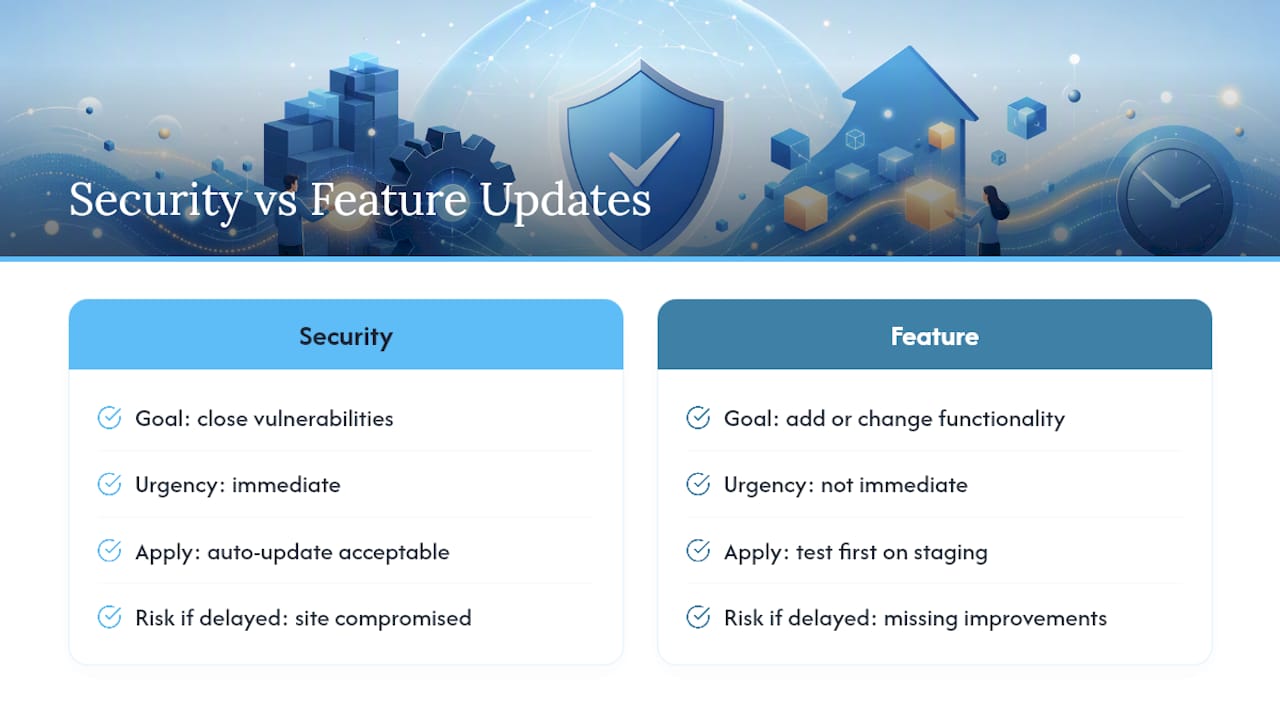
- Updating security patches immediately is critical, but major releases require staging tests to prevent conflicts and downtime.
- Work in small batches or on a staging environment, and verify site functionality after each change to catch issues early.
- Clearing caches and checking error logs promptly helps identify any problems caused by updates and facilitates quick rollback.
- Managed maintenance plans automate backups, staging tests, and restorations, reducing risks for busy small businesses managing multiple sites.
Table of Contents
- Why updates matter and the security trade-off
- Your pre-update checklist: backups, PHP, and staging
- How to actually apply the update, step by step
- Verifying success and recovering when something breaks
- When it makes sense to hand updates to someone else
- What makes updates manageable for small teams
- Let a maintenance plan carry the risk for you
- Sources
- FAQ
Why updates matter and the security trade-off
Most hacked WordPress sites did not get compromised through some clever exploit. They got in because a plugin, theme, or core file sat unpatched for months, giving attackers a documented weakness to walk through. That is the uncomfortable truth behind most of the “why has my client’s site been hacked” calls we field: the fix existed, nobody applied it.
But there is a real tension here, and pretending otherwise does small business owners no favours. Updating fast reduces security risk. Updating carelessly creates a different risk: a plugin conflict, a PHP version mismatch, or a caching artefact that leaves the homepage blank the moment a customer lands on it.
WordPress itself treats this trade-off seriously. The WordPress 7.0.2 release is a security patch, and administrators are told to update immediately, with the update applied automatically on many sites through forced auto-updates.
Pro Tip: Treat security releases and feature releases as two different animals. A security patch like 7.0.2 wants speed. A major feature release wants a staging test first. Confusing the two is how sites end up either exposed or broken.
That split, fast for security, cautious for features, is the backbone of everything that follows.
Your pre-update checklist: backups, PHP, and staging
Nothing below is optional, but the order matters. Skip the backup step and everything after it is a gamble.
- Make a full backup of files and database, then actually test the restore. A backup you have never restored is a theory, not a safety net. Keep multiple recent restore points, not just the latest one, in case an issue only surfaces days later.
- Check PHP and server requirements for the version you’re moving to. Plugin authors often bump their minimum PHP requirement without much fanfare, and a mismatch here is one of the most common causes of a white screen after an update.
- Read the changelog for every plugin and theme you’re about to update. If a plugin hasn’t been touched by its author in over a year, treat it as a flag for closer testing rather than a routine update.
- Refresh or create a staging copy of your site. This is the single most effective way to catch a breaking change before your customers do, according to guidance on safely updating WordPress. If your host offers a “Smart Update” style feature, it can clone, test, and approve changes automatically before anything reaches production, though it does need enough disk space to run.
- If staging genuinely isn’t available, schedule the work for your lowest-traffic hours and update one item at a time. One plugin, verify, then the next. It is slower, and that is the point.
- Pause caching plugins and CDN caching before you start, and confirm you can get into your hosting control panel, SFTP, and WP-CLI if you need them. Losing dashboard access mid-update without a backup route in is how a ten-minute job becomes a support ticket.
For the backup step specifically, a tool such as UpdraftPlus handles full file-and-database backups and scheduled backups, and it’s a fair example of what to look for if you’re picking backup software rather than relying on whatever your host bundles in by default. If you want more on choosing between backup plugins, our guide to picking a WordPress backup plugin walks through the features that actually matter, and this roundup of backup plugins for Elementor sites is worth a look if Elementor is part of your stack.
How to actually apply the update, step by step
Once the checklist above is ticked off, the order of operations is what protects you. Update and test themes and plugins on staging first, then push core last, because core rarely breaks a site on its own but a plugin fighting a new core version does it constantly. If you have no staging environment, work in small batches: update two or three plugins, check the site, then continue, finishing with core once everything else has settled.
Which method you use depends on your comfort level and your host:
- The dashboard’s one-click update is the right call for most small business owners. WordPress’s own update documentation covers this method in full, along with the manual and automatic background update options.
- WP-CLI suits anyone with SSH access and a bit of command-line confidence. Commands like
wp plugin update,wp core update, andwp core update-dblet you script the whole sequence and repeat it identically every time, which matters more than it sounds once you’re managing several sites. - Manual FTP replacement of core files is a fallback for when the dashboard is unreachable, not a first choice. It is slower and more error-prone than either option above.
Switch on maintenance mode while you work, and keep a short note of exactly what you changed and when. That note is worth its weight in gold the day something breaks three updates later and you need to know which one to suspect first. On the automation question, a sensible policy is to enable automatic updates for security and minor releases, since those are usually low risk and time-sensitive, and handle major releases and anything touching your PHP version by hand.
Verifying success and recovering when something breaks
Once the update finishes, clear every layer of cache, plugin, server, CDN, and load the site in a private browser window so you’re not looking at a stale cached version. Walk through the journeys that actually earn you money: the homepage, your contact form or checkout, and the login screen. If any of those fail, don’t guess. Check your WordPress debug log and server error logs first; the fatal error message usually names the plugin responsible.
If the culprit isn’t obvious, reactivate plugins one at a time from a deactivated state until the error reappears. That tells you exactly which update caused the problem.
Your rollback options, in order of speed:
- Restore from the full backup you took before starting, which undoes everything in one move.
- Revert a server snapshot, if your host offers one, for a similarly clean restore.
- Use Git or WP-CLI to roll back specific files or a plugin version if you need something more surgical than a full restore.
- Delete a lingering
.maintenancefile if the site is stuck on the “briefly unavailable for scheduled maintenance” screen after an update that technically finished. This one trips up more people than it should, according to guidance on updating WordPress safely.
If none of that resolves it, call your host or developer, and hand them three things straight away: the timestamp of your last good backup, a list of exactly what you updated, and the relevant lines from your error log. That trio usually cuts a support call from an hour to ten minutes.
When it makes sense to hand updates to someone else
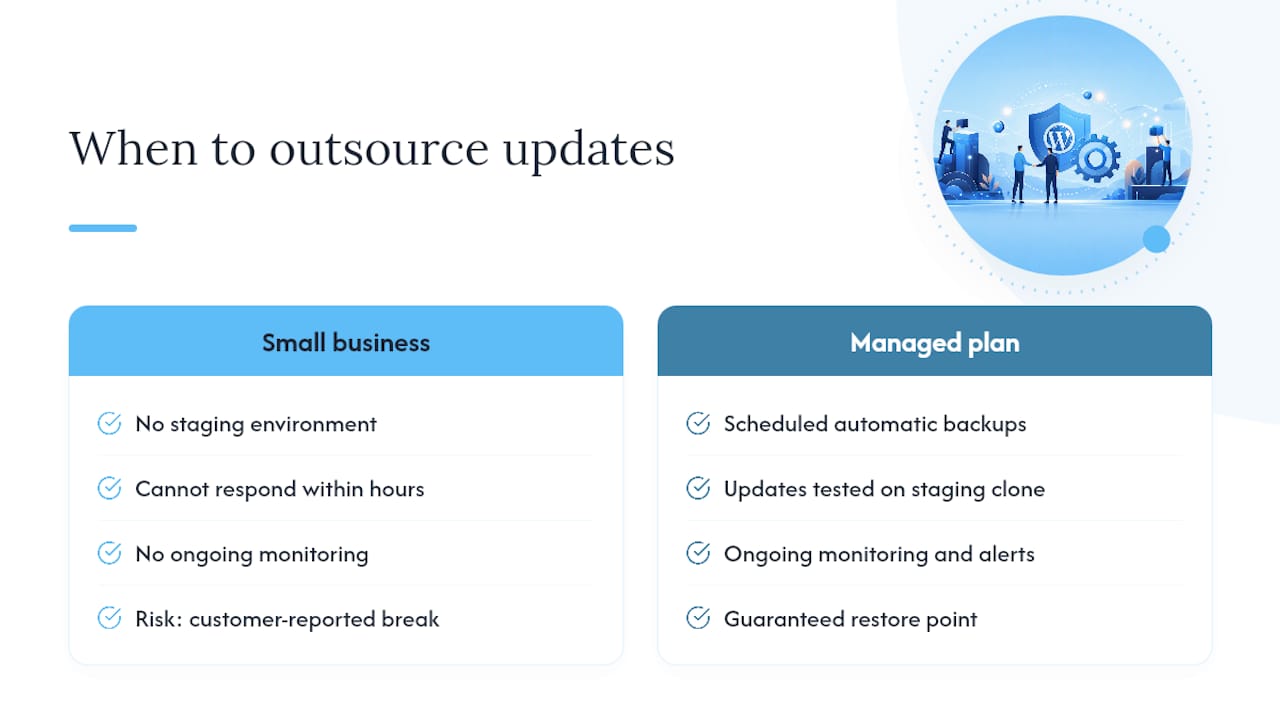
Not every small business owner has the time, or the appetite, to run through that checklist every time WordPress flags an update. That’s the gap a managed maintenance plan is built to close: scheduled backups taken automatically, updates tested on a staging clone before they ever touch the live site, ongoing monitoring, and a guaranteed restore point if anything does go wrong.
For a business that cannot run a staging environment internally or respond to an urgent security patch within hours of release, that safety net is worth more than the monthly cost suggests. It is the difference between finding out about a break from a worried customer and finding out from a monitoring alert before anyone else notices.
TTOY Digital’s own WordPress maintenance service is built around exactly this workflow, and it sits alongside our wider view on why websites need ongoing maintenance at all, plus a closer look at the common security issues WordPress sites face and how regular updates head most of them off.
What makes updates manageable for small teams
Here’s what I’d tell any small business owner who feels behind on this: the sites that stay safe aren’t run by people with more technical skill. They’re run by people who do the same small steps every time, in the same order, without skipping the backup because they’re in a hurry.
DIY is genuinely fine if you can commit to that discipline, especially for a single small site with a modest plugin count. Where it stops being fine is when you’re running several sites, or when a security release lands on a week you’re too busy to touch a computer. That’s when a managed plan earns its cost. If you’re not sure which camp you’re in, it’s worth talking it through with someone who looks at this daily rather than guessing.
— Chris
Let a maintenance plan carry the risk for you
If the checklist above sounds like more than you want to manage on top of running your business, that’s precisely the gap TTOY Digital’s WordPress Maintenance plan fills. Instead of you tracking staging environments and backup schedules by hand, the plan does the monitoring and testing for you, for a flat £30 per month per site.
What it covers, in short:
- Scheduled backups taken automatically, not remembered manually.
- Updates tested on a staging clone before they reach your live site.
- Guaranteed restore points if an update ever needs undoing.
This is the direct alternative to the DIY workflow described above, not an add-on to it. If you’d rather someone else own the update risk, get in touch through the WordPress maintenance page for a quote, and we’ll talk through what your current setup needs.
Sources
- WordPress 7.0.2 release
- Upgrading WordPress, Advanced administration
- How to safely update WordPress without breaking your site
FAQ
Is WordPress outdated in 2026?
No. WordPress continues to release regular security and feature updates, including patches like WordPress 7.0.2, which shows active, ongoing development rather than a platform in decline. The risk isn’t the software itself, it’s running an unpatched, outdated installation of it.
Do I need to update WordPress?
Yes, and promptly for security releases in particular, since outdated core, plugin, or theme files are the most common route attackers use to compromise a site. Feature releases are less urgent but shouldn’t be ignored for long, since delaying them widens the compatibility gap you’ll eventually have to close.
How do I update WordPress to the latest version?
Back up your files and database first, test the update on a staging copy if one is available, then apply it through the dashboard’s one-click update or via WP-CLI if you have SSH access. If staging isn’t an option, update one plugin or theme at a time and verify the site after each change before moving to the next.
How to check if a WordPress site is hacked?
Look for unexpected admin users, unfamiliar files in your plugin or theme folders, sudden traffic spikes to pages you didn’t create, or your site being flagged by Google Search Console. If you spot any of these, restore from your last clean backup rather than trying to clean the live site by hand, and consider a maintenance plan such as TTOY Digital’s WordPress Maintenance if recurring security issues are eating into time you’d rather spend running your business.