
Set up GA4 now by creating a property, adding a web or app data stream, installing the Google tag through your CMS, a manual snippet or Tag Manager, then confirming data in the Realtime report. Enable enhanced measurement while you’re in there. Do those four things in order and you’ll have usable numbers within half an hour, not half a day.
- Setting up GA4 involves creating a property, adding a data stream, installing the Google tag via your CMS, snippet, or Tag Manager, and confirming data in real-time reports.
- Use a single GA4 account with one property for most small businesses, and set the reporting time zone to GMT to avoid skewed comparisons.
- Enable enhanced measurement and track only key events, such as form submissions or purchases, to avoid data noise and prioritise actionable insights.
- Proper user permissions are crucial; restrict access based on roles to prevent accidental changes or data contamination.
- Regularly review setup and data quality, including filters for internal traffic and linking GA4 to Search Console for keyword data, to maintain accurate reporting.
Table of Contents
- How do I create a Google Analytics account and property?
- How do I add a data stream and enable enhanced measurement?
- What’s the best way to install the Google tag?
- How do I check my GA4 tracking is actually working?
- How do I set up conversions and key events for Google Ads?
- What should you check after the initial GA4 setup?
- How TTOY Digital handles GA4 setup for small businesses
- How do you set up user permissions for team collaboration?
- How do you link GA4 to Google Search Console?
- How do you exclude internal traffic from your reports?
- How do you migrate from Universal Analytics to GA4?
- The bit nobody tells you about GA4 setup
- Get GA4 set up properly without the trial and error
- Sources
- FAQ
How do I create a Google Analytics account and property?
If this is your first time in Google Analytics, you’ll need one account, which sits above everything else as the container for your business. Inside that account, you create a property, which is the actual GA4 instance that collects your data. Most small businesses only ever need one account with one property. Add a new property only when you’re launching a genuinely separate business or brand, not for every new landing page.
You’ll need the Editor role (or Administrator) on the account to create a property. Viewer or Analyst access won’t let you build one, which trips up more agency handovers than it should.
When you set up the property itself, a few fields matter more than they look:
- Reporting time zone: choosing Greenwich Mean Time avoids the automatic Daylight Saving shift that can quietly skew your day-by-day comparisons, according to Google’s own property guidance.
- Currency: set this to GBP if you’re trading in pounds, since it affects how revenue and ecommerce values report.
- Industry category and business size: GA4 uses these to tailor its default reports and benchmarking, so answer them honestly rather than skipping through.
- Business objectives: pick the ones that reflect what you actually want (leads, sales, awareness) so the interface highlights the right reports first.
How do I add a data stream and enable enhanced measurement?
A property on its own collects nothing. You need at least one data stream, created under Admin > Data Streams, and this is where you choose Web, iOS app or Android app depending on what you’re measuring.
For a website, creating the stream automatically offers enhanced measurement, a toggle that turns on collection for page views, scrolls, outbound clicks, site search, video engagement and file downloads without writing a line of code, as Google explains in its setup guide. Leave every toggle on unless you have a specific reason to switch one off. For most small business sites, scroll and outbound click tracking are the two most that people forget to check for, and they’re switched on by default here.
For an app, the stream links through to Firebase, which is what actually gathers the raw events GA4 later reports on. Skip the Firebase link and your app stream simply won’t populate.
Each stream generates a Measurement ID. Web streams use a “G-” prefix; if you’re connecting Google Ads separately you’ll also see “AW-” format IDs, and it’s worth knowing the difference before you’re pasting IDs into the wrong field at 11pm.
What’s the best way to install the Google tag?
Three routes exist, and which one suits you depends on your CMS and how comfortable you are with code.
- Native CMS integration. WordPress, Shopify and Wix all have a field somewhere in their settings where you paste your Measurement ID directly, no code required. This is the fastest route for non-technical owners, and it’s genuinely the one we recommend defaulting to.
- Manual gtag.js snippet. If your platform has no native field, paste the Google tag snippet immediately after the opening
<head>element on every single page of the site, exactly as Google’s installation instructions specify. Miss a template and that page goes dark in your reports. - Google Tag Manager. Add a GA4 Configuration tag inside your GTM container, set the trigger to “All Pages,” and always run Preview mode before publishing. GTM is the right call once you’re managing multiple tags or need custom event parameters beyond what enhanced measurement covers.
Each method has a trade off. CMS fields are quickest but least flexible. Manual snippets work anywhere but need a developer’s help across a template-heavy site. GTM adds a short learning curve but pays that back the moment you need a second or third tracking tool alongside GA4.
Pro Tip: Never reuse the same tag ID or GTM container across two separate websites. It’s tempting when you run several small sites, but it mixes their data into one property and you’ll spend hours later trying to work out which numbers belong to which business.
How do I check my GA4 tracking is actually working?
Open the Realtime report and browse your own site in another tab. You should see yourself appear as an active user within a couple of minutes, though Google notes it can take up to 30 minutes for a brand new property to start collecting fully.
If nothing shows up, work through this order:
- Check for a duplicate tag, one from the CMS field and another pasted manually. This double-fires events and skews everything downstream.
- Confirm the Measurement ID matches the property you’re actually looking at, not a test or old property.
- If you’re using GTM, check the container is published, not just saved in a draft version.
- Check whether a cookie consent banner is blocking the tag from firing before consent is given.
Tag Assistant and GTM’s Preview mode both let you inspect exactly which tags fired and what values they carried, which is far quicker than guessing.
Pro Tip: If you suspect bot or scraper traffic is muddying your reports rather than a broken tag, it’s worth learning how unusual sources like AI crawlers show up in GA4 before you assume the tracking itself is at fault.
How do I set up conversions and key events for Google Ads?
Everything in GA4 is an event, including the page view itself. That flat structure feels unfamiliar if you’re used to Universal Analytics’ separate “goals,” but it’s actually simpler once you stop looking for a goals menu that no longer exists.
Start narrow. Pick two to four events that genuinely reflect your business, rather than tracking everything GA4 is technically capable of measuring:
generate_leadfor a form submissionpurchaseif you run ecommercecontact_clickfor a phone or email clickpage_viewon a specific high-value page, like a pricing or booking page
Once an event exists, mark it as a key event in Admin, then it can become a conversion, as Google’s guide to key events confirms. Conversions created this way become available in Google Ads once the accounts are linked, which is what lets you optimise ad spend against real business outcomes rather than clicks. A sensible starting plan tracks two of these as key events for the first month, then expands once you can see which numbers actually move your decisions. Our guide to lead capture forms covers the form-tracking side of this in more depth if generate_lead is your priority event.
What should you check after the initial GA4 setup?
Setup isn’t finished once data starts flowing. A handful of settings determine whether that data stays useful six months from now.
- Set data retention under Admin > Data Settings. GA4 defaults some event data to a shorter retention window than you’d expect, so extend it if you’ll want year-on-year comparisons later.
- Review Google Signals, which enables cross-device reporting for signed-in Google users, but only activate it once you understand the consent implications for your region.
- Standardise your event and parameter names from day one, and keep a short change log every time you add or rename one. Nothing wrecks a year of reporting faster than three slightly different spellings of the same event.
- Schedule a five-minute monthly check of your key events and top pages. Data drift, a tag quietly breaking after a site update, is far easier to catch monthly than to untangle a year later.
How TTOY Digital handles GA4 setup for small businesses
We configure the full stack for clients: property and stream creation, tag installation through GTM or a CMS field, enhanced measurement, and the two or three key events that actually match a business’s goals, whether that’s a booking, an enquiry form or a sale.
What you get isn’t just a working tag. It includes:
- A short measurement plan naming the events worth tracking for your business specifically
- A consistent naming convention so reports stay readable as you grow
- Monthly checks to catch tracking drift before it costs you a quarter of clean data
- Conversions linked through to Google Ads where paid traffic is part of the plan
It’s the same setup covered above, done once, correctly, with someone keeping an eye on it afterwards.
How do you set up user permissions for team collaboration?
GA4 splits access into account-level and property-level roles, and knowing the difference saves a lot of “why can’t I see this” messages from colleagues.
Under Admin > Account Access Management or Property Access Management, you can grant one of four roles. Administrator can do everything, including deleting the property, so keep this to one or two people. Editor can create data streams, manage tags and change most settings, but can’t manage user access itself. Analyst can create and edit reports, segments and audiences, but can’t touch configuration. Viewer can only look at existing reports.
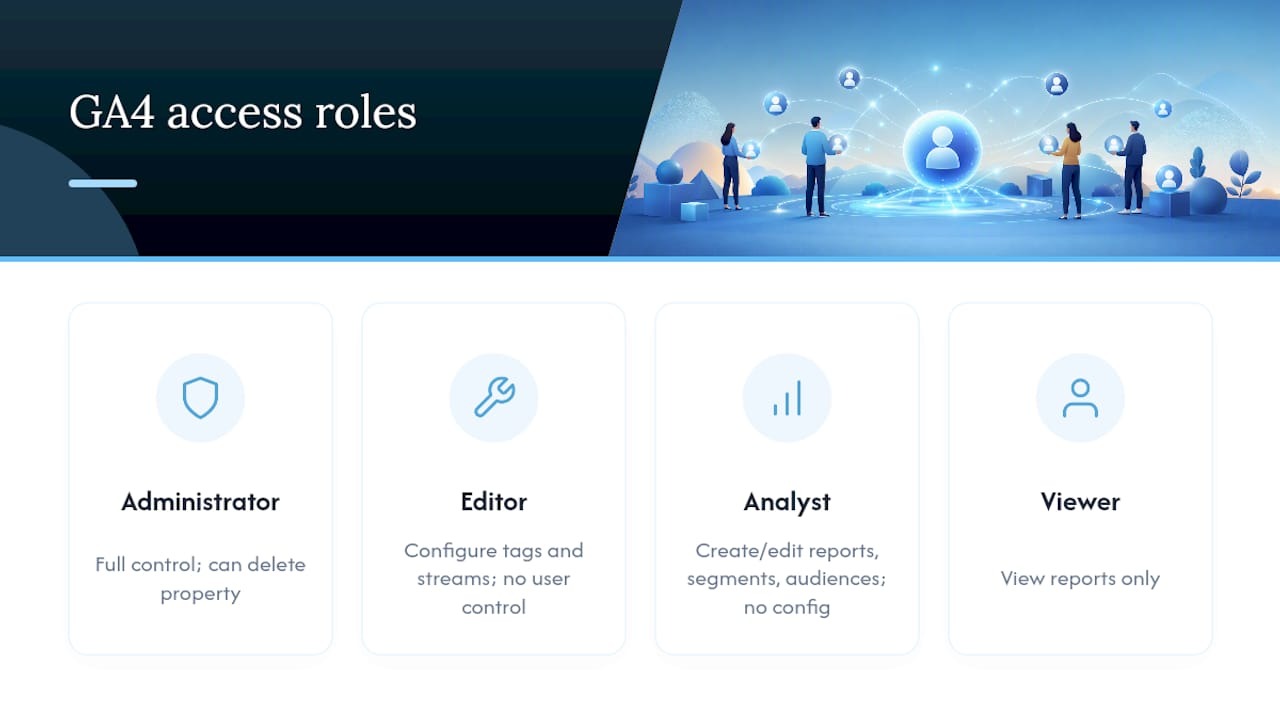
A sensible small business setup looks like this: the owner or one trusted staff member holds Administrator, a marketing contractor or agency gets Editor so they can install tags and fix issues, and anyone who just wants to check numbers gets Viewer. Avoid handing out Administrator access to every freelancer who touches the site. It’s the single most common way small business GA4 properties end up with duplicate tags, deleted key events, or someone accidentally changing the reporting time zone.
If you work with an external SEO or web agency, grant them Editor at the property level rather than account level. This lets them configure your GA4 setup fully without giving them visibility or control over any other properties you might add to the same account later. It also means you can revoke their access cleanly the moment the working relationship ends, without touching anyone else’s permissions.
How do you link GA4 to Google Search Console?
Linking GA4 to Search Console pulls your organic search queries, clicks and impressions directly into your Analytics reports, which is something GA4 can’t show you on its own. Without this link, you can see that traffic arrived from “Google / organic” but not which search term actually brought someone to your site.
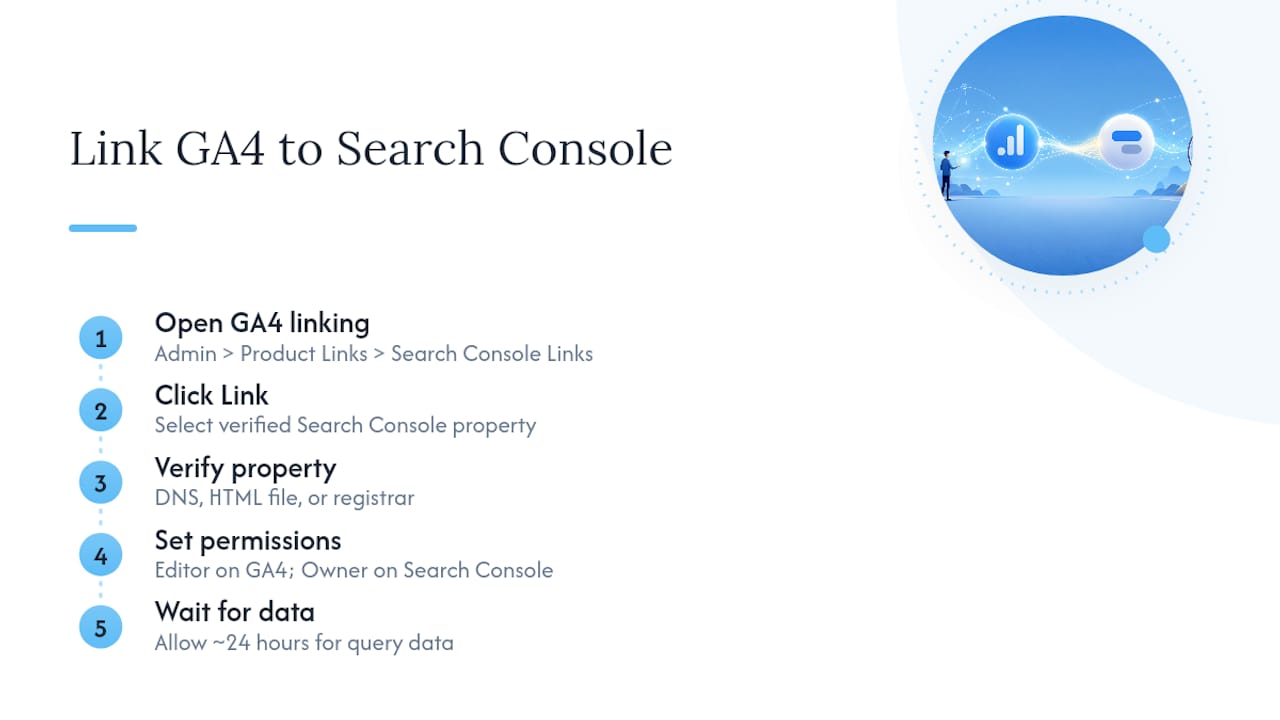
Go to Admin > Product Links > Search Console Links inside GA4, then click Link. You’ll be asked to choose a verified Search Console property, which means you need to have already verified ownership of the domain in Search Console itself, usually through a DNS record, an HTML file upload, or your domain registrar. If you haven’t set up Search Console yet, do that first; the GA4 link is a five-minute step once the property already exists there.
Once linked, you’ll need Editor access on the GA4 property and full ownership or delegated owner access on the Search Console property to complete the connection. After linking, give it a day before checking; the search query data doesn’t appear instantly the way Realtime does for standard events.
This link matters more than most owners realise. Without it, you’re stuck guessing which keywords bring in visitors based on landing pages alone. With it, you get an actual queries report inside GA4’s Acquisition section, which is far more useful when deciding what to write about next or which pages need better on-page targeting.
How do you exclude internal traffic from your reports?
Every visit from your own team, whoever’s updating the website, testing a new form, or just checking the homepage loads properly, counts as a real user in GA4 unless you tell it otherwise. On a small site with modest traffic, a handful of internal visits a week can visibly inflate your numbers and quietly wreck your conversion rate calculations.
Fix this with an internal traffic filter, built in two stages. First, under Admin > Data Streams > [your stream] > Configure tag settings > Show all > Define internal traffic, add a rule matching your office or home IP address to the traffic_type parameter, usually labelled “internal.” Second, go to Admin > Data Settings > Data Filters, find the “Internal Traffic” filter, and set it to Active rather than the default “Testing” state. Leaving it on Testing is the single most common mistake here. It flags the traffic but doesn’t actually remove it from your reports.
If your team works from a mix of home and office connections, or a static IP isn’t available, this filter alone won’t catch everyone. Some businesses add a second filter based on a custom parameter passed through a specific URL they only use internally, though that takes a bit more technical setup than most CMS platforms offer out of the box. For most small teams working from one or two fixed locations, the IP-based filter covers it.
How do you migrate from Universal Analytics to GA4?
Universal Analytics stopped processing new data some time ago, so if you’re only just tackling GA4 now, this isn’t a migration in the sense of moving live data across. It’s a fresh setup, and that’s actually good news.
Universal Analytics worked on a hit-based model, page views, events and transactions each logged as separate hit types. GA4 treats everything as an event, which means your old goals don’t transfer over automatically and shouldn’t be copied across unthinkingly. Use this as a genuine opportunity to reconsider which KPIs actually matter to your business today, rather than recreating five-year-old goals that made sense under a different site structure or business model.
Practically, that means: export any historical UA reports you still need for year-on-year comparisons, since that data won’t appear inside GA4. Then build your GA4 key events fresh, based on the four-event starter plan covered earlier, rather than trying to map every old UA goal one-to-one. Most businesses find they only need two or three of their old goals anyway. If your UA account is still accessible for reference, keep it bookmarked for historical lookups only, and treat GA4 as the system you’re actually building forward.
The bit nobody tells you about GA4 setup
Most guides treat GA4 setup as a technical checklist, tick every box, done. That’s backwards. The technical steps, creating a property, pasting a tag, are the easy part. The genuinely useful decision is which two or three events actually predict whether your business made money that month, and almost nobody spends time on that before wiring up tracking.
We’d argue the conventional advice oversells “enable everything” as the safe default. Enhanced measurement, yes, switch it all on. But key events? Tracking eight of them from day one just buries the two that matter under noise you’ll never look at again. Start with two, as the small business starter plan above suggests, and only add more once you’ve actually used the first two to make a decision.
The other overlooked point: GA4 rewards businesses who revisit it monthly, not the ones who set it up once and never return. A tag can break silently after a site update, and nobody notices for three months. If you’d rather have someone else watch for that, that’s a reasonable call, and it’s exactly the gap professional setup and monitoring fills.
— Chris
Get GA4 set up properly without the trial and error
TTOY Digital is the practical alternative to muddling through GA4 setup yourself or leaving it half configured after a rushed afternoon. We handle the property, the data stream, the tag installation (through GTM, your CMS, or a manual snippet, whichever fits your site), enhanced measurement, and the two or three key events that actually reflect your business, then link them through to Google Ads and Search Console where relevant.
Most small business setups are ready within a few working days, and they come with a short measurement plan so you know exactly what’s being tracked and why. If you’d rather have someone else get this right the first time, get in touch about our web design and analytics setup and we’ll talk you through what your site actually needs.
Sources
- Set up your Google tag in Google Analytics - Analytics Help
- Set up Analytics in Tag Manager - Tag Manager Help
FAQ
How do I use Google Analytics 4?
Create a property, add a web or app data stream, install the Google tag through your CMS, a manual snippet, or Google Tag Manager, then check the Realtime report to confirm data is flowing before setting up key events.
Is Google Analytics 4 free?
Yes, GA4’s standard version is free for any business, with a paid tier available for larger organisations that need higher data limits and advanced support.
Is Google Analytics 4 hard to learn?
The interface takes some adjustment if you’re used to Universal Analytics, since GA4’s event based model works differently, but the core setup steps, property, stream, tag, verification, are straightforward enough for most small business owners to follow directly.
Is Google Analytics 4 the same as Google Analytics?
GA4 is the current version of Google Analytics and has fully replaced the older Universal Analytics platform, which stopped processing data some time ago, so any new setup today is a GA4 setup by default.