
For most small businesses, the fastest and most reliable way to show authentic Google reviews on your website is a no-code embed widget that connects to your Google Business Profile. It hands you a script and a div, no developer needed, and it updates on its own. Plugins are the next best route if you already run WordPress or a similar CMS. The Google Places API belongs to developers who want full control over the design, but it comes capped at five reviews per listing, so weigh that before you build.
- No-code widgets are the fastest way to display Google reviews, updating automatically, but they are limited to basic layouts and less customisation control.
- The Google Places API caps review display at five reviews per listing, with Google controlling which reviews are shown, limiting larger review collections.
- Embedding reviews requires showing reviewer names, profile links, and photos; editing or hiding content without permission breaches Google’s policies.
- Regularly checking your widget connection, review filters, and cache settings ensures reviews stay current and accurately reflect your latest customer feedback.
- Using reviews in marketing materials beyond the widget, such as featuring full reviewer details, may require explicit customer consent under GDPR.
Table of Contents
- What are the four ways to embed Google reviews?
- How do you embed a no-code Google reviews widget?
- Platform-by-platform: WordPress, Shopify, Wix, Squarespace and Webflow
- How do developers fetch reviews with the Google Places API?
- What attribution and privacy rules apply to embedded reviews?
- How do you keep embedded reviews current?
- Do you need permission to display Google reviews?
- How should you handle negative reviews in an embedded widget?
- Does embedding Google reviews help your SEO?
- What legal and GDPR issues apply to embedded reviews?
- What most guides get wrong about embedding reviews
- How TTOY Digital handles Google reviews for you
- Sources
- FAQ
What are the four ways to embed Google reviews?
There isn’t an official “review wall” button inside Google Business Profile, whatever some guides imply. You’ve got four real routes, and each one trades speed against control.
- No-code widget. Sign up with a third-party tool, connect your Google Business Profile or paste your Place ID, pick a layout, and drop the generated code onto your site. Minutes, not hours. Best for marketing owners with no developer on tap.
- CMS plugin or app. WordPress, Shopify and Wix all have dedicated review plugins that live inside your existing admin panel. Some WordPress plugins let you embed reviews without ever touching an API key, storing review data locally and offering both Gutenberg blocks and shortcodes. Best for anyone already comfortable managing their own site.
- Google Places API custom build. You fetch review data directly from Google’s servers and design your own display from scratch. Best for developers who need pixel-perfect control, and who accept the five-review ceiling that comes with it.
- Manual screenshot or link. You take a screenshot of a great review, or link out to your profile. Zero setup, but it’s static, unverifiable to a search engine, and it looks tired next to a live feed within a year.
The honest trade-off: widgets and plugins win on speed and upkeep. The API wins on design freedom, but you pay for that freedom with development time and a review count that Google, not you, controls. For a shop or trade business trying to get social proof live within a week, that math almost always favours the widget.
How do you embed a no-code Google reviews widget?
This is the part most owners actually came here for, and it genuinely takes less time to do than to read about.
- Pick a widget tool and create an account. Most offer a free tier that covers a handful of reviews, which is plenty to start.
- Connect your Google Business Profile, or paste your business’s Place ID or Google Maps URL if the tool asks for that instead. If you’re not sure where to find your listing, it helps to check your Google reviews are visible and correct first.
- Choose a layout. Carousel, grid, or a single floating badge. Pick whichever fits the page you’re placing it on.
- Turn on the required attribution fields. You want the reviewer’s name, their profile link, and their avatar visible, not stripped out for a “cleaner” look.
- Set your moderation and filtering rules. Most tools let you set a minimum star rating to display, or manually hide specific reviews (more on why that matters below).
- Copy the generated script tag and div. This is usually two small blocks of code.
- Paste both into a Custom HTML block or Embed block wherever you want the reviews to appear, then publish.
- Check it live. Refresh the page in an incognito window to make sure nothing’s cached from before you added the code.
Placement matters almost as much as the widget itself. A trust panel near the top of your homepage catches visitors before they scroll away. Service pages benefit from a smaller, contextual block near the price or booking button. Your contact page is an easy win too, since anyone reaching it is already close to converting.
Pro Tip: Add descriptive alt text to any reviewer avatar images your widget displays (“Photo of Google reviewer Sarah T.”) rather than leaving it blank. It’s a small accessibility win, and it keeps your page compliant if you’re running any kind of accessibility audit.
Platform-by-platform: WordPress, Shopify, Wix, Squarespace and Webflow
The underlying code rarely changes between platforms, but where you paste it does, and getting that wrong is the single most common reason a widget “doesn’t show up.”
- WordPress. You’ve got two paths: install a dedicated plugin that gives you a shortcode or Gutenberg block, or paste the raw embed code into a Custom HTML block. Community plugin guides confirm the same snippet works whether you use the plugin’s block or drop it in manually, so pick whichever fits your comfort level.
- Shopify. Paste the snippet into a Custom Liquid section within your theme editor, then drag that section wherever you want it on the page template. Theme updates can occasionally wipe custom sections, so keep a copy of your code saved somewhere safe.
- Wix and Squarespace. Both use an “Embed HTML” or “Code Block” element you drag onto the page. Squarespace in particular can be fussy about script tags in its native editor, so test on a duplicate page first before publishing to your live site.
- Webflow. Use the HTML Embed element, then publish. Webflow’s own page caching occasionally holds an older version of a script for a few minutes after publishing, so give it a moment and do a hard refresh before assuming something’s broken.
Two warnings that apply everywhere: never paste the same widget script into two different sections of one page, since duplicate scripts can conflict or double-load review data. And always open your browser’s developer console after publishing to check for a red error, rather than assuming silence means success.
How do developers fetch reviews with the Google Places API?
Building your own display gives you total design control, but it comes with a hard limit worth knowing before you commit engineering time to it.
- Create a Google Cloud project and enable the Places API inside the console.
- Generate an API key and restrict it properly. Google’s own guidance recommends fetching Places API data server-side rather than in client-side code, which keeps your key from being exposed in a browser’s page source.
- Call the Place Details endpoint and request the
reviews,rating, anduser_ratings_totalfields to get the data you actually need for a display. - Expect exactly five reviews, maximum. Google’s documentation and developer libraries both confirm the Places API caps review objects at five per request, and Google, not you, decides which five get returned. Design your UX around that constraint rather than fighting it.
- Cache the response rather than calling the API on every page load, both to control your billing and to respect Google’s usage terms.
- Never hard-code the API key into your front-end JavaScript. A server-side proxy or serverless function is the standard fix.
Some developer libraries work around the five-review cap with a hybrid approach: fetch fresh reviews from the API on a schedule, then supplement the display with a cached, sanitised historical set stored on your own server, as long as you respect Google’s terms on data freshness and storage. It’s more work than a widget, and it’s the right call only when your design brief genuinely demands it.
What attribution and privacy rules apply to embedded reviews?
Google isn’t flexible on this one. Its developer documentation states plainly that the AuthorAttribution class exposes a reviewer’s displayName, uri, and photoURI, and these fields must be shown when you display review content. Strip them out to make your design look tidier, and you’re breaching Google’s platform policy, not just being a bit lazy about credit.
Compliance checklist: Never edit review text. Never remove the reviewer’s name, profile link, or avatar. Consider showing a first name and initial instead of a full surname to minimise the personal data your site handles, particularly if you operate across multiple EU locations.
Where you host reviewer avatars matters too. Proxying images through your widget provider’s own content delivery network, rather than hotlinking Google’s servers directly, tends to reduce how much personal data your own site touches. If you run several locations with overlapping EU customer data, or the compliance picture feels genuinely tangled, that’s the point to bring in a data-protection advisor rather than guessing.
How do you keep embedded reviews current?
Freshness depends almost entirely on your plan tier. Free widget tiers commonly refresh weekly and cap you at five to ten reviews with the provider’s branding attached; paid tiers usually sync daily and lift both limits. A sensible middle ground is fetching reviews server-side on a set schedule, storing a sanitised local copy with personal data stripped out, and serving that copy to your pages rather than hitting Google on every visit.
When a widget stops showing new reviews, the fault is nearly always one of these:
- The Google Business Profile connection has silently disconnected.
- The Place ID entered during setup was wrong from the start.
- An API quota has been exceeded, or billing on the Google Cloud project has lapsed.
- A browser extension or a third-party script blocker on the visitor’s end is blocking the widget’s script.
Pro Tip: Bookmark your widget’s admin dashboard and check it monthly, even if nothing seems wrong. A quietly expired connection can sit unnoticed for months, showing the same five reviews from last spring while your actual rating climbs.
Do you need permission to display Google reviews?
Reviews posted publicly on Google are, by their nature, public content, and using Google’s own APIs or an approved third-party widget to display them doesn’t require you to individually contact each reviewer. Google’s terms govern how you can use the data (correct attribution, no editing, respecting the review limits), and following those terms is what keeps you compliant, not a signed release from every customer who left five stars.
Where it gets more nuanced is if you want to go beyond the review text itself, say, using a customer’s full name and photo in a testimonial-style graphic on your homepage, separate from the standard widget display. That kind of promotional use edges closer to needing explicit consent, particularly under UK GDPR if you’re processing and repurposing personal data beyond its original context.
The safer, and frankly easier, route for most small businesses is to let an approved widget or plugin handle the display exactly as Google’s attribution rules specify, rather than manually lifting review content into custom marketing material. If a customer’s review is genuinely glowing and you want to feature it more prominently, a quick message asking if they mind being highlighted costs you nothing and closes off any doubt.
How should you handle negative reviews in an embedded widget?
Hiding or deleting a bad review from your embedded feed without disclosure isn’t good practice, and most widget tools won’t even let you edit the text if you try, since altering review content breaches Google’s own policy. What you can legitimately control is filtering: most widgets let you set a minimum star threshold, so a single one-star review doesn’t sit at the top of your homepage carousel while four hundred five-star reviews sit unseen further down.
That’s different from suppression. A visitor who clicks through to your full Google profile will still see every review, good and bad, exactly as Google shows them. Your widget is a curated highlight reel, not a replacement for the source, and treating it that way keeps you honest.
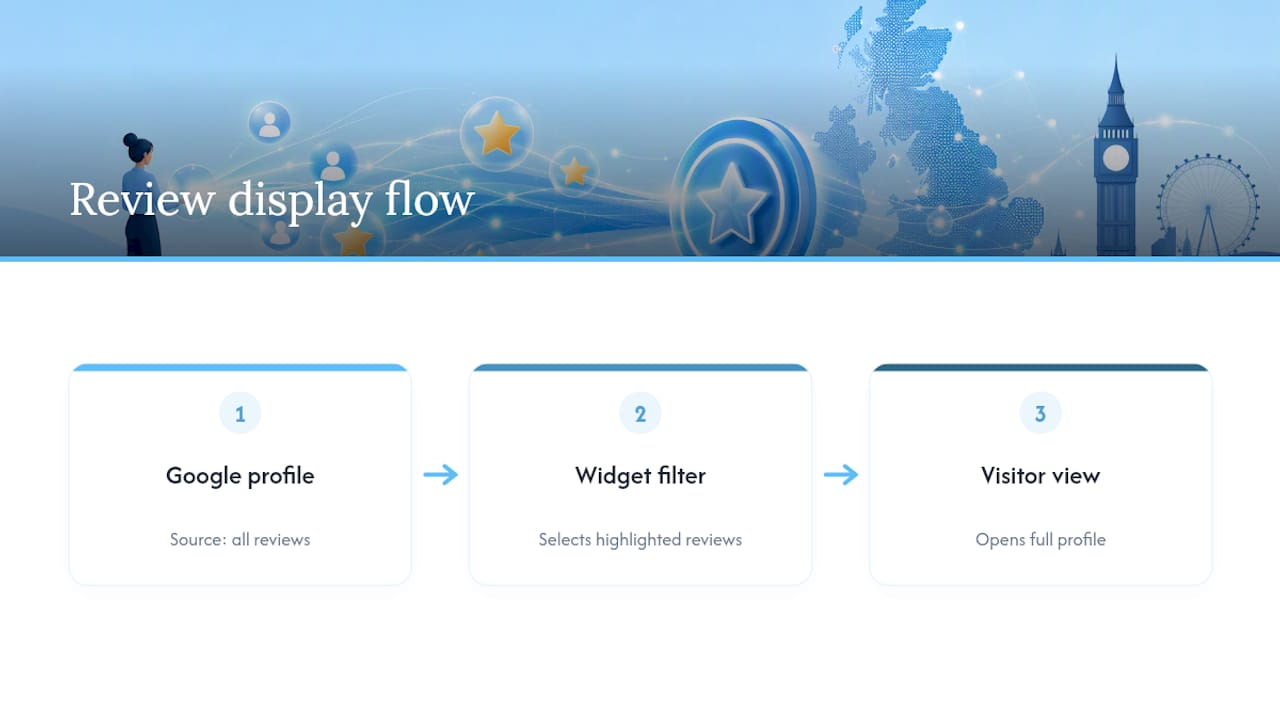
The better strategy is responding to the negative review on Google itself, professionally and specifically, then letting your widget’s filtering settings handle emphasis rather than trying to bury the problem. A calm, well-written response to a one-star review often does more for a hesitant visitor’s trust than a suspiciously spotless five-star average ever could. If a review crosses into genuinely false or abusive territory rather than an unhappy customer, Google does have a formal process for requesting removal, and that’s the correct channel rather than editing your widget to quietly hide it.
Does embedding Google reviews help your SEO?
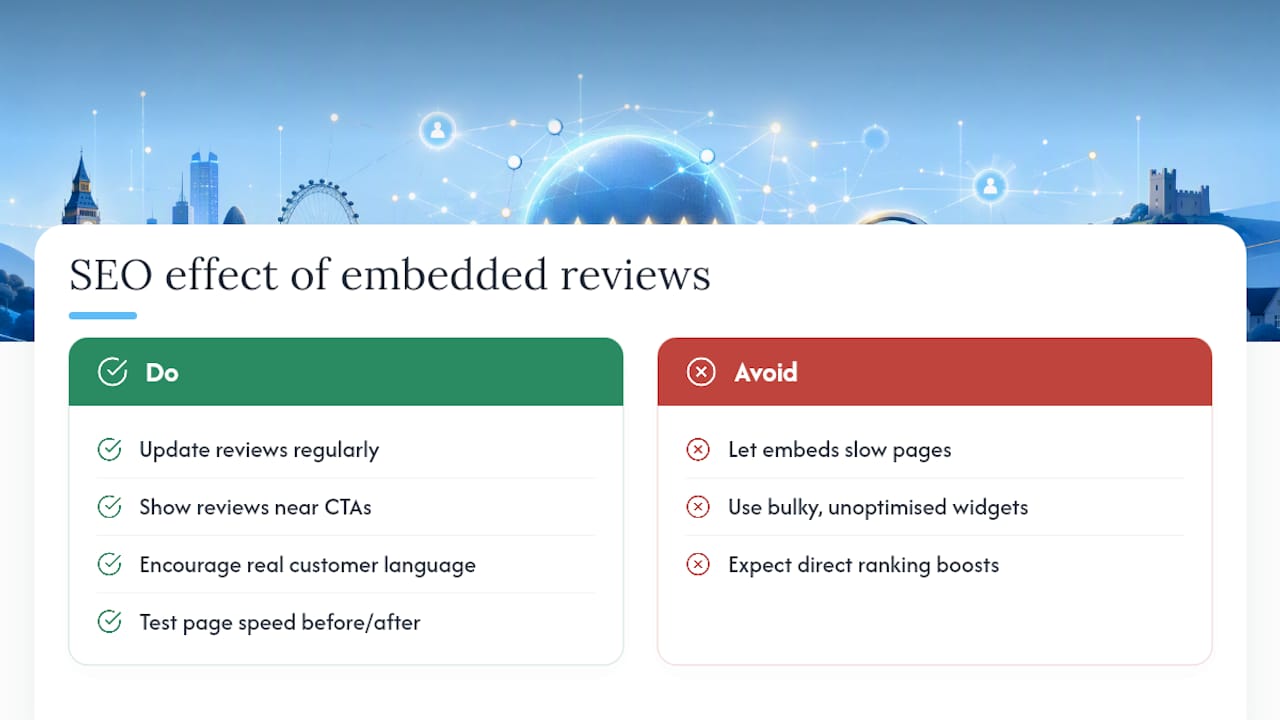
Embedded reviews don’t directly influence your Google ranking the way backlinks or page speed do, but they support the metrics that do matter indirectly. Fresh, regularly updated review content gives search crawlers a reason to revisit your page, and genuine customer language, the specific phrases people actually use to describe your service, often echoes the long-tail search terms your ideal customers type into Google in the first place.
The bigger SEO effect is behavioural. A visitor who lands on a service page and sees recent, specific, credible reviews is less likely to bounce straight back to the search results, and dwell time and engagement are signals search engines do track. Reviews placed near a call-to-action button, on a landing page built with conversion in mind, tend to lift the time visitors spend on page and their likelihood of converting, which feeds back into how search engines assess that page’s value over time.
One caution: don’t let a widget’s own script slow your page down so badly that it undoes any gain. A bulky, unoptimised third-party embed that adds a second or more to your load time can cost you more in search visibility than the reviews themselves ever earn back. Test your page speed before and after adding any widget, not just once at launch.
What legal and GDPR issues apply to embedded reviews?
A Google review contains personal data, a name and often a photo, and displaying it on your website counts as processing that data under UK GDPR, even though Google collected it originally. That doesn’t make embedding reviews unlawful. It does mean you carry a responsibility to handle that data sensibly rather than treat it as free-for-all marketing copy.
Practical steps that matter most: keep required attribution intact rather than editing it away, avoid storing more reviewer data locally than you need (a cached, sanitised copy beats a raw dump with emails or extra metadata attached), and check whether your widget provider proxies reviewer images through its own servers rather than hotlinking directly from Google, since that reduces the data trail on your own site.
If your business operates across several locations or handles review data at any real scale, the picture gets more complex than a single WordPress site with one location’s reviews. That’s the point at which a proper data-protection review, rather than a blog post, becomes the right call.
What most guides get wrong about embedding reviews
Most advice on this topic treats every method as roughly equivalent, laying out four options with no real steer on which one actually fits a small business. That’s a disservice. If you run a plumbing firm in a market town with no in-house developer, spending three days wrestling with the Places API to save on a widget subscription is a bad trade, not a badge of honour.
The five-review cap gets underplayed too. Plenty of “build your own review widget” tutorials walk through the API integration in detail and mention the limit almost as a footnote. It isn’t a footnote. If your business has genuinely earned two hundred reviews and your custom build only ever shows five, cherry-picked by Google’s own algorithm rather than by you, you’ve built something narrower than the free widget you dismissed as too basic.
Where I’d push back hardest is on attribution. Too many businesses treat the reviewer’s name and photo as an inconvenience to design around, when it’s the entire reason the review carries weight in the first place. A review with no name attached reads as marketing copy. One with a real name, a real face, and a link back to a verified Google profile reads as proof, and proof is what actually moves a hesitant visitor towards booking.
— Chris
How TTOY Digital handles Google reviews for you
There’s a real cost to doing all this yourself: the hours spent comparing widget tools, the risk of missing an attribution requirement, and the slow drift of a forgotten API connection nobody notices until reviews stop updating. TTOY Digital handles the whole thing as part of building or maintaining your website, so it’s set up correctly once and stays that way.
That includes placing reviews where they actually influence a booking decision, not just bolted onto a footer, alongside the wider reputation management and local SEO work that keeps your Google Business Profile healthy in the first place. Where lead follow-up matters too, a CRM system can tie review activity into the same system handling your WhatsApp and email enquiries, so a glowing review and a new lead don’t live in two disconnected tools.
If you’d rather have this sorted properly than spend an afternoon comparing widget plugins, take a look at TTOY Digital’s local SEO services in Chesterfield or browse the full range of web design and SEO services to see where reviews fit into a wider plan for your site.
Sources
FAQ
Can you embed Google reviews without an API key?
Yes. Most WordPress plugins and no-code widgets let you connect a Google Business Profile and display reviews without ever generating a Google API key yourself.
Why does the Google Places API only show five reviews?
Google’s own developer documentation caps the Place Details endpoint at five review objects per request, and Google’s algorithm decides which five appear rather than the site owner.
Do I need customer permission to display their Google review?
No, provided you use an approved widget or the Places API and follow Google’s attribution rules; public reviews used within Google’s terms don’t require individual consent, though repurposing a customer’s name and photo in separate marketing material is a different matter.
Can I remove a bad review from my embedded widget?
You can filter it below a star-rating threshold, but you cannot edit or delete the review text itself, since that breaches Google’s attribution and content policies.
How often do embedded Google reviews update?
Free widget tiers typically refresh weekly, while paid tiers often sync daily; a well-built implementation also caches the response server-side to balance freshness with page speed.